

Last updated: October 20, 2026. Shopify limits are linked to Shopify’s documentation. Disclosure: Webiots develops Ultimate Product Options, the app used in the setup steps.
Quick answer: Shopify allows 3 options and up to 2,048 variants per product, but every variant is a separate SKU to manage, and many themes and apps don’t support more than 100. Keep only stock-tracked choices like size as variants, and move made-to-order choices like finishes, engraving and add-ons into virtual options saved as line item properties.
Key takeaways:
- Variants are for stock; virtual options are for customization.
- Fewer variants mean fewer SKUs and less variant data on the page.
- Test page speed and orders before and after the change.
In this guide
- What are virtual options?
- The hidden cost of too many variants
- Native variants vs virtual options
- When to use each
- How to set it up
- Page speed tips
- The bottom line
- FAQ
What Are Virtual Options on Shopify?
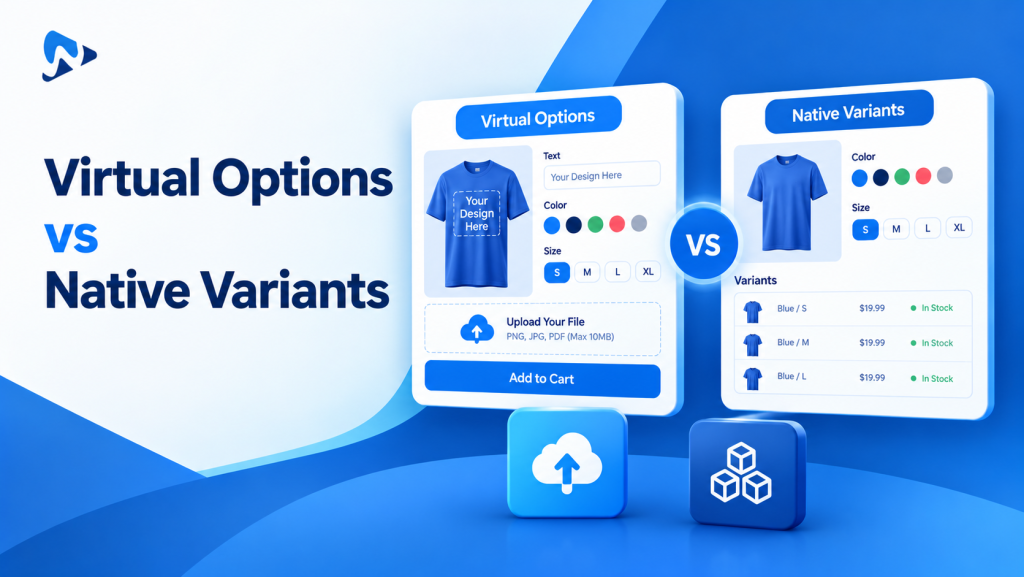
Virtual options are product choices captured on the product page and saved to the order as line item properties, without creating new Shopify variants. A native variant is a real version of a product with its own price, SKU and stock. A virtual option records what the customer chose, such as “Finish: Brushed Brass” or “Engraving: J.M.”, and can add a price, but it doesn’t create a new SKU.
Shopify allows each product up to 3 options and 2,048 variants (Shopify Help Center). That sounds like plenty, but turning every customization into a variant creates problems long before you reach the limit.
What Is the Hidden Cost of Too Many Variants?
Every variant is a separate record to price, stock, photograph and fulfil, so variant counts multiply fast. Take a desk sold in 8 colors, 6 sizes and 4 finishes: that’s 8 × 6 × 4 = 192 variants from just 3 options.
1. SKU Inflation
If size is your real stock but color and finish are applied to order, 192 variants means tracking 192 SKUs for what is really 6 physical items. Your inventory, warehouse system and reports all fill up with combinations that don’t exist on a shelf.
2. Compatibility Limits Above 100 Variants
Shopify notes that some themes, apps and sales channels may not support more than 100 variants per product (Shopify Help Center). A product that works in your admin can still break in a variant picker, a feed or an older app.
3. Heavier Product Pages
Many themes load data for every variant into the product page so the picker can update prices and images. More variants means more data for the browser to download and process, which can slow pages on mobile. The effect depends on your theme, so measure it rather than assume it.
4. Catalog Fragmentation
The other workaround, splitting one product into several listings such as “Oak Desk” and “Walnut Desk”, spreads reviews and links across pages and makes shoppers click around to compare.
Native Variants vs Virtual Options
| Native Shopify variants | Virtual options (app) | |
|---|---|---|
| Limit | 3 options, 2,048 variants per product | No Shopify option limit |
| Own SKU and stock | Yes | No by default (some apps add inventory features) |
| Text, file uploads, date pickers | No | Yes |
| Extra price for a choice | Set per variant | Add-on price per choice |
| Show or hide by earlier choices | No | Yes, with conditional logic |
| Desk example (8 × 6 × 4) | 192 variants and SKUs | 6 size variants + color and finish as options |
When Should You Use Variants vs Virtual Options?
Use a variant when you need to count stock for a choice. Use a virtual option when you only need to know what the customer picked.
| Keep as native variants | Move to virtual options |
|---|---|
| Pre-made sizes on a shelf (S, M, L, XL) | Made-to-order finishes, dyes and colorways |
| Base models or frames you stock | Engraving, monograms and custom text |
| Colors you buy in and stock separately | Customer artwork and file uploads |
| Anything with its own barcode | Gift wrap, add-on services and upgrades |
For a step-by-step example of splitting choices this way, see how to add more than 3 options to a Shopify product.
How to Set Up Virtual Options With Ultimate Product Options
Trim your variants down to stock-tracked choices, then rebuild the rest as an option set. Webiots develops Ultimate Product Options; here is the workflow. Make changes on a test product first.
- Install Ultimate Product Options and turn on its app embed in the theme editor.
- List your current variants and mark which choices need stock (usually size or base model) and which don’t (finishes, engraving, add-ons).
- Create an option set with the non-stock choices: image swatches for finishes, a dropdown for hardware, a text field for engraving.
- Add prices to paid choices, such as +$45 for a brass cable port. Add-on pricing is on the free plan.
- Add conditional logic (Basic plan and above), for example showing a grommet color only when “Add cable port” is ticked.
- Assign the set to the product, then remove the matching variant option from the product so only stock choices stay as variants.
- Place a test order and check that the base variant’s stock goes down and every option appears on the order line with the right price.
Before deleting variants on a live product, export your products as a backup and check any reports, feeds or apps that rely on the old variant SKUs. If you need stock tracking on options too, the app’s Premium plan includes inventory management. For charging extra for these choices, see how to charge extra for product options.
Move customizations out of your variants
Swatches, text fields, file uploads, add-on prices and conditional logic as virtual options, with no code. Free plan available.
Page Speed Tips for Products With Many Options
- Measure first: run the product page through Google PageSpeed Insights before and after you reduce variants, so you see the real effect on your theme.
- Compress swatch images: keep swatch thumbnails small and use WebP where your theme supports it.
- Use one product gallery: show finishes with swatch images instead of separate image sets for every variant.
- Remove unused apps: each app that loads on the product page adds code, so uninstall anything you no longer use.
- Keep forms short on mobile: use conditional logic so shoppers only see the options that apply.
The Bottom Line
Shopify’s 2,048-variant limit is rarely the real problem; turning every customization into a variant is. Keep variants for the choices you actually stock, move made-to-order choices into virtual options, and measure page speed and order data before and after the change.
Want to try it on one product? Install Ultimate Product Options free or learn more about the app.
Frequently Asked Questions
What is Shopify’s variant limit?
Each Shopify product can have up to 3 options and up to 2,048 variants. Shopify notes that some themes, apps and sales channels may not support more than 100 variants.
Do virtual options count toward the variant limit?
No. Virtual options are saved as line item properties on the order, not as variants, so they don’t add to your variant count.
How is inventory tracked if a choice isn’t a variant?
Stock is tracked on the native variants you keep, such as sizes. Choices made to order, like engraving or finishes, don’t need their own stock. Some options apps add inventory features if you need them.
Can virtual options have their own prices?
Yes. Product options apps can add a price to any choice, such as +$8 for engraving. Check how your app shows the charge in the cart and on orders.
Are virtual options allowed by Shopify?
Yes. Line item properties are a standard Shopify feature for capturing custom information on a cart line, and options apps build on them.
Related Reading
- How to Add More Than 3 Options to a Shopify Product
- Solving the “Variant Tax”: Managing 1,000+ Combinations Without SKU Clutter
- How to Charge Extra for Product Options on Shopify
- Clean 3PL & ERP Order Sync: Structuring Line-Item Properties
Update Log
October 20, 2026: Updated for Shopify’s current limits (3 options, 2,048 variants), removed unsourced speed figures, and added a quick answer, setup checklist and FAQ.