

Last updated: October 22, 2026. Disclosure: Webiots develops Ultimate Product Options, the app used in the setup steps.
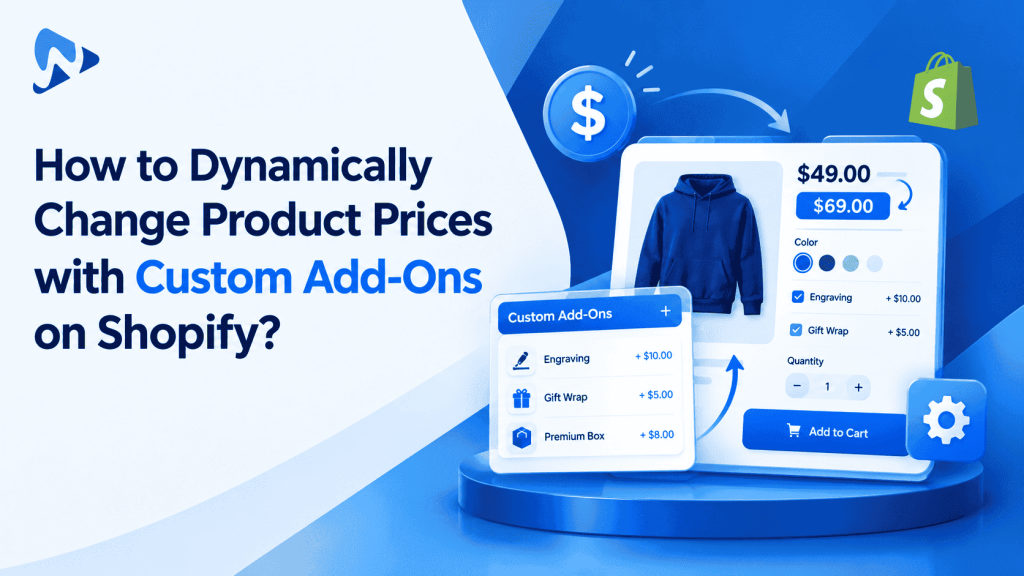
Quick answer: You can dynamically change product prices based on custom add-ons across the product page, cart, and checkout by using a product options app that connects option inputs to Shopify’s cart pricing architecture. While native Shopify discounts only reduce cart totals, options apps apply positive price surcharges directly to the item subtotal. This ensures custom fees persist cleanly through checkout without requiring manual variant generation or custom Shopify Plus scripts.
Key takeaways:
- Native Shopify script discounts only reduce prices; positive price increases require variants, linked items, or app modifiers.
- Dynamic options update prices on the storefront product page, cart drawer, and hosted checkout simultaneously.
- Standard Shopify plans can run dynamic add-on pricing without requiring a Shopify Plus subscription.
In this guide:
- Why does native Shopify make dynamic price increases difficult?
- Do you need Shopify Plus to change prices dynamically at checkout?
- How do different custom add-on pricing methods compare?
- Should your custom add-on be a separate product or attached to the parent item?
- How do you set up dynamic add-on pricing across PDP, cart, and checkout?
- The Bottom Line
- Frequently Asked Questions
- Related Reading
- Update Log
- Sources
Why does native Shopify make dynamic price increases difficult?
Shopify’s native discount tools only allow price reductions, making positive price surcharges impossible without variants or apps. As merchants frequently discuss on the Shopify Community forums, built-in discount functions and standard promotions are strictly designed to subtract value from line items or order subtotals. If a merchant wants to add an extra fee for gift packaging, laser engraving, or premium leather upgrades, Shopify provides no native button to increase a line item’s price on the fly.
Shopify products support up to 3 option names and up to 2,048 variants per product. While you can build separate native variants for every price level, doing so for optional services multiplies catalog records rapidly. If you offer 4 base sizes, 3 material finishes, and 3 optional paid add-ons, building native variants creates duplicate SKUs for services that have no physical warehouse inventory.
Tip: Never create physical variants for purely service-based options like custom engraving or rush dispatch. Capture the choices via line item properties and adjust pricing using dedicated option modifiers.
Do you need Shopify Plus to change prices dynamically at checkout?
No, you do not need Shopify Plus to charge dynamic add-on prices that carry through to checkout. While Shopify Plus merchants have access to custom checkout UI extensions and Shopify Functions for enterprise cart logic, standard Shopify plans (Basic, Shopify, and Advanced) can achieve seamless add-on pricing across the PDP, cart, and checkout using a product options app.
Modern apps integrate with Shopify’s cart architecture by either adjusting line item pricing modifiers or pairing linked add-on line items directly to the parent product. Because the calculation is committed before or during the cart submission, the final price carries through the secure, hosted Shopify checkout without custom checkout code.
How do different custom add-on pricing methods compare?
Choosing how to price your add-ons depends on your store’s plan tier, catalog size, and inventory needs. Below is an architectural comparison of the most common approaches used on Shopify stores.
| Pricing Strategy | PDP & Cart Sync | Shopify Plan Needed | Catalog Impact |
|---|---|---|---|
| Native Variant Matrix | Updates native price box | All plans | High database and SKU bloat |
| Custom Shopify Functions | Calculates at checkout | Shopify Plus required | Requires custom developer builds |
| Ultimate Product Options App | Instant PDP subtotal & checkout sync | All plans (Free to Premium) | Clean catalog, zero dummy SKUs |
Should your custom add-on be a separate product or attached to the parent item?
Physical add-ons with separate inventory should be linked products, while on-demand custom services should attach as line item properties. If you sell an optional physical accessory—such as a leather care balm or replacement strap—linking to an actual product allows Shopify to track its stock independently.
Conversely, if the add-on is a service or custom modification—such as custom laser engraving or embroidery—it should attach directly to the parent line item using Shopify line item properties. This keeps both the base item and the customization unified as a single consolidated order line in fulfillment software.
How do you set up dynamic add-on pricing across PDP, cart, and checkout?
You can configure dynamic option pricing by defining price modifiers inside an options app and enabling real-time storefront recalculation. Using an Online Store 2.0 app embed ensures that prices update without modifying your theme’s Liquid files.
- Install Ultimate Product Options from the Shopify App Store.
- Open your Shopify Admin and navigate to Online Store > Themes > Customize. In the App embeds menu on the left side, switch the Ultimate Product Options embed to On, then click save.
- Go to Apps > Ultimate Product Options and click Create Option Set.
- Assign your option set to the products or collections that require paid upgrades.
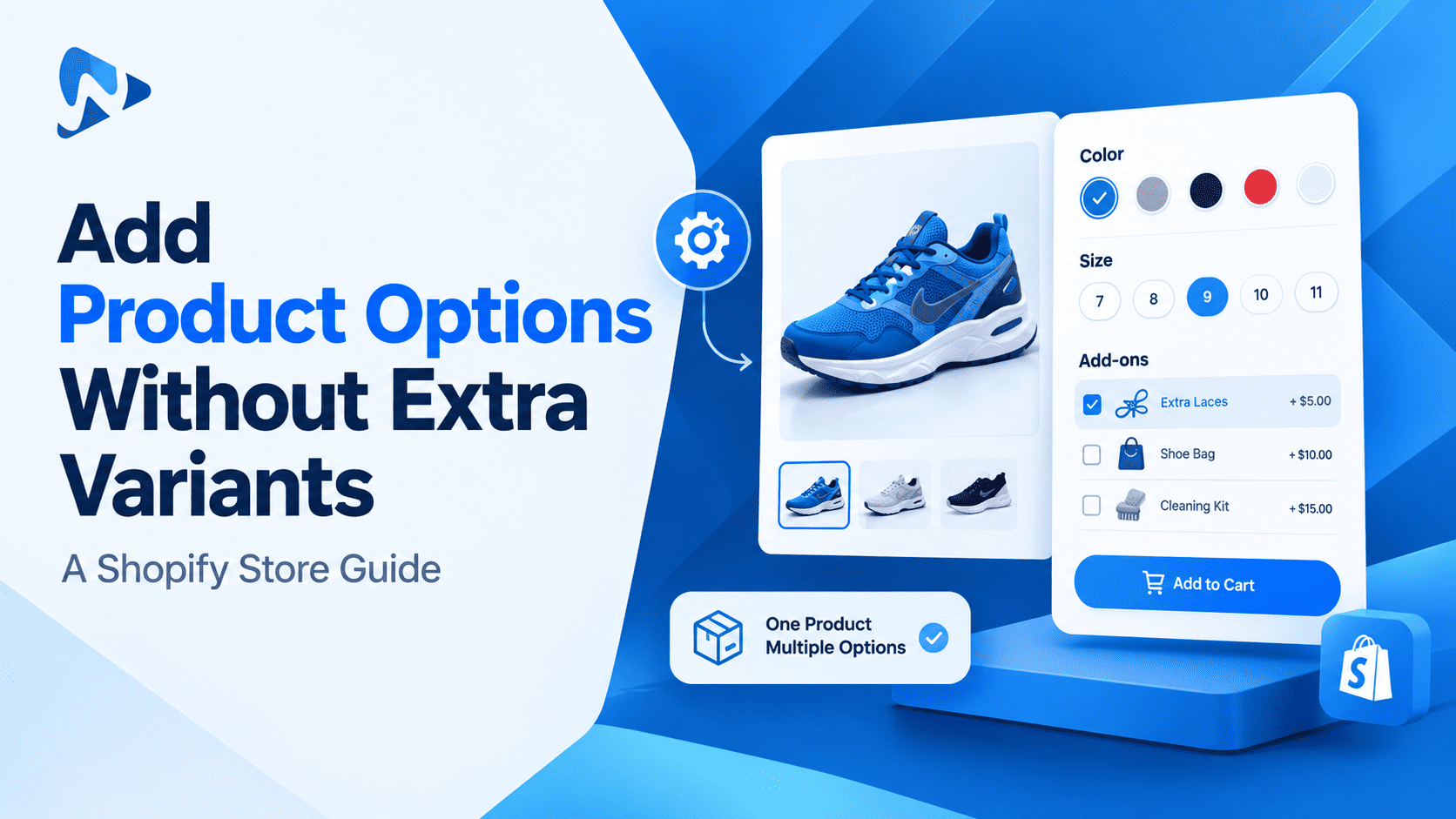
- Click Add Option and choose your input type, such as checkboxes for optional services or visual color swatches for premium materials.
- Under the option values, set your price adjustments by adding a fixed surcharge or percentage fee. (Illustrative example: Adding a $15.00 surcharge to a $75.00 base bag creates a $90.00 total order price.)
- In the general settings of the app, ensure that Dynamic PDP Price Update is active so the main price display updates as choices are checked.
- Publish your option set.
- Open your storefront, select the options on the product page, check your cart drawer, and proceed to the checkout screen to verify that the price matches across all three steps.
Enable Dynamic Add-On Pricing on Your Store
Add paid checkboxes, swatches, and custom fields that update prices across your PDP, cart, and checkout. Free plan available.
The Bottom Line
Dynamically updating product prices based on custom add-ons does not require an enterprise Shopify Plus subscription or complex theme code modifications. By using Ultimate Product Options to manage line item properties and price modifiers, you can charge for customizations transparently while keeping your inventory database uncluttered and your customer checkout experience smooth.
Want to try it on your own products? Install Ultimate Product Options free or learn more about the app.
Frequently Asked Questions
Can Shopify natively increase prices using discount codes or automatic discounts?
No, Shopify’s native discount engine is engineered solely to reduce order prices or apply percentage discounts. Positive price increases must be handled using native variants, linked products, or third-party product option apps.
Do I need Shopify Plus to change prices dynamically on the checkout page?
No, you do not need Shopify Plus for standard product option price modifiers. Dedicated apps pass the recalculated prices and custom properties into the checkout directly through Shopify’s standard cart flow.
Will the updated price display in my customer’s cart drawer?
Yes, modern product options apps update the live subtotal on the product page and ensure the cart drawer reflects the complete price. Custom specifications appear directly beneath the item title in the cart.
Can I set add-on prices as a percentage instead of a flat dollar amount?
Yes, you can configure price modifiers as fixed fee surcharges or as dynamic percentages of the base product price. The app automatically calculates the correct surcharge based on the base variant price.
Can conditional logic hide or show specific paid add-ons?
Yes, conditional logic allows you to display paid options only when specific parent selections are made. This feature is available on the Basic plan ($7.99/month) and above.
Related Reading
- How to Add Product Options Without Creating Additional Variants
- How to Use Conditional Logic in Shopify Product Options
- The Add-On Revenue Engine: Boosting AOV with Checkbox Surcharges
Update Log
October 22, 2026: Published technical guide on dynamically changing product prices with custom add-ons across Shopify PDP, cart, and checkout.