

Last updated: November 20, 2026. Shopify settings come from the Shopify Help Center, and app plans from the Shopify App Store, checked on November 20, 2026. Disclosure: Webiots builds Ultimate Product Options, which is used in the setup steps.
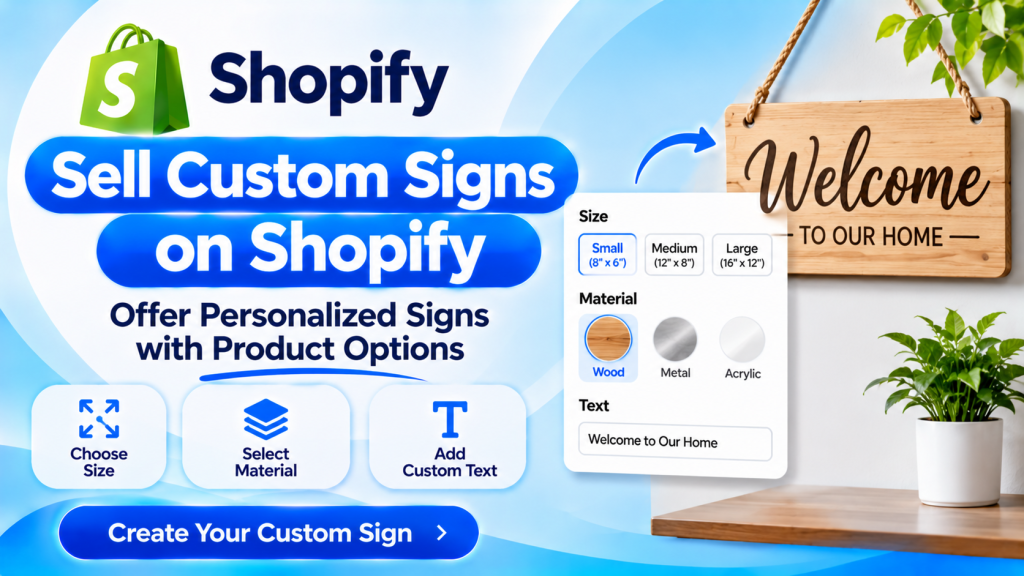
Quick answer: To sell custom signs on Shopify, create one product per sign type and add personalization options to it: a text field for the wording, a size dropdown, material and color swatches, a logo upload and paid extras such as mounting or a backlight. Shopify variants alone allow only 3 options and no text or file fields, so use a product options app. Ultimate Product Options covers text, dropdowns, swatches and add-on prices on its free plan, with file uploads and conditional logic from $7.99 a month. Then price each size and material so every order keeps your margin, send a proof before production and set a separate shipping profile for large signs.
Key takeaways:
- One product per sign type, with options instead of hundreds of variants.
- Price by size first, then add material and extras.
- Limit characters so the text always fits the sign.
- Send a proof before you make anything.
- Use a separate shipping profile for large or heavy signs.
In this guide
- Types of custom signs and what each needs
- The options every sign product needs
- Why Shopify variants are not enough
- How to price custom signs
- Step-by-step setup
- Product page tips that sell signs
- Proofs and production
- Shipping large and fragile signs
- Options app or sign designer app?
- Common mistakes
- FAQ
What Types of Custom Signs Can You Sell on Shopify?
Most custom sign stores sell a few sign types, and each type needs a slightly different set of options. Plan your options per type before you build anything.
| Sign type | Who buys it | Options it needs | What drives the price |
|---|---|---|---|
| Name and family signs | Homeowners, gift buyers | Text, font, size, wood or acrylic, color | Size, material |
| Business and logo signs | Shops, offices, cafes | Logo upload, text, size, material, mounting | Size, material, installation extras |
| Neon and LED signs | Bedrooms, events, cafes | Text, font, light color, size, backboard, plug type | Length of text, size, dimmer |
| Wedding and event signs | Couples, planners | Names, date, wording, size, stand or easel | Size, stand, rush order |
| House number and address signs | Homeowners | Number, street name, material, outdoor finish, fixings | Material, weatherproofing |
Which Options Does a Custom Sign Product Need?
A custom sign usually needs 6 to 8 choices on one product page. Here is each one, the field type to use and how it affects the price.
| Option | Field type | Price effect | Tip |
|---|---|---|---|
| Sign text | Text field (one line) or text area | Usually included | Set a character limit for each size |
| Size | Dropdown or buttons | Biggest price driver | Show inches and centimeters |
| Material | Image swatches | Add-on price per material | Use a close-up photo of each material |
| Font | Image swatches or dropdown | Included | Show each font with sample text |
| Color | Color swatches | Included, or extra for metallic | Note that screens show colors slightly differently |
| Logo or artwork | File upload | Often a setup fee | Ask for PNG, SVG or PDF |
| Extras | Checkboxes | Add-on price each | Mounting kit, backlight, stand, gift wrap |
| Notes | Text area (optional) | Included | For layout requests, such as text on two lines |
Why Aren’t Shopify Variants Enough for Custom Signs?
Shopify variants handle fixed choices such as size, but a custom sign needs free text, file uploads and extras that change the price. Shopify allows up to 3 options per product, and variants can’t collect text or files. A sign with 3 sizes, 4 materials and 6 colors would already need 72 variants, before any font or extra.
A product options app adds those choices on top of the product without creating variants, stores the shopper’s text, file and choices on the order, and adds the extra cost to the price. See how to add more than 3 options to a Shopify product.
How Should You Price Custom Signs?
Set a base price for the smallest size in your cheapest material, then add a fixed amount for each bigger size, each better material and each extra. This keeps pricing easy to understand and easy to set up as add-on prices.
Illustrative example with assumed prices. A wooden name sign starts at $29 for the 12 x 8 inch size.
| Choice | Add-on price |
|---|---|
| Small, 12 x 8 in, wood (base) | $29 |
| Medium, 24 x 16 in | +$20 |
| Large, 36 x 24 in | +$45 |
| Acrylic instead of wood | +$15 |
| Metal instead of wood | +$25 |
| LED backlight (acrylic only) | +$40 |
| Logo setup | +$10 |
| Large acrylic sign with backlight | $29 + $45 + $15 + $40 = $129 |
Before you publish, check the most expensive combination as well as the cheapest. Work out your material, labor, packaging and payment fees for each size, and make sure every add-on covers its own cost. If you sell made-to-measure signs priced by area, see pricing by square footage.
How Do You Set Up a Custom Sign Product on Shopify? Step by Step
These steps use Ultimate Product Options. Text fields, dropdowns, swatches and add-on prices are on its free plan; file uploads and conditional logic are on the Basic plan.
- Create the product. In Shopify admin, go to Products and add the sign with the base price for the smallest size and cheapest material. Don’t create size or material variants.
- Install the app and create an option set named after the sign type, such as Name Sign Options.
- Add the text field. Label it Your sign text, make it required and set a character limit. For a small sign, 20 characters is a safe start. See how to add a custom text field.
- Add the size option as a dropdown with an add-on price for each bigger size.
- Add material and color swatches with a photo of each material and an add-on price where the material costs more.
- Add the font choice as image swatches showing sample text. See how to add a font picker.
- Add a logo upload for business signs and list the file types you accept. See how to let customers upload a file.
- Add extras as checkboxes, such as a mounting kit, stand or gift wrap, each with its own price.
- Use conditional logic so options only appear when they make sense, for example the backlight only when Acrylic is chosen. See how conditional logic works.
- Assign the option set to every product of that sign type, then place a test order and check that the text, file and price appear on the order.
Live preview: shoppers buy with more confidence when they see their own words on the sign. Ultimate Product Options shows the shopper’s text live on the product image on its Advanced plan ($12.99 a month). See how live text previews work.
What Makes a Custom Sign Product Page Sell?
- Show the sign on a wall. A photo with a sofa, door or shop counter shows the real size better than a size chart.
- Add a size guide with each size in inches and centimeters, and how many characters fit.
- Show every material up close, so shoppers see wood grain, acrylic shine or brushed metal.
- State the production time near the Add to cart button. See how to show production time.
- Explain the proof step, such as We email you a proof within 24 hours before we make your sign.
- Add photo reviews from real customers showing signs in their homes or businesses.
How Do You Handle Proofs and Production?
Send a digital proof before production, and only start making the sign once the customer approves it. A proof catches spelling mistakes, wrong dates and logos that don’t print well, which are the most common reasons for remakes.
- Check the order: the text, size, material and file appear on the order and packing slip. See how to show options on order emails and packing slips.
- Create the proof and email it with a clear deadline, such as Reply within 48 hours to keep your delivery date.
- Record the approval in the order notes, then move the order to production.
- If the customer changes the text after approval, decide in your policy whether that’s free or a paid remake. See handling personalization changes after ordering.
Before the holidays, publish a last order date for personalized signs. See holiday order cutoffs for personalized products.
How Do You Ship Large and Fragile Signs?
- Create a separate shipping profile for large signs, so they get their own rates instead of your standard small-parcel rate. Shopify lets you set rates for specific products with shipping profiles.
- Set the real weight and package size on each product, because carriers charge large boxes by size as well as weight.
- Protect corners and faces with corner guards and protective film, especially on acrylic and neon signs.
- Add insurance or signature on delivery for expensive signs.
- Show delivery time as production plus shipping, so customers aren’t surprised.
Should You Use a Product Options App or a Sign Designer App?
A product options app suits most sign stores; a full sign designer app suits stores where the shopper designs the layout themselves. Sign designer apps such as Sign Customiser and All Sign Customizer give shoppers a design canvas with shapes, clipart and layers, and can create print files. They are more complex and usually cost more.
| Product options app | Sign designer app | |
|---|---|---|
| Shopper experience | Type text, pick size, material and extras | Design the sign on a canvas |
| Best for | Name, house, wedding and logo signs with a set layout | Neon builders and fully custom layouts |
| Setup time | Under an hour per sign type | Longer: templates, layers and fonts |
| Other products | Works for every product in the store | Built mainly for signs |
Many stores start with a product options app, send proofs by email, and add a designer later only if shoppers ask to design their own layout.
Common Custom Sign Mistakes
- No character limit. Long text won’t fit a small sign, and you find out after the order.
- Too many variants. Hundreds of variants slow down your admin and still can’t collect text.
- Prices that don’t cover big signs. Large signs cost more to make and ship, not just more material.
- No proof step. One spelling mistake means a full remake.
- Low-quality logo files. Ask for SVG, PDF or high-resolution PNG, and say so next to the upload field.
- One shipping rate for every size. Large signs can cost more to ship than the profit on the order.
Frequently Asked Questions
Can you sell custom signs on Shopify?
Yes. Create a product for each sign type and add personalization options such as text, size, material and a logo upload with a product options app.
How do I let customers type their own text on a sign?
Add a required text field with a character limit using a product options app. The text is saved on the order so you can make the sign exactly as typed.
How do I charge more for bigger signs?
Set the base price for the smallest size, then give each bigger size an add-on price in a size dropdown. The product price updates when the shopper picks a size.
Can customers upload a logo for a business sign?
Yes, with a file upload option. Ultimate Product Options includes file uploads up to 20 MB on its Basic plan.
Can customers see a preview of their sign?
Yes. A live text preview shows the shopper’s words on the product image as they type. Ultimate Product Options has this on its Advanced plan, and sign designer apps show a full design canvas.
How do I avoid mistakes on custom sign orders?
Use character limits and required fields, send a proof before production and record the customer’s approval on the order.
Related Reading
- How to Sell Custom T-Shirts on Shopify
- How to Add a Custom Text Field to a Shopify Product Page
- How to Charge Extra for Product Options on Shopify
- How to Make Product Options Required on Shopify
Update Log
November 20, 2026: First published with sign types, an options table, a pricing example, setup steps, proof and shipping guidance, and common mistakes.