

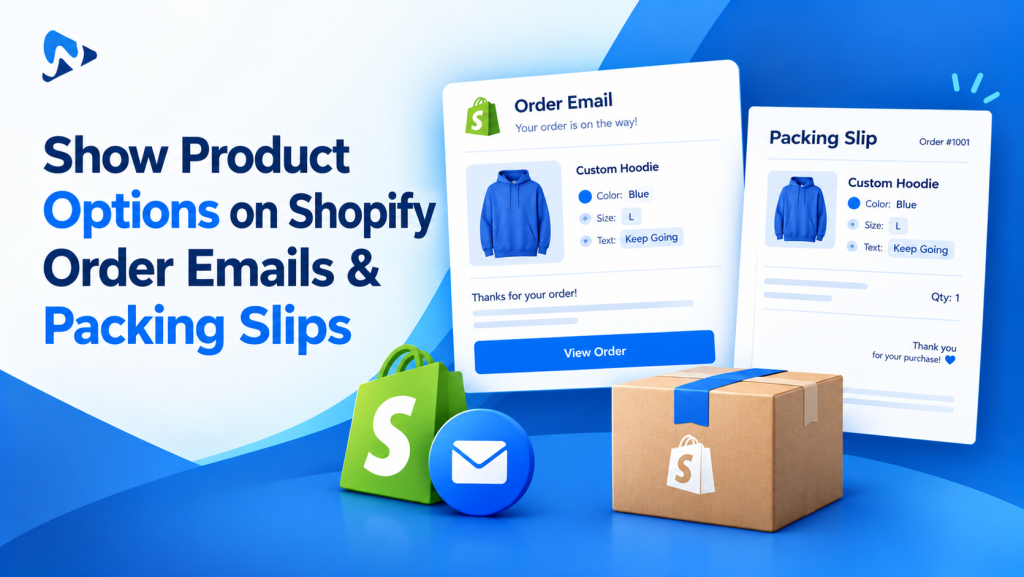
Quick answer: Product options are saved on each order line as line item properties, but Shopify’s default email and packing slip templates don’t always print them. Add a short Liquid loop to the Order confirmation template (Settings > Notifications) and to the packing slip template (Settings > Shipping and delivery). The code below skips hidden properties that start with an underscore.
Key takeaways:
- Place a test order first to see what’s missing.
- Copy each template before you edit it.
- Update staff and shipping emails, not just the customer one.
In this guide
- Why product options don’t show
- Which documents need them
- Add product options to order emails
- Add product options to packing slips
- Test checklist
- Common problems
- The bottom line
- FAQ
Why Don’t Product Options Show on Shopify Emails and Packing Slips?
Because each template has to print line item properties itself, and Shopify’s defaults don’t always do it. When a customer picks a gift message, engraving text or a file upload, it’s saved on the order line as a line item property. Shopify’s notification variables include these asline.properties (Shopify Help Center).
The data is on the order, but a template only shows it if it loops through those properties. In May 2026, a Shopify community representative confirmed that the default notification and receipt templates “don’t consistently surface them” (Shopify developer community). So the fix is to add the loop yourself.
If options are missing from the cart or the order admin too, the problem is earlier in the journey. See how to fix product options not showing in the cart first.
Which Shopify Documents Need to Show Product Options?
Any document a customer or your team reads to check or pack the order.| Document | Who reads it | Where to edit it |
|---|---|---|
| Order confirmation email | Customer | Settings > Notifications |
| Shipping confirmation email | Customer | Settings > Notifications |
| New order email | Your team | Settings > Notifications (staff notifications) |
| Packing slip | Packing team | Settings > Shipping and delivery > Packing slip template |
| Invoices and slips from Shopify Order Printer | Team or customer | The Shopify Order Printer app’s templates |
How Do You Add Product Options to the Order Confirmation Email?
Paste a properties loop under the product title in the Order confirmation template, then send yourself a test.- In Shopify admin, go to Settings > Notifications, open Customer notifications and click Order confirmation.
- Click Edit code. Select all the code and copy it into a text file as a backup.
- Search the code (Ctrl + F) for the product title inside the line items loop. In most templates this is
line_titleorline.title. - Paste the code below on the next line after the title’s closing tag. It must stay inside the line items loop, before that loop’s
{% endfor %}, or it won’t know which item to read. - Click Save, then Preview or place a test order with product options.
{% for property in line.properties %}
  {% assign property_first_char = property.first | slice: 0 %}
  {% if property.last != blank and property_first_char != '_' %}
    {% assign value = property.last | strip %}
    {% assign value_start = value | slice: 0, 4 %}
    <p style="margin:4px 0 0; font-size:14px; color:#555555;">
      {{ property.first | escape }}:
      {% if value_start == 'http' %}
        <a href="{{ value | escape }}">{{ value | split: '/' | last | split: '?' | first | escape }}</a>
      {% else %}
        {{ value | escape }}
      {% endif %}
    </p>
  {% endif %}
{% endfor %}line_item, change line.properties to match.
What the code does: it lists every option as “Name: value”, skips empty values, hides internal properties whose names start with an underscore, and turns any value starting with “http” (such as an uploaded file) into a link showing just the file name. The escape filter stops symbols like < or & in a customer’s text from breaking the email layout.
How Do You Add Product Options to the Packing Slip?
Edit the packing slip template under Shipping and delivery and add the same loop below the product title.- Go to Settings > Shipping and delivery. In the Documents section, click Packing slip template (Shopify Help Center).
- Copy all the code into a text file as a backup.
- Search for
{{ line_item.title }}and find the closing</span>after it. - Paste the code below right after that closing tag (still inside the line items loop), then click Save.
- Open a test order and print its packing slip to check.
{%- for property in line_item.properties -%}
  {%- assign property_first_char = property.first | slice: 0 -%}
  {%- if property.last != blank and property_first_char != '_' -%}
    {%- assign value = property.last | strip -%}
    {%- assign value_start = value | slice: 0, 4 -%}
    <span class="line-item-description-line">
      {{ property.first | escape }}:
      {%- if value_start == 'http' -%}
        {{ value | split: '/' | last | split: '?' | first | escape }}
      {%- else -%}
        {{ value | escape }}
      {%- endif -%}
    </span>
  {%- endif -%}
{%- endfor -%}Using Ultimate Product Options? You don’t need to write this code yourself. Open Packing Slip in the app’s menu (available on all plans, including Free), copy the ready-made snippet, and paste it into Shopify’s packing slip template or the Order Printer app’s template (app guide).
Product options that reach every order
Text fields, file uploads, swatches and add-on prices, saved to each order line. Free plan available.
How Do You Test That Product Options Show Everywhere?
Place one test order with options and check every document against the order page.- Order 3 products: A with a text option (for example engraving), B with a file upload, and C with no options.
- Open the order confirmation email: A should show its text, B a link with the file name, and C nothing extra.
- Click B’s file link and check it opens the right file.
- Check the staff New order email.
- Print the packing slip and check the options are readable.
- Fulfil the order and check the shipping confirmation email.
- Confirm nothing starting with an underscore appears anywhere.
What Are Common Problems When Showing Product Options?
- Options still missing: the code was pasted outside the line items loop. Move it directly under the product title.
- Odd codes appear, like “_id”: these are internal properties. Keep the underscore check in the code.
- A long file link: the code shows only the file name. For more on uploads, see customer file uploads on Shopify.
- Your warehouse app doesn’t show options: each tool maps them differently. See structuring line item properties for 3PL and ERP sync.
The Bottom Line
If product options are on the order but not in your emails or packing slips, the templates just aren’t printing them. Back up each template, add the properties loop under the product title, and test with a real order. It takes about 15 minutes and stops your team from packing orders without the customer’s details. Need product options that save cleanly to every order? Install Ultimate Product Options free or learn more about the app.Frequently Asked Questions
Why are product options missing from my Shopify order confirmation email?
Because the template doesn’t print line item properties. The options are saved on the order, but the email template needs a loop throughline.properties to display them.
Can I show product options on Shopify packing slips?
Yes. Edit the packing slip template under Settings > Shipping and delivery and add a loop throughline_item.properties below the product title.
Will editing the template break my emails?
Not if you keep a backup. Copy the full code before editing, and preview or send a test after saving. The packing slip template also has a Revert to default button.How do I hide some properties from customers?
Start the property name with an underscore, such as_internal_id. Shopify hides these at checkout, and the code in this guide skips them in emails and packing slips too.
Do I need to edit every notification?
Only the ones people use to check orders. Most stores update the order confirmation, shipping confirmation, staff New order email and packing slip.Related Reading
- Shopify Product Options Not Showing in Cart, Checkout or Orders
- How to Add a Gift Wrap Option on Shopify
- How to Add a Custom Text Field to a Shopify Product Page
- Clean 3PL & ERP Order Sync: Structuring Line Item Properties
Update Log
October 24, 2026: First published. Shopify details and app plan details checked against the sources below.Sources
- Shopify Help Center: Notification variables reference
- Shopify Help Center: Printing and editing packing slips
- Shopify Dev Docs: line_item properties
- Shopify developer community: Line item properties in order confirmation emails
- Ultimate Product Options docs: Display product options on packing slips
- Ultimate Product Options docs: Email templates
- Ultimate Product Options on the Shopify App Store