

Last updated: October 30, 2026. Disclosure: Webiots develops Ultimate Product Options, the app used in the setup steps. Shopify details are linked to Shopify’s own documentation.
Quick answer: Not directly. Shopify saves personalization, such as engraving text or a chosen font, on the order as line item properties, and the order editing screen can’t change them. Customers can’t edit them either after checkout without an extra app. The practical fixes are to catch mistakes before checkout, record any change in the order note before production, or cancel and reorder.
Key takeaways:
- Prevent errors on the product page and in the cart.
- Publish a clear change window, such as 2 hours.
- Record every approved change where production will see it.
In this guide
- Can personalization be changed after ordering?
- What you can and can’t edit on an order
- How to handle a change request
- How to prevent personalization mistakes
- Setup with Ultimate Product Options
- A sample change policy
- The bottom line
- FAQ
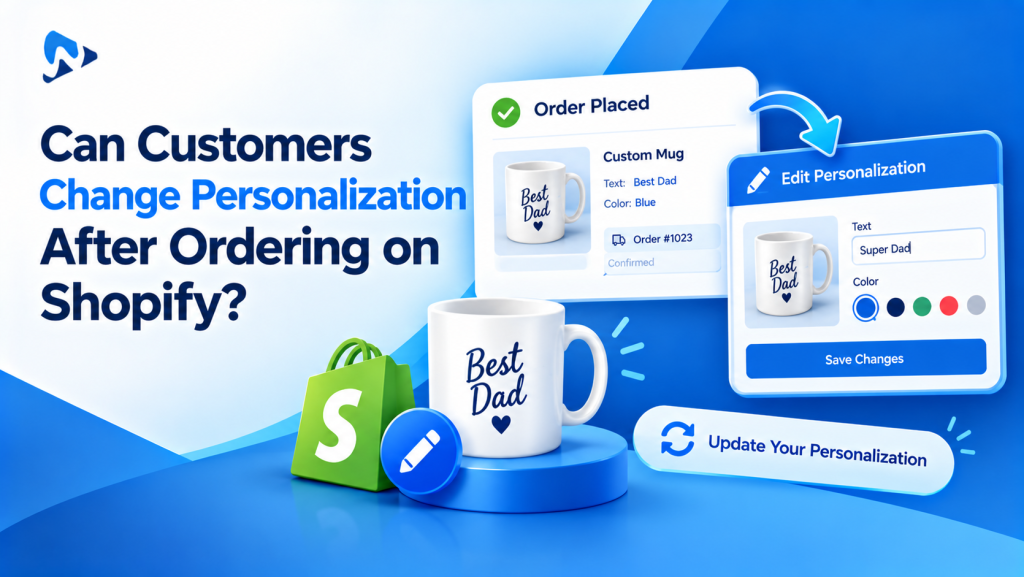
Can Customers Change Their Personalization After Ordering on Shopify?
Not by themselves, and you can’t edit the personalization fields directly either. When a shopper types a name, picks a font or uploads a photo, a product options app saves those choices on the order line as line item properties (Shopify Dev Docs). Once the order is placed, Shopify’s order editing screen lets you add or remove items, change quantities, update shipping and apply manual discounts, but it doesn’t let you change those properties (Shopify Help Center). Merchants on the Shopify Community confirm that app-based options are locked after checkout (Shopify Community, November 2025).
That matters most in November and December, when a misspelled name or the wrong font can turn a gift into a remake, a refund and a late delivery.
What Can You Edit on a Shopify Order After Checkout?
Items, quantities, shipping fees and manual discounts on unfulfilled orders, but not the personalization saved on each item.
| Change requested | Can you edit it in Shopify admin? | What to do instead |
|---|---|---|
| Engraving text, font or message | No | Record the new details in the order note before production |
| Uploaded photo or file | No | Ask for the new file by email and note it on the order |
| Size or color (a Shopify variant) | Yes, while unfulfilled: remove the item and add the right variant | Re-add the personalization in the order note, because the new item won’t have it |
| Quantity | Yes, while unfulfilled | Check the total and send an invoice or refund |
| Any change after fulfillment | No, orders with fulfilled items can’t be edited | Treat it as a remake or a new order |
Some orders can’t be edited at all, including orders paid with Shop Pay Installments, local delivery orders and imported orders (Shopify Help Center).
How Do You Handle a Personalization Change Request?
Confirm the change in writing, record it on the order, and make sure production sees it before anything is made.
- Check the status first. If the item is already engraved, printed or shipped, explain your remake policy instead.
- Get the new details in writing, by email or your help desk, so you have a record of exactly what the customer asked for.
- Add the change to the order note, such as “CHANGED: engraving text is now ‘Emma 2026’, confirmed by email Nov 28”.
- Tag the order, for example “personalization-changed”, so your team can filter these orders.
- Make sure the note reaches production. Check that your packing slip or production sheet shows order notes, and tell your 3PL or fulfillment tool about the change, because it may only read the original properties.
- For big changes, cancel and reorder. If the price or several options change, refund the order and ask the customer to place a new one, so every detail is saved correctly.
Want customers to edit orders themselves? Shopify doesn’t offer that natively, but there are order editing apps on the Shopify App Store. Before you install one, check its listing says it supports line item properties from your product options app.
How Do You Prevent Personalization Mistakes Before Checkout?
Make the fields clear, required and easy to check, and let shoppers fix mistakes in the cart.
- Put limits in the label, such as “Engraving text (up to 12 characters, letters and numbers only)”.
- Make key fields required, so no order arrives with an empty name. See how to make product options required.
- Show font samples, not just names. See how to add a font picker.
- Add a confirmation checkbox, such as “I’ve checked the spelling. Personalized items can’t be changed once made.”
- Let shoppers edit options in the cart, so they can fix a typo without removing the item and starting again.
How Do You Set This Up With Ultimate Product Options?
Add clear text fields, a confirmation checkbox and inline cart editing. Webiots develops Ultimate Product Options; plan details are from its App Store listing.
- Install Ultimate Product Options and open the option set for your personalized products.
- Edit your text field labels to include the character limit and any rules, such as “Engraving text (up to 12 characters)”. See how to add a custom text field.
- Add a checkbox labelled “I’ve checked my spelling and details”, and make it required.
- Turn on inline cart editing (Basic plan, $7.99/month) so shoppers can change their options in the cart before checkout.
- Place a test order, then edit the options in the cart and check the order shows the corrected details.
Let shoppers fix typos before they check out
Inline cart editing and conditional logic start on the Basic plan, with a 14-day free trial. Free plan available.
What Should a Personalization Change Policy Say?
Say how long customers have to request changes, how to ask, and what happens after production starts. Illustrative example; adjust to your workflow:
| When the request arrives | What you offer |
|---|---|
| Within 2 hours of ordering | Free change by email reply |
| Before production starts | Change if possible, no guarantee |
| After the item is made | A remake at a discounted price, or no change |
| Mistake made by your team | Free remake |
Show a short version on the product page, in the order confirmation email and on your FAQ page, so customers know where they stand before they buy.
The Bottom Line
Shopify locks personalization once an order is placed, so the best fix is preventing mistakes: clear labels, required fields, a spelling check and cart editing. When a change request does arrive, confirm it in writing, record it in the order note and make sure production sees it. Publish a simple change policy so customers know the rules before they buy.
Want shoppers to catch typos before checkout? Install Ultimate Product Options free or learn more about the app.
Frequently Asked Questions
Can I edit line item properties on a Shopify order?
Not in the Shopify admin. The order editing screen can add or remove items and change quantities, but it can’t change line item properties such as engraving text. Record the change in the order note instead.
Can a customer change their engraving after ordering?
Not by themselves on a standard Shopify store. They need to contact you, and you record the change on the order before production, or cancel the order so they can reorder.
Can customers edit personalization in the cart?
Yes, if your product options app supports cart editing. Ultimate Product Options includes inline cart editing on its Basic plan.
What if the item has already been made?
Follow your published policy. Many stores offer a discounted remake for customer errors and a free remake for their own mistakes.
How do I stop customers ordering with typos?
Put the character limit in the field label, make key fields required, show font samples, and add a required “I’ve checked my spelling” checkbox before Add to cart.
Related Reading
- How to Make Product Options Required on Shopify
- How to Add a Custom Text Field to a Shopify Product Page
- How to Show Product Options on Order Emails and Packing Slips
- Holiday Order Cutoff for Personalized Products on Shopify
- BFCM 2026 Checklist for Custom Product Stores
Update Log
October 30, 2026: First published.