

Last updated: October 30, 2026. Disclosure: Webiots develops Ultimate Product Options, the app used in the setup steps. Shopify details are linked to Shopify’s own documentation.
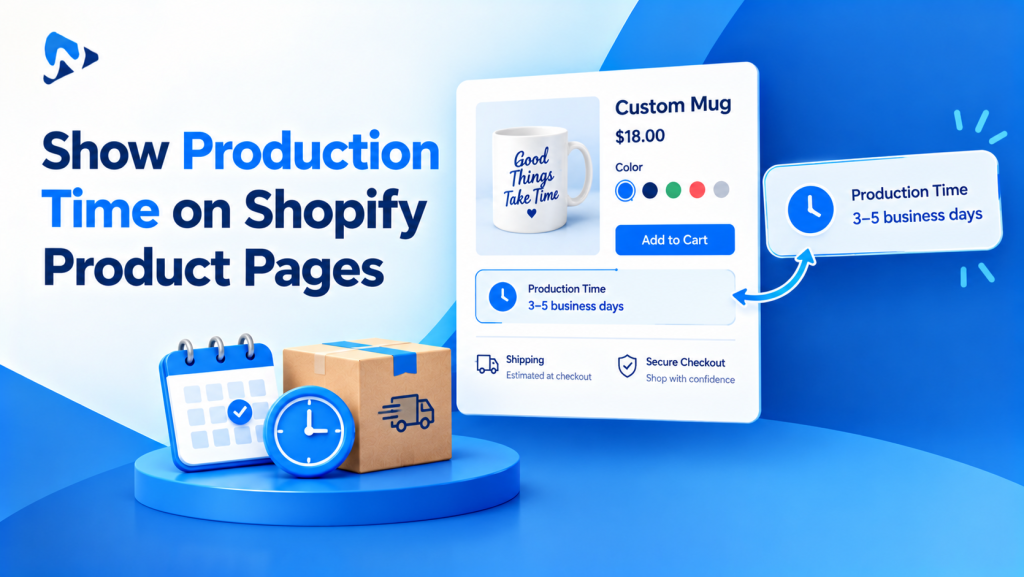
Quick answer: Shopify has no built-in setting that shows production time next to Add to cart. Its fulfillment time setting feeds estimated delivery dates at checkout, not the product page. To show production time where shoppers decide, add it to the product description, connect a product metafield to your theme, or put it in your product option labels with an app. Always say “ships in” or “made in” business days, and keep the same wording in the cart and emails.
Key takeaways:
- Show production time next to Add to cart, not only in FAQs.
- Separate “made in” time from “delivery” time.
- Give slower options their own time and a rush choice.
In this guide
- Does Shopify have a production time setting?
- 3 ways to show production time
- Method 1: the product description
- Method 2: a production time metafield
- Method 3: production time in product options
- How to word the message
- The bottom line
- FAQ
Does Shopify Have a Production Time Setting?
Only for checkout delivery dates, not for product pages. In Settings > Shipping and delivery > Estimated delivery dates, you can set a fulfillment time: the time between an order being placed and handing it to the carrier. Shopify adds it to the carrier’s transit time and shows a delivery date estimate at checkout (Shopify Help Center). You can set up to 40 business days or 8 weeks, which suits made-to-order stores (Shopify Changelog).
It has limits for personalized products:
- It shows at checkout, after the shopper has already decided to buy, not on the product page.
- It doesn’t cover options. A hand-painted finish or a rush choice can’t change it. Shopify’s overview mentions processing times for different products and locations (Shopify Help Center), so check what your admin offers.
- It needs supported shipping rates. Delivery dates don’t work with shipping rates from third-party apps, for example.
Set it anyway if your rates qualify, then show production time on the product page too.
What Are the Ways to Show Production Time on Shopify Product Pages?
A line in the product description, a product metafield shown by your theme, or production times inside your product options.
| Method | Best for | Watch out |
|---|---|---|
| 1. Product description line | A few products, any theme | Easy to miss below the fold, and you update every product by hand |
| 2. Product metafield | Many products with different times, Online Store 2.0 themes | One time per product, not per option |
| 3. Product options app | Options that change the time, such as hand-painting or rush | Keep the labels short on mobile |
Many stores combine methods 2 and 3: a base time near Add to cart, and extra time shown on slower options.
How Do You Add Production Time to the Product Description?
Add one short line near the top of the description. This is the simplest method if you sell only a few made-to-order products.
- In Shopify admin, go to Products and open the product.
- Add a line at the start of the description, such as “Made to order: ships in 3 to 5 business days”.
- Add delivery time separately, such as “Then 2 to 5 days in transit in the U.S.”
- Save, and check the line is visible without scrolling on mobile.
You’ll need to update each product by hand when times change, which is why larger stores use a metafield.
How Do You Show Production Time With a Metafield?
Create a “Production time” product metafield, fill it in on each product, and connect it to a text block in your theme. This works in themes that support dynamic sources, such as Shopify’s free Online Store 2.0 themes (Shopify Help Center).
- Create the definition: go to Settings > Custom data > Products, click Add definition, name it “Production time” and choose Single line text.
- Fill it in on each product, such as “Made to order: ships in 3 to 5 business days”.
- Open the theme editor: Online Store > Themes > Customize, then switch to your product template.
- Add a Text block in the product information section, just above the Add to cart button.
- Connect the dynamic source: click the connect dynamic source icon in the block’s text setting and choose your “Production time” metafield.
- Save and check two products with different times on mobile.
How Do You Add Production Time to Product Options?
Put the extra time in the option labels, offer a paid rush option, and use rules so the right message appears. Webiots develops Ultimate Product Options; plan details are from its App Store listing.
- Install Ultimate Product Options and open the option set for your made-to-order products.
- Add the time to slower choices, such as “Hand-painted finish (adds 4 business days)”, so shoppers see it before they pick.
- Add a “Rush production” checkbox with an add-on price, such as +$15, if your team can fast-track orders. Add-on pricing is on the free plan. Rush production speeds up making the item, not shipping, so only promise a time your team can meet, and show any faster shipping charge separately. See how to charge extra for product options.
- Use conditional logic (Basic plan and above) to show the rush checkbox only when a slower option is chosen, or to hide choices you can’t make in time.
- Place a test order and check the chosen options and rush fee appear on the order and packing slip, so production sees them.
Show production time and rush options on your product page
Add-on pricing is on the free plan. Conditional logic starts on the Basic plan, with a 14-day free trial.
How Should You Word a Production Time Message?
Use business days, say whether it’s making time or delivery time, and give a range you can meet.
| Vague | Clear |
|---|---|
| “Ships soon” | “Made to order: ships in 3 to 5 business days” |
| “Arrives in a week” | “Made in 3 to 5 business days, then 2 to 5 days in transit” |
| “Rush available” | “Rush (+$15): ships in 1 business day” |
| “Order early for the holidays” | “Order by Dec 10 for Christmas delivery in the U.S.” |
Keep it consistent: use the same production time on the product page, in the cart, in your order confirmation email and on your shipping policy page. If they disagree, shoppers will trust the shortest one. In December, pair it with a clear holiday order cutoff.
The Bottom Line
Shopify’s fulfillment time only shows delivery estimates at checkout, so add production time to the product page yourself. Use a metafield for a base time per product, option labels for slower choices, and a paid rush option if your team can deliver it. Word it in business days, keep it the same everywhere, and pair it with a holiday cutoff in December.
Want production times and rush options on your product pages? Install Ultimate Product Options free or learn more about the app.
Frequently Asked Questions
Can Shopify show production time on product pages?
Not with a built-in setting. Add it to the product description, connect a product metafield to a text block in your theme, or show it in your product option labels with an app.
What is fulfillment time in Shopify?
It’s the time between an order being placed and you handing it to the carrier. Shopify adds it to the carrier’s transit time to show estimated delivery dates at checkout.
What is the longest fulfillment time Shopify allows?
Up to 40 business days or 8 weeks for the fulfillment time used in checkout delivery estimates. That’s separate from the production time message you show on product pages.
Can different products have different production times?
On the product page, yes: use a product metafield or option labels. For checkout delivery estimates, check your Shipping and delivery settings, because the options depend on your store’s setup.
Should I show production time or delivery time?
Show both, clearly labelled. Production time is how long you take to make the item; delivery time adds the carrier’s transit time.
Related Reading
- Holiday Order Cutoff for Personalized Products on Shopify
- Can Customers Change Personalization After Ordering on Shopify?
- How to Add a Delivery Date Picker to Shopify Product Pages
- How to Charge Extra for Product Options on Shopify
Update Log
October 30, 2026: First published.
Sources
- Shopify Help Center: Setting up delivery dates
- Shopify Changelog: Longer options for order processing time (July 2023)
- Shopify Help Center: Overview of order fulfillment and shipping features
- Shopify Help Center: Displaying metafields on your online store
- Ultimate Product Options on the Shopify App Store