

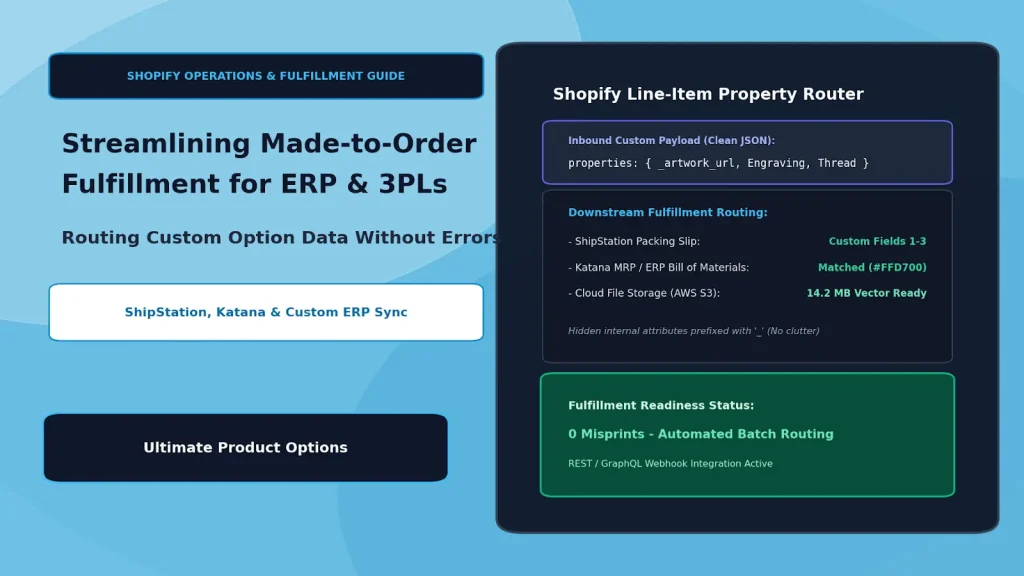
Streamlining Made-to-Order Fulfillment: Routing Custom Option Data to ERP & 3PLs
Offering made-to-order, personalized, or custom-configured products on Shopify drives healthy gross margins and elevates brand loyalty. But for growing merchants and mid-market operations teams, custom orders often bring a painful operational side effect: the fulfillment bottleneck.
When a customer orders a custom-engraved sign, an embroidered duffle bag, or custom-cut fabric, that customization data must move accurately from the customer’s browser to your shop floor, warehouse, 3PL, or manufacturing ERP.
When product customizer apps dump unformatted, unstructured option data into order notes, automated workflows break down. Warehouse staff are forced to open individual orders, manually copy-paste engraving text, hunt down uploaded artwork links, and re-enter color codes into manufacturing systems like Katana Cloud Manufacturing, ShipStation, or custom enterprise ERPs.
The result is misprints, delayed shipping times, ballooning labor overhead, and angry customers.
To scale custom manufacturing smoothly, operations managers need a structured data architecture. By properly formatting Shopify line-item properties and custom attributes, you can automate the entire downstream pipeline—routing artwork links, engraving notes, and swatch choices directly to your fulfillment endpoints without human intervention.
Table of Contents
- Why Custom Product Data Breaks Downstream Fulfillment
- The Clean Data Pipeline: From Storefront to Shop Floor
- Best Practices for Structuring Line-Item Properties for ERPs
- Step-by-Step Setup: Configuring ERP-Ready Options with Ultimate Product Options
- Mapping Custom Attributes to ShipStation & Katana ERP
- Frequently Asked Questions (FAQs)
Why Custom Product Data Breaks Downstream Fulfillment
Standard off-the-shelf items fulfill predictably: Shopify passes a SKU, a quantity, and a shipping address to your warehouse management system (WMS). Made-to-order items, however, require multi-variable customization payloads that introduce common failure points:
- Unstructured Property Keys: Apps that output keys like
Option 1: BlackandOption 2: Arialforce warehouse teams to guess what each value means rather than receiving semantic keys likeFabric_ColorandFont_Style. - Inaccessible Artwork URLs: File upload fields that store customer artwork behind authenticated sessions prevent external 3PL systems from downloading vector files automatically.
- Packing Slip Overflow: Cluttered, unhidden internal calculation fields (such as base price formulas or raw hex codes) print out on customer-facing packing slips, confusing both the picker and the customer.
- Character Encoding Corruptions: Special characters in personalization inputs (like quotes, accents, or emojis) can break downstream CSV exports and older ERP database schemas.
The Clean Data Pipeline: From Storefront to Shop Floor
┌─────────────────────────────────────────────────────────────┐
│                    Customer Product Page                    │
│   • Text: "Harrison & Co."   • Font: Serif   • Logo: SVG    │
└──────────────────────────────┬──────────────────────────────┘
                               │
                               ▼
┌─────────────────────────────────────────────────────────────┐
│             Shopify Line-Item Properties (Payload)          │
│   {                                                         │
│     "Engraving_Text": "Harrison & Co.",                     │
│     "Font_Family": "Garamond-Bold",                         │
│     "Thread_Color": "Pantone-116C",                         │
│     "_artwork_cdn_url": "https://cdn.store.com/u/1042.svg"  │
│   }                                                         │
└──────────────────────────────┬──────────────────────────────┘
                               │
              ┌────────────────┴────────────────┐
              ▼                                 ▼
┌───────────────────────────────┐ ┌───────────────────────────┐
│     ShipStation / WMS         │ │    Katana ERP / WMS       │
│  • Custom Field 1: Engraving  │ │  • Dynamic Bill of        │
│  • Custom Field 2: Font       │ │    Materials (BOM) Match  │
│  • Packing Slip Render        │ │  • Automated Routing      │
└───────────────────────────────┘ └───────────────────────────┘
When customized product options are serialized cleanly into Shopify line-item properties, every downstream integration—from webhooks to automated packing slip templates—can parse the data instantly.
Best Practices for Structuring Line-Item Properties for ERPs
Operations managers should apply four architectural rules when configuring option sets:
| Architectural Rule | How It Works | Fulfillment Benefit |
|---|---|---|
| Semantic Key Naming | Name keys explicitly (e.g., Monogram_Initials instead of Text_1). |
Eliminates ambiguity on shop floor work orders. |
The Underscore Prefix (_) |
In Shopify, prefixing any property key with an underscore (e.g., _vector_url) hides it from the customer checkout summary while retaining it in API payloads. |
Keeps order summaries tidy while preserving technical routing data for 3PLs. |
| Direct CDN File Anchoring | Artwork uploads must generate permanent, non-expiring direct download URLs. | Enables 3PL bots or automated print queues to pull raw vectors without session logins. |
| Standardized Value Modifiers | Map human-readable swatches directly to internal manufacturing codes (e.g., Navy Blue → SKU-THRD-NVY). |
Automates Bill of Materials (BOM) allocation inside ERPs without human lookup. |
Step-by-Step Setup: Configuring ERP-Ready Options with Ultimate Product Options
Setting up structured, fulfillment-friendly option routing on Shopify requires no manual coding when using Ultimate Product Options.
Step 1: Install Ultimate Product Options
Install Ultimate Product Options from the Shopify App Store and enable the app embed in your Online Store 2.0 theme customizer.
Step 2: Establish Standardized Option Keys
- In your Shopify admin, open Apps > Ultimate Product Options.
- Click Create Option Set or edit your existing template.
- For each option field, customize the Internal Attribute / Property Name:
- Label:
Enter Custom Monogram→ Property Key:Monogram_Text. - Label:
Select Font Choice→ Property Key:Production_Font. - Label:
Stitch Color→ Property Key:Thread_Code.
- Label:
Step 3: Configure Direct Vector & Image Uploads
- Add a File Upload option field.
- Set the Property Key to
_production_artwork_url. - Restrict allowed extensions to print-ready vector formats (
.ai, .eps, .svg, .pdf) and adjust capacity limits up to 100MB. - The app attaches a direct, secure cloud storage link to the order payload, accessible by 3PL APIs and production staff in a single click.
Mapping Custom Attributes to ShipStation & Katana ERP
Routing to ShipStation
- ShipStation pulls native Shopify line-item properties into its Custom Field 1, 2, and 3 slots or directly into the Item Notes section.
- In ShipStation, navigate to Settings > Templates > Packing Slips and insert
[Item Options]or map specific keys (e.g.,[Item Property: Monogram_Text]) directly beside the product barcode.
Routing to Katana Cloud Manufacturing / ERP
- Katana monitors the Shopify
orders/createwebhook. - Because your option keys match internal manufacturing attributes, Katana automatically generates a Manufacturing Order (MO) with the exact Bill of Materials (BOM) components required (e.g., matching
Thread_Code: Pantone-116Cdirectly to raw yarn inventory).
Step 5: Test the End-to-End Order Flow
- Submit a test order on your storefront using custom text, a font choice, and an attached test file.
- View the order in the Shopify Admin to verify line-item properties are cleanly listed.
- Check your ERP / ShipStation dashboard to confirm:
- Attributes populate in the designated production fields without manual re-entry.
- Direct artwork download links open cleanly.
- Packing slips print with clear, unambiguous instructions for warehouse technicians.
Frequently Asked Questions (FAQs)
How do I hide internal SKU calculation properties from customer receipts?
Prefix the property name with an underscore (e.g., _formula_rate or _internal_sku). Shopify natively hides underscore-prefixed properties from customer-facing order status pages and email receipts while preserving them in backend API payloads.
Does the app support direct file links without customer login walls?
Yes. Files uploaded via Ultimate Product Options are hosted on secure cloud CDNs with permanent direct URLs, allowing external systems like ShipStation or Zapier to retrieve files programmatically.
Will line-item properties pass through Shopify Draft Orders?
Yes. Custom line-item properties remain attached whether an order originates from storefront checkout, a wholesale invoice, or a manually generated draft order.
Conclusion
Custom product sales shouldn't create warehouse gridlock. When custom personalization options are structured cleanly as semantic line-item properties, your fulfillment pipeline runs smoothly from storefront checkout to automated packing slip generation.
With Ultimate Product Options, operations teams gain complete control over field naming, secure file routing, and ERP-ready data formatting, eliminating costly misprints and scaling made-to-order manufacturing effortlessly.