

Last updated: November 24, 2026. Plan rules come from the Shopify Help Center and app prices from each app’s Shopify App Store listing, checked on November 24, 2026. Disclosure: Webiots builds Ultimate Product Options, one of the apps below.
Quick answer: A Shopify order bump is a small, one-click add-on offered just before the customer pays, such as gift wrap, shipping protection, a refill or a low-cost accessory. On any Shopify plan you can add one to the product page or the cart and cart drawer with an app. Adding it inside checkout (the information, shipping and payment steps) needs Shopify Plus. Stores on Basic, Grow or Advanced can still add offers to the thank you and order status pages, and one-click post-purchase offers after payment. Keep the bump cheap, closely related to the cart and unchecked by default, then test an order with every payment method before launch.
Key takeaways:
- Product page and cart bumps work on every plan.
- Bumps inside checkout need Shopify Plus.
- Offer one bump, priced well below the cart, related to what is already in it.
- Never pre-tick the box.
In this guide
- What is an order bump?
- Order bump vs upsell vs cross-sell vs post-purchase
- Where you can add an order bump on each Shopify plan
- Which placement should you choose?
- How to add an order bump to the product page
- How to add an order bump to the cart or cart drawer
- How to add an order bump inside checkout (Shopify Plus)
- Options after payment for non-Plus stores
- Order bump ideas by store type
- How to price an order bump
- Order bump apps compared
- Best practices and mistakes
- FAQ
What Is an Order Bump on Shopify?
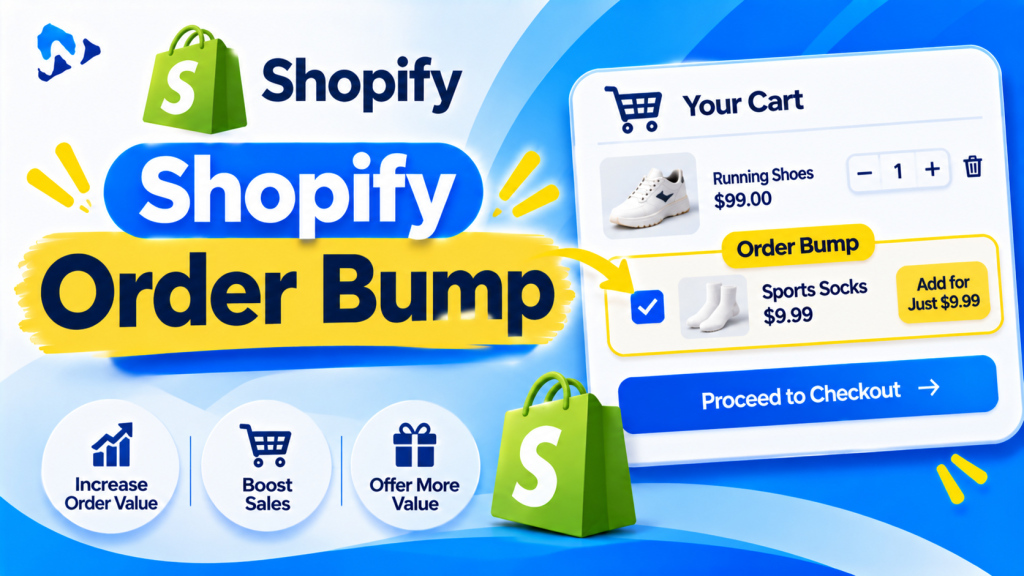
An order bump is a single, low-cost add-on the shopper can add with one click just before paying, without leaving the page. It is usually a checkbox or a small product card with an Add button, such as "Add gift wrap for $4" or "Add a spare refill for $6". Because it is small and related to what is already in the cart, it raises average order value (AOV) without asking the shopper to rethink the purchase.
Order Bump vs Upsell vs Cross-Sell vs Post-Purchase Offer
| Offer | What it offers | When it shows | Example |
|---|---|---|---|
| Order bump | A small extra, added with one click | Product page, cart or checkout, before payment | Gift wrap, shipping protection, refill |
| Upsell | A bigger or better version | Usually on the product page or cart | The 64 GB model instead of 32 GB |
| Cross-sell | A related product, often several to choose from | Product page, cart | Frequently bought together |
| Post-purchase offer | A one-click extra after payment | Between payment and the thank you page | 20% off a second item |
Where Can You Add an Order Bump on Each Shopify Plan?
Shopify’s Help Center says apps that customize the information, shipping and payment pages of checkout are available only to Shopify Plus. Apps for the thank you, order status and post-purchase pages are available on Basic and higher. The product page and cart are part of your theme, so apps can add bumps there on any plan.
| Placement | Basic, Grow, Advanced | Shopify Plus | Added to the same order? |
|---|---|---|---|
| Product page | Yes | Yes | Yes |
| Cart page or cart drawer | Yes | Yes | Yes |
| Checkout: information, shipping, payment | No | Yes | Yes |
| Post-purchase page | Yes | Yes | Yes, charged after payment |
| Thank you and order status pages | Yes | Yes | Usually a new order, depending on the app |
Which Order Bump Placement Should You Choose?
| Your situation | Start with |
|---|---|
| The extra is a service on the product: gift wrap, engraving, rush processing, warranty | Product page checkbox |
| The extra is another product: refill, accessory, sample | Cart drawer bump |
| Shipping protection on every order | Cart drawer, or checkout on Plus |
| You are on Shopify Plus and most traffic skips the cart | Checkout order bump |
| You don’t want anything to slow down checkout | Post-purchase offer |
How to Add an Order Bump to the Product Page
A product page bump is a checkbox under the Add to cart button, such as "Add gift wrap (+$4)". It suits extras that belong to the item itself.
Option A: A product options app with add-on prices
These steps use Ultimate Product Options (our app). Checkboxes and add-on prices are on its free plan, and showing a field only when another option is picked (conditional logic) is on the Basic plan ($7.99 a month).
- Install the app and create an option set for the products that should show the bump.
- Add a checkbox, such as Add gift wrap, and set its add-on price, such as $4.
- Add a short line under it that explains the value, such as "Wrapped in kraft paper with a ribbon".
- Optional: add a gift message box that shows only when the checkbox is ticked.
- Leave the checkbox unticked by default.
- Place a test order and check the add-on appears in the cart, on the order and on the packing slip.
This method adds a fee to the product, rather than a separate product, so it is best for services such as gift wrap, engraving, express processing or extended warranty. See how to charge extra for product options and how to add a gift wrap option.
Option B: Shopify’s free complementary products
The free Shopify Search & Discovery app lets you choose complementary products for each product, and many themes can show them on the product page with a Complementary products block. This is a recommendation, not a one-click checkbox, but it costs nothing. See how to create product bundles on Shopify for bundle-style offers.
How to Add an Order Bump to the Cart or Cart Drawer
A cart bump shows one related product with an Add button inside the cart or slide-out cart drawer, and it works on any plan. Most themes have no built-in cart bump, so use a cart or upsell app:
- Install a cart drawer or upsell app that supports cart add-ons.
- Create a new cart offer and pick the trigger: a product, a collection or a cart value.
- Choose the bump product, such as a refill or accessory.
- Write a short headline, such as "Add a spare charging cable", and show the image and price.
- Optional: add a small discount on the bump, such as 15% off.
- Turn the offer on for the cart drawer and cart page.
- Test on mobile and desktop, then place a test order.
You can put a shipping protection or gift option toggle in the cart in the same way. See how to add upsells and a free shipping bar to the Shopify cart drawer and gift options in the cart.
How to Add an Order Bump Inside Checkout (Shopify Plus)
On Shopify Plus, checkout apps add order bump blocks to the information, shipping or payment steps through the checkout editor. Per the Shopify Help Center:
- Install an app that offers a checkout upsell or order bump block.
- Set up the offer in the app: product, label, discount and any rules.
- In your Shopify admin, go to Settings > Checkout.
- In the Configurations section, click Edit next to your checkout configuration.
- In the checkout editor, open the Apps sidebar.
- Click the plus icon next to the app block and choose the page where it should appear.
- Adjust the block settings and click Save.
Place the block near the order summary, where shoppers check their total. Test with every payment method you accept, including express wallets.
What Can Non-Plus Stores Use Instead of a Checkout Bump?
- Post-purchase page: a one-click offer after payment and before the thank you page. Shopify allows only one app to provide post-purchase features at a time; select it in Settings > Checkout under Post-purchase page. See how to add post-purchase upsells.
- Thank you and order status pages: product offers or a discount for the next order.
- Cart drawer: the last step before checkout on non-Plus stores, so it is the closest placement to a true pre-payment bump.
Order Bump Ideas by Store Type
| Store type | Order bump ideas |
|---|---|
| Gifts and personalized products | Gift wrap, greeting card, gift message, rush production |
| Beauty and skincare | Travel-size version, refill, applicator |
| Clothing and shoes | Socks, shoe care kit, laundry bag |
| Electronics | Extended warranty, cable, case, screen protector |
| Food and coffee | Sample pack, filter papers, extra flavor |
| Jewelry | Jewelry box, cleaning cloth, engraving |
| Any store | Shipping protection, priority processing |
How Should You Price an Order Bump?
Keep the bump well below the price of the main item so it feels like an easy yes. Zipify’s order bump guide, citing Shopify’s upselling guide, suggests pricing it near a quarter of the cart value.
| Cart value | About a quarter | Example bump |
|---|---|---|
| $20 | $20 ÷ 4 = $5 | Gift wrap at $4 |
| $40 | $40 ÷ 4 = $10 | Refill at $9 |
| $80 | $80 ÷ 4 = $20 | Accessory at $18 |
To see what a bump adds: if 10% of 500 monthly orders take a $9 bump, that is 500 × 10% = 50 bumps, and 50 × $9 = $450 extra revenue a month. This is an illustrative example, not a benchmark.
Shopify Order Bump Apps Compared
Prices and ratings from each app’s Shopify App Store listing, checked on November 24, 2026. Our app is listed first.
| App | Placements | Price | Rating | Best for |
|---|---|---|---|---|
| Ultimate Product Options (our app) | Product page | Free plan with checkboxes and add-on prices; Basic $7.99/mo | See listing | Paid add-on services such as gift wrap, engraving and warranty |
| ReConvert (Upsell.com) | Product page, cart, checkout (Plus), post-purchase, thank you | Free up to 50 orders or $50 upsell revenue; $9.99 to $39.99/mo | 4.8 (3,154) | Small stores that want every placement |
| AfterSell | Checkout (Plus), post-purchase, thank you; cart and product page on Pre-Purchase | $34.99, $59.99 or $79.99/mo; 30-day trial | 4.9 (1,139) | Post-purchase and Plus checkout offers |
| Selleasy | Product page, cart drawer, checkout (Plus, Pro plan), thank you | Free (5 campaigns); $9, $29 or $59/mo | 4.9 (2,808) | A flat monthly fee |
| Zipify OCU | Product page, cart drawer, checkout (Plus), post-purchase, thank you | From $9.95/mo, based on upsell revenue | 4.6 (580) | Paying only as upsell revenue grows |
| UpCart | Cart drawer | From $29.99/mo (up to 200 orders); 14-day trial | 4.8 (959) | A full cart drawer with add-ons and shipping protection |
Tip: choose by placement first, then compare how each app bills: by orders, by upsell revenue or a flat fee.
Order Bump Best Practices and Common Mistakes
- Show one bump at a time. Several offers on one page slow shoppers down.
- Match the bump to the cart with a trigger, so a coffee buyer sees filters, not phone cases.
- Keep it one click, with no size or color to choose.
- Never pre-tick the box. EU consumer rules require express consent for extra payments, so pre-ticked add-ons aren’t allowed for EU shoppers, and missed pre-ticked items lead to refunds.
- Show the price clearly next to the checkbox or button.
- Test with every payment method, including PayPal, Shop Pay and other express wallets, after installing any checkout or cart app.
- Track the take rate (bumps added divided by orders) and try a different product or price every few weeks.
Frequently Asked Questions
What is an order bump on Shopify?
A small, one-click add-on offered just before payment, such as gift wrap, shipping protection or a refill, that raises the order value without the shopper leaving the page.
Can I add an order bump to Shopify checkout without Shopify Plus?
No. Apps on the information, shipping and payment steps of checkout are available only on Shopify Plus. On other plans, add the bump to the product page or cart, or use a post-purchase offer.
Is an order bump the same as an upsell?
No. An upsell offers a bigger or better version of the item. An order bump adds a small extra item or service alongside it.
Can I add an order bump without an app?
Partly. Shopify’s free Search & Discovery app can show complementary products on the product page, but a one-click checkbox or cart bump needs an app or custom theme code.
Should the order bump checkbox be pre-selected?
No. Leave it unticked. Pre-ticked add-ons aren’t allowed for extra payments under EU consumer rules, and they cause refund requests.
What is the best placement for an order bump?
On non-Plus stores, the cart drawer is the last step before checkout, so it is usually the best spot. On Shopify Plus, a checkout bump near the order summary reaches shoppers who skip the cart.
Can I add shipping protection as an order bump?
Yes. Many cart drawer apps offer a shipping protection toggle, and Plus stores can add one inside checkout.
Related Reading
- Shopify Cart Drawer: How to Add Upsells and a Free Shipping Bar
- Shopify Post-Purchase Upsells
- Milestone Rewards: Free Shipping and Free Gift Tiers
- Boosting AOV with Checkbox Surcharges
- Shopify Cart Abandonment: 11 Reasons and Fixes
Update Log
November 24, 2026: First published with plan rules for each placement, setup steps for the product page, cart and checkout, offer ideas, a pricing guide and 6 apps compared.
Sources
- Shopify Help Center: Checkout apps
- Shopify Help Center: Checkout customization
- Zipify: Best Shopify order bump apps
- AfterSell: Order bump Shopify guide
- Shopify App Store: ReConvert
- Shopify App Store: AfterSell
- Shopify App Store: Selleasy
- Shopify App Store: Zipify OCU
- Shopify App Store: UpCart
- Shopify App Store: Ultimate Product Options