

Last updated: November 24, 2026. App plans come from each app’s Shopify App Store listing and Shopify’s features from the Shopify Help Center, checked in November 2026. Disclosure: Webiots builds LUX, one of the apps in this guide. We have not run a formal side-by-side test of every tool; the notes below are based on each tool’s listing and documentation.
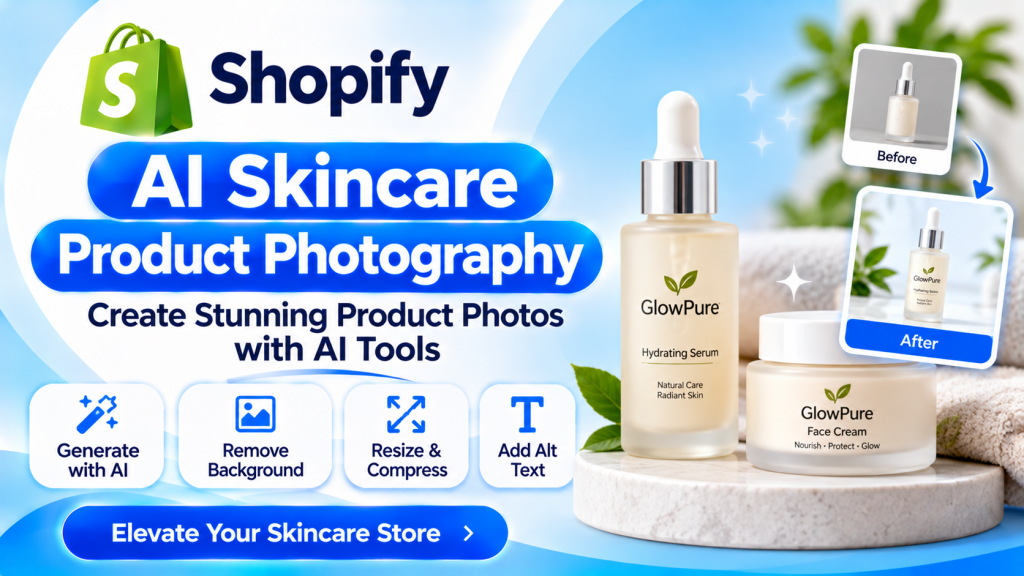
Quick answer: AI skincare product photography turns one clean photo of your bottle, jar or tube into white-background shots, spa and bathroom scenes, ingredient flat lays and texture images. It works best for changing backgrounds, lighting and props, not for inventing packaging. Start with a sharp photo in even light where the label is readable, match the scene to the formula (water and stone for hydrating products, greenery for botanical lines, clean studio surfaces for clinical brands), and check every image against the real product, because AI can bend bottles and blur small label text. For Shopify, LUX creates scenes and writes alt text in one app with a free plan; Shopify’s built-in media editor handles simple background changes for free; Modelize suits on-model swatches; and web tools such as Photoroom and Flair AI work outside Shopify.
Key takeaways:
- Always start from a real photo of your product.
- Keep labels, shades and textures true to the real product.
- Use the same light, surface and ratio across a collection.
- Never use AI to show results the product can’t deliver.
In this guide
- What AI can and can’t do for skincare photos
- The 6 shots every skincare listing needs
- 10 AI tools compared
- Which tool to choose
- How to create skincare photos with AI, step by step
- Scenes and prompts by product type
- Keeping labels, shades and claims accurate
- Shopify image settings
- Common mistakes
- FAQ
What Can AI Do for Skincare Product Photos?
| AI does well | Check carefully | Don’t use AI for |
|---|---|---|
| White and colored backgrounds | Small label text and ingredient lists | Before and after results |
| Bathroom, vanity and spa scenes | Bottle shape, pump and cap | Packaging you haven’t produced yet, shown as real |
| Props: water drops, stone, leaves, fruit | Glass reflections and transparency | A texture or color your formula doesn’t have |
| Seasonal and holiday versions | Shade and swatch colors on skin | Skin that looks smoother than the product makes it |
The 6 Shots Every Skincare Product Listing Needs
| Shot | Where to use it | AI or real photo? |
|---|---|---|
| 1. Clean front shot on white or a soft color | Main product image and collection grid | Real photo, AI background |
| 2. Label or back-of-pack shot | Shows ingredients and size | Real photo only |
| 3. Lifestyle scene: vanity, bathroom shelf, spa | Second image, ads, social | AI |
| 4. Ingredient shot: product with its key ingredients | Explains what’s inside | AI |
| 5. Texture shot: a swipe, drop or dollop | Shows consistency and finish | Real photo preferred; AI only if it matches exactly |
| 6. In-hand or in-use shot | Shows size and how it’s used | AI or real |
10 AI Tools for Skincare Product Photography, Compared
LUX, built by Webiots, is listed first. The rest are grouped by type, not ranked, because each suits a different job.
| Tool | Type | Free option | Best for in skincare |
|---|---|---|---|
| LUX AI Product Images (our app) | Shopify app | 200 credits; paid from $9.99/mo | Scenes, backgrounds, product videos, plus alt text, file names and compression in bulk |
| Shopify media editor | Built into Shopify | Free for a limited time | Quick background color changes and simple scene prompts, one image at a time |
| Modelize | Shopify app | 10 images; paid from $19/mo | On-model swatches and hands holding products |
| Pictu | Shopify app | 10 images a month; paid from $19.99/mo | Consistent catalog-wide product images |
| Prodofoto | Shopify app | 2 shoots; paid from $9.99/mo | Several angles and scenes from one photo |
| Photoroom | Web and mobile app | Free version | Clean white backgrounds and batch edits |
| Flair AI | Web app | Free version | Styled editorial scenes with props such as flowers, stone and fabric |
| Pebblely | Web app | Free version | Ready-made marble, water and botanical backgrounds |
| Claid.ai | Web app and API | Free trial credits | Large catalogs processed in bulk or by API |
| Pixelcut | Web and mobile app | Free version | Quick, low-cost edits for small brands |
For full plan details of every Shopify app, see the best AI product photography apps for Shopify.
Which AI Tool Should a Skincare Brand Choose?
| If you want | Start with |
|---|---|
| Scenes plus image SEO, inside Shopify | LUX |
| A free fix for a few images | Shopify’s media editor |
| Makeup or tinted products on different skin tones | Modelize, then check shades against real swatches |
| Luxury campaign and ad images | Flair AI for creative scenes, plus a Shopify app for the catalog |
| Hundreds of products | A bulk Shopify app, or Claid.ai by API |
How to Create Skincare Product Photos With AI, Step by Step
- Shoot a clean base photo. Use daylight from a window or a softbox, a plain background and a phone on a tripod. Wipe fingerprints off glass and keep the label straight and readable.
- Remove the background in your AI tool or Shopify’s media editor.
- Pick one scene style for the whole collection, such as warm travertine with morning light, and write it down so every product matches.
- Generate the lifestyle, ingredient and in-use shots using the scene ideas below.
- Compare each image with the real product: label text, colors, cap and pump, and size against props.
- Export square images for the product grid, then add alt text and clear file names. See Shopify image SEO.
- Upload in order: clean shot first, then label, lifestyle, ingredient, texture and in-use.
Scene and Prompt Ideas by Skincare Product
| Product | Scene that fits | Example prompt |
|---|---|---|
| Hydrating serum | Water, glass, cool light | on wet stone, water droplets, soft daylight |
| Vitamin C serum | Citrus, warm light | orange slices, warm morning light, white marble |
| Night cream | Dark, calm, soft glow | dark slate, candle glow, silk fabric |
| Botanical or organic line | Greenery, wood, linen | eucalyptus leaves, light wood, linen, daylight |
| Clinical or dermatologist brand | Clean studio, minimal | white studio, soft shadow, minimal |
| Sunscreen | Beach or poolside | sand, palm shadow, bright sunlight |
| Cleanser or face wash | Bathroom sink, foam | ceramic sink, white towel, morning light |
| Gift set | Seasonal styling | gift box, ribbon, warm festive lights |
Prompt tips: name the surface, props and light direction, such as "diffused morning light" or "studio rim light". Shopify’s built-in editor works best with short prompts of about 3 to 7 words. For holiday versions, see how to create holiday product photos with AI.
How to Keep Labels, Shades and Claims Accurate
- Check every word on the label. AI can blur or rewrite small text, such as the ingredient list or volume. If it changes, use the real photo for that image.
- Check the bottle shape, pump and cap against the real product.
- Check scale: a 30 ml dropper bottle shouldn’t look as large as a body lotion next to the props.
- Match shades on skin to real swatches for tinted moisturizers, foundations and SPF tints, and show several skin tones.
- Keep texture true: don’t show a rich cream if the formula is a light gel.
- Don’t fake results. Skin in images shouldn’t look smoother or brighter than the product makes it. The UK’s Advertising Standards Authority has warned beauty brands against filters that exaggerate a product’s effect, and the same thinking applies to AI images.
- Ingredient props should match the formula. Don’t show fruit or flowers that aren’t in the product.
What Image Settings Should You Use on Shopify?
- Square images (1:1) keep product grids even. Shopify recommends 2048 × 2048 pixels for square product images. See the Shopify product image size guide.
- Same background for every main image in a collection.
- Compress images so pages load fast on mobile.
- Write alt text with the product name and what the image shows, such as "Vitamin C serum 30 ml dropper bottle with orange slices". See the best Shopify alt text apps.
- Shopify’s media editor outputs about 1 megapixel, so use it for quick fixes rather than zoomable main images.
Common AI Skincare Photography Mistakes
- Starting from a blurry or tilted photo, which AI can’t fully fix.
- A different scene style for every product, so the collection looks random.
- Too many props, hiding the product.
- Not checking label text, so the image shows wrong ingredients.
- Using only AI images with no real label or texture shot, which lowers trust.
- Showing perfect AI skin that suggests results the product can’t deliver.
Frequently Asked Questions
What is the best AI tool for skincare product photography on Shopify?
It depends on the job. LUX creates scenes and handles alt text in one Shopify app, Shopify’s media editor handles quick background changes for free, Modelize suits on-model swatches, and Photoroom and Flair AI work outside Shopify for clean shots and styled scenes.
Can AI make skincare product photos look realistic?
Yes, when you start from a clear real photo and only change the background, lighting and props. Check labels, glass reflections and textures before publishing.
Can I use Shopify’s built-in AI to edit product photos?
Yes. Open an image in the Shopify admin file editor and use Color background or Generate. It works on one image at a time and outputs about 1 megapixel.
Should skincare texture shots be AI-generated?
A real photo is safer, because the texture shows customers what the formula is actually like. Use AI only if the result matches the real product exactly.
How many images should a skincare product page have?
Aim for about 6: a clean front shot, a label shot, a lifestyle scene, an ingredient shot, a texture shot and an in-use shot.
Is it legal to use AI images in skincare ads?
Generally yes, but the images mustn’t mislead. Don’t show results, textures or packaging that differ from the real product.
What background works best for skincare products?
White or a soft neutral for the main image, then scenes that match the formula, such as stone and water for hydrating products or greenery for botanical lines.
Related Reading
- Best AI Product Photography Apps for Shopify
- AI Jewelry Product Photography
- How to Make Shopify Product Videos From One Photo With AI
- Shopify Image SEO: Alt Text, File Names and Compression
- Pictu Alternatives for Shopify
Update Log
November 24, 2026: First published with 10 tools compared, the 6 essential shots, step-by-step instructions, scenes and prompts by product, accuracy checks and Shopify image settings.
Sources
- Shopify App Store: LUX AI Product Images
- Shopify Help Center: Media generation
- Shopify: AI product photography
- Shopify App Store listings for Modelize, Pictu and Prodofoto, checked November 2026
- Websites of Photoroom, Flair AI, Pebblely, Claid.ai and Pixelcut