Published: November 25, 2026. Shopify settings are from the Shopify Help Center, checked November 2026. Test any code on a duplicate theme first.
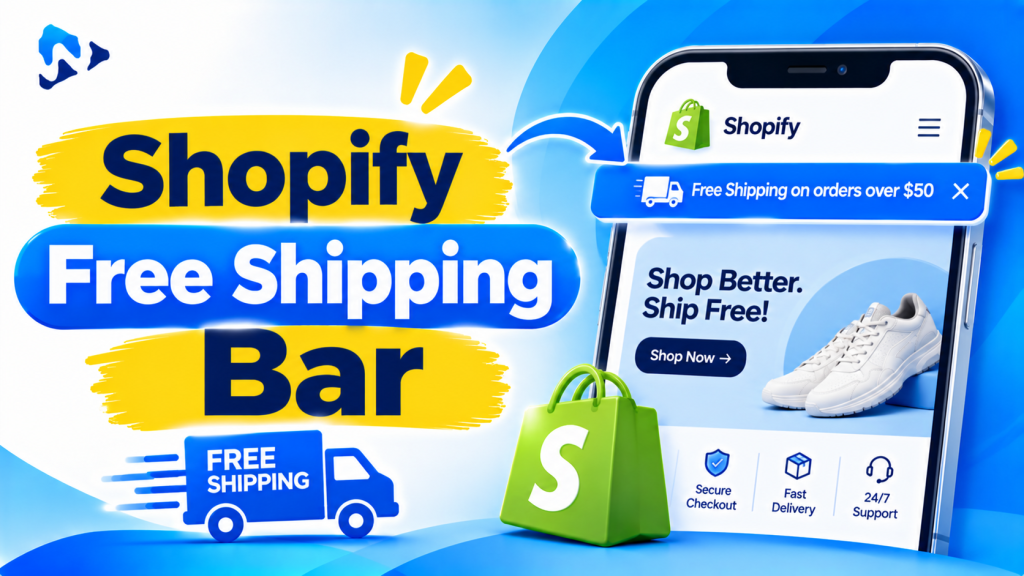
Quick answer: A Shopify free shipping bar shows shoppers how much more they need to spend to get free shipping, such as “You’re $15 away from free shipping.” Shopify has no built-in progress bar, so you add one with a short Liquid snippet in your cart drawer or with a free shipping bar or cart drawer app. The bar only shows the message: you must also create the real free shipping rate in Settings > Shipping and delivery with the same minimum. Set the threshold about 15% to 30% above your average order value, and put the bar in the cart drawer above the checkout button.
Key takeaways:
- The bar is a message; the free shipping rate is a separate setting.
- Use the same minimum in both, or checkout will charge shipping.
- Show the exact amount left, not just “free shipping over $50”.
- The cart drawer is the best place for it.
In this guide
What Is a Shopify Free Shipping Bar?
It’s a bar, usually with a progress line, that tracks the cart total against your free shipping minimum. As shoppers add items, it updates: “You’re $15 away from free shipping”, then “You’ve unlocked free shipping!” when they reach it.
Shopify doesn’t include one. A theme announcement bar can say “Free shipping over $50”, but it’s static text and can’t follow the cart total.
Why a Free Shipping Bar Works
- Shipping costs are a top reason for abandoned carts. Shopify cites Baymard Institute: 40% of US shoppers who abandoned a cart for reasons other than browsing named extra costs such as shipping.
- AlixPartners found 2 in 3 shoppers abandon a cart when shipping is over $10, and 94% say free shipping influences what they buy.
- 56% of retailers require a minimum order for free shipping, per AlixPartners. A bar turns that minimum into a goal instead of a surprise at checkout.
- A specific number (“$12 to go”) gives shoppers a target, which is how the bar lifts average order value.
Step 1: Set Up the Real Free Shipping Rate
Do this first. The bar only tells shoppers about free shipping; Shopify applies it at checkout.
- In your Shopify admin, go to Settings > Shipping and delivery.
- Open your shipping profile (usually General) and the zone you want, such as your home country.
- Click Add shipping option (or edit your standard rate) and set Rate type to Order amount.
- Add your paid tier, for example $0 to $49.99 at $6.95.
- Add a top tier with a Minimum of $50, a blank Maximum and a Price of 0, or select Offer free shipping and enter $50.
- Click Done, then Save. Repeat for other zones if they get free shipping too.
Alternative: create an automatic discount in
Discounts > Create discount > Free shipping, choose
Automatic discount, set a minimum purchase amount and the countries it applies to. This lets you limit it to certain markets or customer segments, or run it for a set period. Only product prices count toward the minimum, not taxes.
Leave the top tier’s Maximum blank, because an order above a capped tier shows a shipping error at checkout.
Step 2: Pick the Right Threshold
A common rule is to set the threshold
15% to 30% above your average order value (AOV), so most shoppers are one small item away. Then check it covers the shipping you’ll absorb.
| Your AOV | 15% to 30% above | Round threshold to try |
|---|
| $30 | $34.50 to $39 | $35 |
| $40 | $46 to $52 | $50 |
| $60 | $69 to $78 | $75 |
| $100 | $115 to $130 | $125 |
Shopify’s own example: with a $40 AOV, a 40% margin and $8 average shipping, a $45 threshold adds only about $2 of gross profit per order (the extra $5 of sales at 40%), leaving $6 of shipping uncovered. In that case, test a higher threshold, a slightly higher product price, or free shipping on 2 or more items instead. Use your carrier’s calculator to get real shipping costs by zone and weight.
Step 3: Choose How to Add the Bar
| Option | Tracks the cart | Cost | Best for |
|---|
| Theme announcement bar | No, static text | Free | Announcing the offer site-wide |
| Liquid code | Yes | Free | One currency, one threshold, comfortable editing theme files |
| Free shipping bar or cart drawer app | Yes, live | Free plans to about $30/month | Multiple currencies or countries, scheduling, analytics, no code |
Most stores use both: the announcement bar to advertise the offer, and a progress bar in the cart drawer to push the cart over it.
How to Add a Free Shipping Bar With Code (No App)
This works in Dawn and other Dawn-based themes, including Shopify’s free themes. Because the snippet sits inside the cart drawer, it updates whenever the theme refreshes the drawer after an item is added or removed.
- Go to Online Store > Themes, click … > Duplicate on your live theme, and work on the copy.
- On the copy, click … > Edit code.
- Under Snippets, click Add a new snippet, name it
free-shipping-bar, and paste the code below.
- Change
50 on the first line to your threshold, in your store’s currency.
- Open
snippets/cart-drawer.liquid, find id="CartDrawer-CartItems", and on the next line add {% render 'free-shipping-bar' %}.
- For the cart page, add the same render line near the top of
sections/main-cart-items.liquid.
- Save, preview the theme, and test a cart below, exactly at, and above the threshold. Then publish.
{%- assign fs_threshold = 50 | times: 100 -%}
{%- assign fs_total = cart.total_price -%}
{%- if cart.item_count > 0 -%}
  {%- if fs_total >= fs_threshold -%}
    {%- assign fs_pct = 100 -%}
  {%- else -%}
    {%- assign fs_pct = fs_total | times: 100 | divided_by: fs_threshold -%}
    {%- assign fs_left = fs_threshold | minus: fs_total -%}
  {%- endif -%}
  <div class="fs-bar">
    <p class="fs-bar__text">
      {%- if fs_total >= fs_threshold -%}
        You've unlocked free shipping!
      {%- else -%}
        You're {{ fs_left | money }} away from free shipping
      {%- endif -%}
    </p>
    <div class="fs-bar__track" role="progressbar" aria-valuemin="0" aria-valuemax="100" aria-valuenow="{{ fs_pct }}">
      <div class="fs-bar__fill" style="width: {{ fs_pct }}%;"></div>
    </div>
  </div>
{%- endif -%}

{% style %}
  .fs-bar { margin: 0 0 16px; }
  .fs-bar__text { margin: 0 0 8px; font-size: 14px; text-align: center; }
  .fs-bar__track { height: 8px; background: rgba(0,0,0,.08); border-radius: 999px; overflow: hidden; }
  .fs-bar__fill { height: 100%; background: #1a7f37; border-radius: 999px; transition: width .3s ease; }
{% endstyle %}
What the code does: it reads the cart total (Shopify stores it in cents, so the threshold is multiplied by 100), works out the percentage reached and the amount left, and shows the success message once the cart reaches the threshold. It hides itself when the cart is empty.
cart.total_price is the total after cart discounts, which usually matches what Shopify checks for free shipping, but test a discounted order to be sure.
Limits of the code method:
- One threshold in one currency. If you sell in several currencies with Shopify Markets, the cart total is in the shopper’s currency while the threshold isn’t, so use an app or one threshold per market.
- Other themes name their cart files differently. Look in Snippets or Sections for a file with “cart” in the name.
- If your theme doesn’t re-render the drawer on add to cart, the bar updates only after the drawer is reopened or the page reloads.
- Changing the threshold means editing code, and theme updates may overwrite your changes.
How to Add a Free Shipping Bar With an App
Search the Shopify App Store for “free shipping bar” or “cart drawer”. Most apps follow the same setup:
- Install the app and enable its app embed in Online Store > Themes > Customize > App embeds.
- Enter your free shipping goal, the same amount as your shipping rate.
- Write three messages: before the cart has items, while in progress (with the amount left), and when the goal is reached.
- Choose where it shows: cart drawer, cart page, product page or top bar.
- Match the colors and font to your theme, and check it on mobile.
- Test from each country that gets free shipping.
What to look for: automatic currency conversion for Shopify Markets, per-country thresholds, a version inside the cart drawer, scheduling for sales, analytics, and a free plan to test on. Some apps charge by monthly bar views, so check the limit against your traffic. Many cart drawer apps also include a free shipping bar alongside upsells and gift options, which can replace several single-purpose apps.
Where to Place the Free Shipping Bar
| Placement | Why |
|---|
| Cart drawer, above checkout (best) | Shoppers see it right when they decide to check out or add one more item |
| Cart page | Same moment, for themes without a drawer |
| Top announcement bar | Tells every visitor the offer exists |
| Product page, near Add to cart | Encourages adding a second item before the cart |
Free Shipping Bar Messages That Work
- Empty cart: “Free shipping on orders over $50”
- In progress: “You’re $15 away from free shipping”
- Close: “Just $4 more for free shipping!”
- Reached: “You’ve unlocked free shipping!”
- With a suggestion: “Add socks ($9) to get free shipping”
Keep the amount in bold or a contrasting color, keep it to one line on mobile, and say which countries qualify if it isn’t everywhere.
Go Further: Free Shipping Plus Rewards Milestones
Once free shipping is working, a progress bar can show more than one goal, for example free shipping at $50, 10% off at $75 and a free gift at $100. Each step gives shoppers another reason to add an item. Pair it with product suggestions in the cart priced around the amount left, so the next step is one click away.
Read more in our guides to
milestone rewards in the Shopify cart and the
Shopify cart drawer.
Common Problems and Fixes
| Problem | Fix |
|---|
| Bar says free, checkout charges shipping | Your shipping rate or discount minimum doesn’t match the bar, or the customer’s country isn’t in that zone |
| Bar doesn’t update when adding items | The snippet isn’t inside the part of the drawer the theme re-renders; move it, or use an app |
| Wrong amount in other currencies | The code uses one currency; use an app with currency conversion |
| Shipping error at checkout on big orders | Your top rate tier has a maximum; leave it blank |
| Discount codes push the cart below the minimum | Expected: the minimum uses discounted prices. Say “after discounts” in the message |
Checklist
- Work out your AOV and average shipping cost.
- Set the threshold 15% to 30% above AOV and check the margin.
- Create the free shipping rate or automatic discount with that minimum.
- Add the bar to the cart drawer (code or app).
- Advertise the offer in the announcement bar.
- Test below, at and above the threshold, on desktop and mobile.
- After a month, compare AOV and conversion rate with the month before.
The Bottom Line
A Shopify free shipping bar turns your free shipping minimum into a goal shoppers can see. Set up the real rate first, pick a threshold just above your AOV, then add the bar to your cart drawer with the code above or an app. Test it at the exact threshold, and check your AOV after a few weeks.
Frequently Asked Questions
Does Shopify have a built-in free shipping bar?
No. Themes have an announcement bar for static text, but no progress bar that follows the cart total. Use a code snippet or an app.
Does a free shipping bar give customers free shipping?
No. It only shows the message. Set up the free shipping rate in Settings > Shipping and delivery, or an automatic free shipping discount.
What threshold should I use?
About 15% to 30% above your average order value, as long as the extra sales cover the shipping you pay.
Can I add a free shipping bar without an app?
Yes. Paste a Liquid snippet into your cart drawer, as shown above. It works best with one currency.
Where should the bar go?
In the cart drawer above the checkout button, with the offer also in your announcement bar.
Do discounts count toward the free shipping minimum?
Shopify counts products at their discounted price when the discounts can combine, and excludes taxes. Test a discounted order to confirm.
Can I set different thresholds by country?
Yes. Add separate shipping zones with their own rates, and use an app that shows the right amount per country.
Will a free shipping bar slow my store?
The Liquid snippet adds almost nothing. With apps, choose one that loads through a theme app embed and remove apps you no longer use.
Related Reading
Update Log
November 25, 2026: First published. Shopify settings checked against the sources below.
Sources