

Over 70% of e-commerce traffic originates from mobile devices. Yet, the vast majority of custom product configurators and option pickers remain optimized primarily for desktop viewports.
When merchants sell complex, made-to-order goods—such as bespoke suiting, modular furniture, personalized jewelry, or configurable electronics—the mobile experience frequently breaks down:
- Microscopic Tap Targets: Tiny 18px radio buttons and tightly clustered color circles force shoppers to pinch-to-zoom or repeatedly mis-tap adjacent swatches.
- Severe Thumb-Zone Fatigue: Critical customization inputs and “Add to Cart” buttons sit in the hard-to-reach upper corners of modern 6.7-inch smartphone displays.
- Screen Reader Invisibility: Swatches styled purely with
<div>backgrounds lack ARIA labels, semantic roles, or keyboard focus states, rendering them completely inaccessible to visually impaired shoppers. - Low-Contrast Failures: Light gray text, faint active borders, and white-on-yellow swatches violate Web Content Accessibility Guidelines (WCAG) 2.1 AA contrast requirements, exposing enterprise merchants to legal demand letters and lost revenue.
For enterprise DTC brands and Shopify Plus merchants, accessibility is no longer optional—it is a critical driver of search ranking, legal compliance, and mobile conversion rate optimization (CRO).
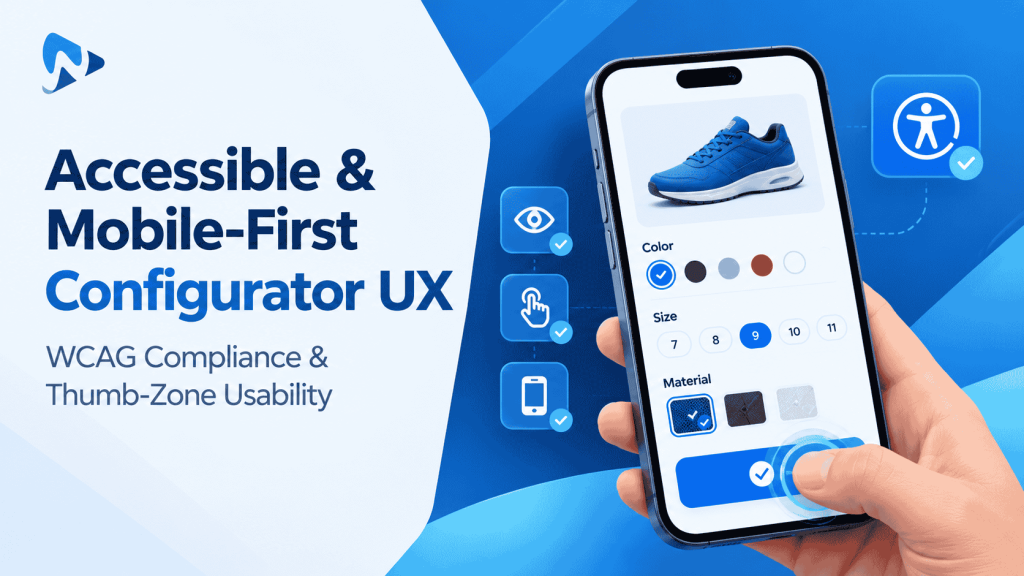
Here is the blueprint for engineering an accessible, mobile-first product configurator that complies with WCAG standards and delivers effortless thumb-zone ergonomics using Ultimate Product Options.
1. The Anatomy of Mobile Thumb-Zone Ergonomics
When a shopper holds a smartphone with one hand, their thumb rotates across a natural radial arc. Designing configurators around Steven Hoober’s thumb-zone framework directly dictates whether a buyer completes or abandons a custom build:
┌─────────────────────────────────────────────────────────────┐
│                   Top Third: "Hard / Stretch"               │
│   • Sticky Visualizer Hero / Dynamic Canvas Preview         │
│   • Read-only summary, high contrast base product view      │
├─────────────────────────────────────────────────────────────┤
│                  Middle Third: "Natural Zone"               │
│   • Active Option Stepper / Guided Configuration Tabs       │
│   • Secondary descriptors & helper tooltips                 │
├─────────────────────────────────────────────────────────────┤
│                  Bottom Third: "Easy / Thumb Zone"          │
│   • 48px+ Interactive Swatches & Pill Selectors             │
│   • Character-validated Text Inscription Inputs            │
│   • Persistent Floating / Sticky "Add to Cart" Subtotal CTA │
└─────────────────────────────────────────────────────────────┘
Key Mobile Interaction Guidelines:
- Minimum 48 × 48 px Tap Targets: Every interactive swatch, pill button, and checkbox hit area must span at least
48pxwith a minimum8pxgap to prevent accidental miss-clicks (meeting WCAG Success Criterion 2.5.5). - Sticky Visualizer & Bottom Sheet Drawers: Instead of forcing mobile users to scroll through 1,500 pixels of dropdowns only to lose sight of the product image, pin the live preview at the top and present custom options in a smooth bottom drawer.
- Sticky Add-to-Cart Footer: Display a persistent bottom bar containing the live dynamically recalculated price and a prominent full-width Add to Cart button within thumb reach.
2. WCAG 2.1 AA Compliance Checklist for Product Options
Enterprise merchants must meet four core accessibility principles: Perceivable, Operable, Understandable, and Robust (POUR).
| WCAG Criterion | Requirement | Failure Mode in Basic Apps | Accessible Implementation |
|---|---|---|---|
| 1.4.3 Contrast (Minimum) | 4.5:1 contrast ratio for normal text; 3:1 for large text & UI boundaries. | Faint gray borders on white swatches; low-contrast text. | Enforced high-contrast active states (#152B49 text on white; dark active focus rings). |
| 1.4.1 Use of Color | Color cannot be the only visual means of conveying information. | Selecting a swatch only changes a thin outline; no checkmark or text indicator. | Pairing color swatches with text labels, checkmark icons, and visible active state rings. |
| 2.1.1 Keyboard Accessible | All functionality operable via keyboard navigation. | Swatches built with generic <div> tags that cannot receive Tab focus. | Semantic <button> elements or native inputs with visible :focus-visible styling. |
| 4.1.2 Name, Role, Value | Screen readers must announce element purpose and state. | Screen reader announces “Unlabeled element” when focusing a leather swatch. | role="radio" with aria-label="Cognac Brown Leather (+$15.00)" and aria-checked="true". |
3. Keyboard Navigation & ARIA Implementation
Assistive technology users rely on tab key navigation and screen readers to configure custom products. Below is the structural HTML pattern followed by modern accessible configurators:
<!-- Accessible Swatch Radio Group -->
<fieldset role="radiogroup" aria-labelledby="swatch-group-label">
  <legend id="swatch-group-label">Select Frame Finish</legend>

  <!-- Option 1: Matte Black -->
  <button
    type="button"
    role="radio"
    aria-checked="true"
    aria-label="Matte Black Finish, Included in Base Price"
    tabindex="0"
    class="swatch-btn is-active">
    <span class="swatch-color" style="background-color: #1A1A1A;"></span>
    <span class="swatch-title">Matte Black</span>
    <svg aria-hidden="true" class="icon-checkmark"><!-- Check icon --></svg>
  </button>

  <!-- Option 2: Brushed Brass with Surcharge -->
  <button
    type="button"
    role="radio"
    aria-checked="false"
    aria-label="Brushed Brass Finish, Adds $25.00"
    tabindex="-1"
    class="swatch-btn">
    <span class="swatch-color" style="background-color: #D4AF37;"></span>
    <span class="swatch-title">Brushed Brass</span>
  </button>
</fieldset>
When a shopper uses the keyboard arrow keys, focus shifts naturally between swatches while screen readers announce the exact material and dynamic price modifier in real time.
4. Step-by-Step Setup: Building Mobile-First, Accessible Options with Ultimate Product Options
Creating accessible product customization on Shopify requires no custom Liquid theme development when using Ultimate Product Options.
Step 1: Install Ultimate Product Options
Install Ultimate Product Options from the Shopify App Store. Ensure the theme app embed block is toggled to Active inside your Online Store 2.0 theme customizer.
Step 2: Configure Touch-Friendly Swatch Geometry
- In your Shopify admin, open Apps > Ultimate Product Options.
- Open your target option set and select your Color or Image Swatch field.
- Under Display Settings:
- Set swatch dimensions to a minimum of 44 × 44 px (or 48 × 48 px for maximum thumb comfort).
- Increase padding and margins to at least 8px to guarantee clear touch boundary separation.
- Toggle on Show Text Label Beneath Swatches to ensure shoppers don’t rely solely on color recognition.
Step 3: Enable Screen Reader & ARIA Labels
- In the option field settings, verify that Accessible ARIA Output is enabled.
- Ensure every swatch and dropdown value includes an explicit text name and price modifier note (e.g., Emerald Velvet — Adds $12.00).
- The app automatically exposes semantic radio roles and announces real-time live price updates via
aria-live="polite"regions so screen reader users are notified when the cart subtotal recalculates.
Step 4: Configure Mobile-Optimized Layouts
- Under Mobile Viewport Settings, choose between:
- Horizontal Scroll Swatch Carousel: Allows buyers to swipe through dozens of colors with their thumb without vertical page stretching.
- Accordion / Step-by-Step Wizard: Breaks complex 15-option configurators into progressive disclosure steps (e.g., Step 1: Size, Step 2: Fabric, Step 3: Personalization).
- Enable the Sticky Mobile Buy Bar so customers can see their running subtotal and complete checkout without scrolling back to the top.
Step 5: Test Accessibility Across Devices
Before going live, conduct a fast 3-step audit:
- Keyboard Test: Unplug your mouse or use
Tab,Shift + Tab, andArrowkeys on your desktop browser. Can you complete the entire configuration and add the item to cart using only the keyboard? - Contrast Test: Run Google Lighthouse or the WAVE browser extension to verify that all button borders, text labels, and focus outlines exceed a 4.5:1 contrast ratio.
- Mobile VoiceOver / TalkBack Test: Turn on screen reader mode on your iPhone or Android device and navigate through the options to confirm all options and surcharges are announced clearly.
5. Best Practices for Accessible Configurator Design
- Never Hide Focus Indicators: Never set
outline: nonein custom CSS without providing a high-contrast alternative. A visible 2px focus ring (:focus-visible) is essential for keyboard users. - Pair Icons with Text: Do not rely on icons alone for actions like uploading files or selecting options. Always accompany icons with clear text labels (e.g., “Upload Vector Logo (AI, EPS, PDF)”).
- Provide Clear Error Validation: When an input fails validation (such as exceeding character limits or omitting a required choice), announce the error in plain text above the field rather than merely turning the border red.
- Support Dynamic Text Zoom: Ensure the configurator container expands gracefully without text clipping or overlapping when users increase system font size to 200%.
Frequently Asked Questions (FAQs)
Does Ultimate Product Options generate accessible semantic HTML out of the box?
Yes. Swatches, buttons, text fields, and file uploaders render using semantic form inputs and fieldset groupings enhanced with ARIA attributes (roles, labels, and live announcement zones).
Will an accessible configurator layout increase mobile conversion rates for all users?
Absolutely. Designing for accessibility improves thumb-zone ergonomics, provides clear 48px tap targets, eliminates mis-taps, and simplifies multi-step decision making, directly lifting conversion rates across all mobile shoppers.
How do screen readers handle dynamic option price recalculations?
Accessible configurators leverage ARIA live regions (aria-live="polite"). When a shopper selects a paid upgrade or enters custom dimensions, the updated subtotal is announced audibly without interrupting user input.
Conclusion
Mobile optimization and accessibility compliance are no longer separate initiatives—they are two sides of the same coin. By designing for the physical reality of the mobile thumb zone and adhering to WCAG 2.1 AA accessibility guidelines, you protect your brand against compliance risks, elevate search performance, and unlock friction-free conversions for every shopper.
With Ultimate Product Options, deploying accessible, mobile-first product options, touch-friendly swatches, and keyboard-compliant step wizards on Shopify is seamless, high-converting, and completely code-free.