

Multi-Step UX Architectures: Turning 20+ Complex Product Choices into a Guided Step-by-Step Wizard
When brands sell multi-component, highly configurable products—such as modular gravel bicycles, custom desktop workstations, bespoke mechanical watches, or multi-tier corporate gift hampers—personalization is the core value proposition.
A custom gravel bike, for example, demands dozens of technical decisions:
- Frame & Geometry: Frame material, colorway, fork type, frame sizing.
- Groupset & Gearing: Electronic vs. mechanical shifting, crankarm length, cassette ratios.
- Wheelset & Cockpit: Rim depth, tire width, handlebar flare, stem angle, seatpost setback.
- Accessories & Add-ons: Custom bar tape texture, carbon bottle cages, integrated GPS mounts, tubeless setup.
When merchants dump all 20+ option fields onto a single product page, the user experience breaks down. Shoppers are confronted with an endless wall of dropdowns, checkboxes, swatches, and numeric inputs.
This triggers Hick’s Law and choice paralysis: the more simultaneous choices presented to a buyer, the longer they take to make a decision—and the higher the probability that cognitive fatigue causes them to abandon the cart completely. On mobile devices, an infinite scroll through dozens of fields pushes the "Add to Cart" button miles down the viewport.
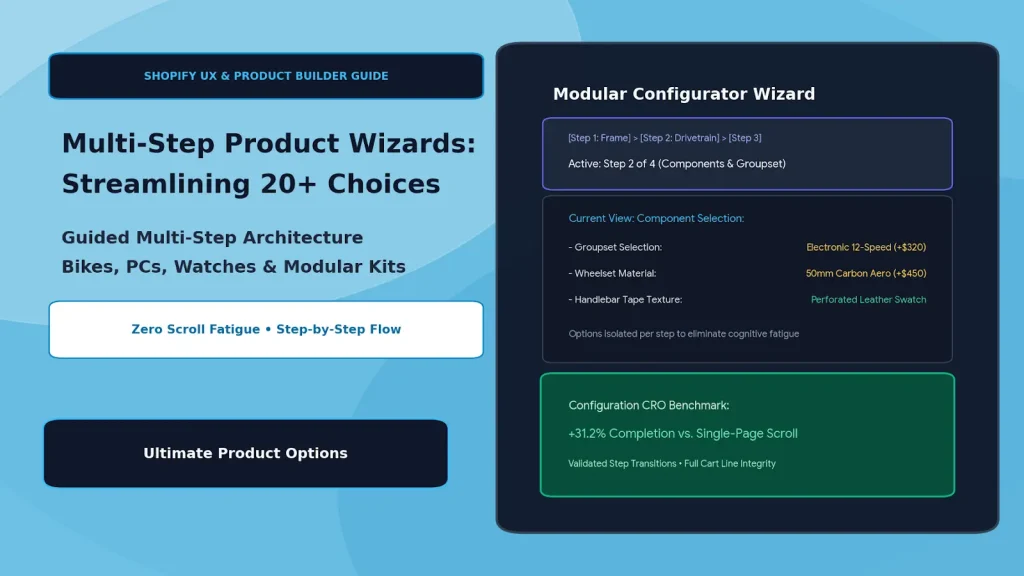
The high-converting solution is transitioning from single-page scroll fatigue to a guided, multi-step product configurator wizard. By segmenting complex decisions into progressive stages—Step 1: Frame → Step 2: Drivetrain → Step 3: Cockpit → Step 4: Add-Ons—merchants lift checkout completion rates, eliminate cognitive friction, and preserve catalog order integrity using Ultimate Product Options.
Table of Contents
- Why Single-Page Scrolling Kills Conversions on Complex Configurators
- The Guided Wizard Flow: Progressive Disclosure in Action
- CRO Comparison: Single-Page List vs. Multi-Step Wizard
- Step-by-Step Setup: Building a Guided Configurator with Ultimate Product Options
- 4 Best Practices for Multi-Step Configurator UX
- Frequently Asked Questions (FAQs)
Why Single-Page Scrolling Kills Conversions on Complex Configurators
Exposing 20+ complex options simultaneously creates severe UX hurdles:
- Cognitive Overload: Shoppers cannot prioritize choices when interdependent components (e.g., matching rim widths to tire clearance) compete for visual attention all at once.
- Viewport Displacement: Dynamic conditional fields that expand on a long single page cause jarring layout shifts, pushing page content up and down and disorienting mobile users.
- Unclear Progress Indicators: Without milestones, customers feel like the configuration process is never-ending, spiking bounce rates midway down the page.
- Premature Cart Abandonment: Shoppers accidentally click "Add to Cart" before completing mandatory component selections because the checkout button sits floating next to incomplete fields.
The Guided Wizard Flow: Progressive Disclosure in Action
┌─────────────────────────────────────────────────────────────────┐
│                     Progress Indicator Bar                      │
│   [✓ 1. Frame] ──> [● 2. Drivetrain] ──> [3. Cockpit] ──> [4. Extras]│
└────────────────────────────────┬────────────────────────────────┘
                                 │
                                 ▼
┌─────────────────────────────────────────────────────────────────┐
│              Current Isolated View (Step 2: Drivetrain)         │
│   • Groupset Selection: Shimano GRX Di2 12-Speed (+$320.00)     │
│   • Crankarm Length: 172.5mm (Radio Pill Buttons)               │
│   • Power Meter Upgrade: Dual-Sided (+180.00 Checkbox)          │
└────────────────────────────────┬────────────────────────────────┘
                                 │
                                 ▼
┌─────────────────────────────────────────────────────────────────┐
│               Step-Level Validation Engine                      │
│   [Previous Step]                               [Next: Cockpit] │
│   (Next button unlocked only when required choices are selected)│
└────────────────────────────────┬────────────────────────────────┘
                                 │
                                 ▼
┌─────────────────────────────────────────────────────────────────┐
│              Final Step: Summary Review & Checkout              │
│   • Live Consolidated Summary • Dynamic Total Recalculated      │
│   • Instant "Add to Cart" with Clean Line-Item Properties       │
└─────────────────────────────────────────────────────────────────┘
Guided step wizards use progressive disclosure—presenting only the decisions relevant to the current stage, validating each choice, and advancing smoothly to the next milestone.
CRO Comparison: Single-Page List vs. Multi-Step Wizard
| Dimension | Endless Single-Page Scroll | Guided Step-by-Step Wizard |
|---|---|---|
| Cognitive Load | High (all 20+ options compete at once) | Low (isolated into 3–5 logical stages) |
| Mobile Experience | Endless thumb scrolling; lost buy buttons | Compact view with sticky step navigation |
| Validation Handling | Error flags scattered across a long page | Inline stage validation before advancing |
| AOV Upsell Uptake | Skipped or ignored due to option fatigue | Higher add-on attach rate in dedicated final step |
| Completion Rate | Baseline benchmark | +25% to +35% completion lift in complex setups |
Step-by-Step Setup: Building a Guided Configurator with Ultimate Product Options
Setting up a multi-step product builder on Shopify requires no custom theme template modifications when using Ultimate Product Options.
Step 1: Install Ultimate Product Options
Install Ultimate Product Options from the Shopify App Store and ensure the theme app embed block is toggled to Active inside your Online Store 2.0 theme customizer.
Step 2: Establish the Base Configurator Product
- In the Shopify Admin, create your base product (e.g., Apex Custom Gravel Bike).
- Set the baseline starting price (e.g.,
$1,899.00). - Keep physical variants limited to the fundamental core frame sizes (e.g., 52cm, 54cm, 56cm, 58cm) to protect your SKU catalog from variant bloat.
Step 3: Create Option Groups and Assign Steps
- In your Shopify admin, open Apps > Ultimate Product Options.
- Click Create Option Set and title it (e.g., Apex Gravel Modular Configurator).
- Under Layout Mode, switch the display from Default Vertical Stack to Multi-Step Wizard / Tabbed Stages.
- Define your sequential stages:
- Step 1:
Frame & Paint Finish - Step 2:
Drivetrain & Components - Step 3:
Wheelset & Tires - Step 4:
Finishing Touches & Accessories
- Step 1:
Step 4: Populate Options and Add Dynamic Price Modifiers
Assign your option fields into their corresponding steps:
- Step 1: Add visual image swatches for Raw Titanium, Matte Forest Green, and Deep Navy Gloss.
- Step 2: Add radio pill buttons for Electronic 12-Speed Groupset (+$320.00) and Mechanical 11-Speed (Included).
- Step 3: Add wheel choice buttons with price modifiers (Carbon Aero 50mm +$450.00 vs. Alloy Adventure Included).
- Step 4: Add accessory checkboxes for Integrated GPS Mount (+$45.00) and Tubeless Sealant Setup (+$25.00).
Step 5: Configure Step-Level Validation Rules
- In the wizard settings, enable Enforce Required Fields Before Next Step.
- If a customer attempts to click "Next: Drivetrain" without picking their frame finish, the wizard highlights the unselected swatch and prevents advancement.
- Enable the Live Configuration Summary box so shoppers see their running subtotal update in real time as they progress through each stage.
Step 6: Test on Mobile and Desktop Viewports
Publish your option set and verify the workflow:
- On desktop: confirm that the progress bar displays completed checkmarks for finished steps.
- On mobile: verify that navigation buttons (Back and Next Step) remain anchored within easy thumb reach.
- Click Add to Cart on the final step: confirm all 20+ component choices pass cleanly into Shopify line-item properties without missing attributes.
4 Best Practices for Multi-Step Configurator UX
- Limit Steps to 3 to 5 Milestones: Paginating into too many micro-steps (e.g., 9 separate pages) introduces navigation friction; group related attributes logically.
- Place High-Margin Add-Ons in the Final Step: Shoppers who have already invested 2 minutes configuring their primary item are psychologically primed to accept minor add-on accessories (water bottles, upgraded bar tape, care kits) right before checkout.
- Support Non-Linear Step Navigation: Allow customers to click back to earlier completed steps (e.g., clicking on Step 1: Frame in the top progress bar) without wiping choices made in later steps.
- Display a Sticky Price Footer on Mobile: Ensure the cumulative total and "Next" trigger remain visible at the bottom of mobile viewports so users always understand their current price commitment.
Frequently Asked Questions (FAQs)
Does the multi-step wizard work smoothly on mobile screens?
Yes. The wizard condenses multi-tiered options into lightweight, paginated mobile cards with sticky navigation buttons, preventing endless scrolling and keyboard displacement.
Can later steps be conditionally hidden based on choices in Step 1?
Yes. Conditional logic spans across wizard steps. For example, selecting a specific frame material in Step 1 can automatically skip or modify available wheelset choices in Step 3.
How are the selected wizard options passed into Shopify orders?
All chosen components and customization values are automatically consolidated into structured line-item properties upon checkout submission, appearing cleanly on packing slips and order exports.
Conclusion
Complex, multi-component products should not overwhelm your customers. By replacing long, intimidating single-page option lists with a guided multi-step wizard, you eliminate decision paralysis, guide shoppers through a structured decision journey, and significantly lift checkout conversions.
With Ultimate Product Options, deploying step-by-step product builders, multi-stage validation, and real-time price modifiers on Shopify is fast, intuitive, and completely code-free.