


Last updated: November 20, 2026. Shopify image specs come from the Shopify Help Center, checked on November 20, 2026. Disclosure: Webiots builds LUX AI Product Images, which is mentioned in the section on fixing existing photos.
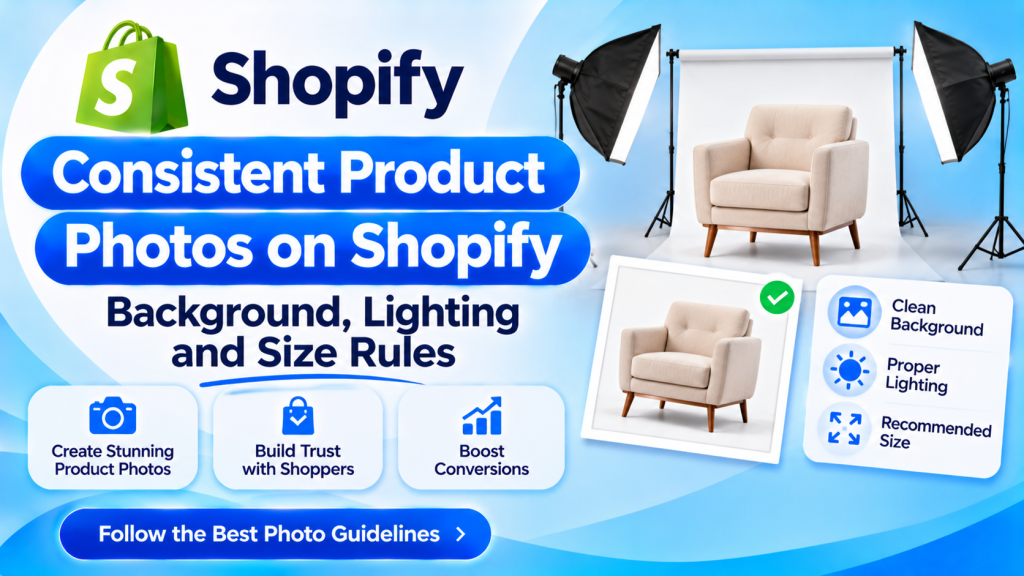
Quick answer: To make Shopify product photos consistent, use the same aspect ratio, background, framing, camera angle, lighting and edits for every main image. For most stores that means square 2048 x 2048 pixel images on a white or light background, with the product filling about 80% to 85% of the frame, shot from the same height in the same light. Write these rules in a one-page style guide, shoot every product in the same order, and set your theme’s product card image ratio to match. To fix an existing mixed catalog, start with best sellers: remove the backgrounds, place each product on one background at the same size, and check colors match the real product.
Key takeaways:
- Consistency matters most on the collection page, where photos sit side by side.
- Fix the aspect ratio first; it causes the most visible mess.
- Keep the camera fixed and move the product, not the other way round.
- Use the same gallery order for every product.
In this guide
- Why consistent photos matter
- The 8 things to standardize
- Shopify image sizes and settings
- A gallery shot list for every product
- One-page photo style guide template
- How to keep a shoot consistent
- Theme settings that help
- How to fix a mixed catalog
- Pre-upload checklist
- FAQ
Why Do Consistent Product Photos Matter on Shopify?
Shoppers judge your store on the collection page, where every product photo sits next to the others. When images have different sizes, backgrounds and light, the grid looks messy, products appear different sizes than they are, and the store looks less trustworthy. Consistent photos make products easy to compare and make even a small catalog look like a professional brand.
What Should You Standardize? The 8 Rules
| # | Element | Rule for main images | What goes wrong without it |
|---|---|---|---|
| 1 | Aspect ratio | One ratio for all, usually square (1:1) | Uneven rows and cropped products in the grid |
| 2 | Background | One color, usually pure white or one light brand color | Patchy grid, some products look grey or dirty |
| 3 | Framing and margin | Product fills about 80% to 85% of the frame, centered | Small items look tiny, big items touch the edges |
| 4 | Camera angle | Same height and angle for each product type, such as straight on or 30 degrees above | Products seem to sit at different levels |
| 5 | Lighting | Same light source and direction; soft, even light | Hard shadows on some, flat light on others |
| 6 | White balance and color | Set white balance for your light; export in sRGB | Same product looks yellow in one photo, blue in another |
| 7 | Shadows | Pick one: no shadow, soft natural shadow or reflection | Some products float, others are grounded |
| 8 | Editing | Same steps for every image: crop, clean background, color check | Different sharpness and contrast across the store |
Lifestyle photos don’t need identical backgrounds. Keep them consistent with the same light mood, brand colors and props style instead.
What Sizes and Settings Should Shopify Product Photos Use?
- Ratio: square (1:1) suits most themes and grids. Use 4:5 portrait only if your whole store uses it, for example for clothing.
- Size: 2048 x 2048 pixels for square images. Shopify accepts images up to 4472 x 4472 pixels (20 megapixels) and 20 MB.
- Minimum: at least 800 x 800 pixels so zoom works.
- Format: JPEG for photos, PNG when you need transparency. Shopify converts images to modern formats for visitors automatically.
- Color profile: sRGB.
- File size: compress large files so pages load fast.
- File names and alt text: descriptive and consistent, such as oak-name-sign-large-front.jpg.
For full details by image type, see our Shopify product image size guide. For alt text and file names, see Shopify image SEO.
Which Photos Should Every Product Gallery Have? A Shot List
Use the same gallery order for every product, so shoppers always know where to find the detail they need.
| Position | Shot | Answers |
|---|---|---|
| 1 | Main image: front, on your standard background | What is it? |
| 2 | Angle view (about 45 degrees) | What’s its shape? |
| 3 | Back or side | What does the rest look like? |
| 4 | Detail close-up | What’s the material and quality? |
| 5 | Scale shot (in hand, worn or next to a known object) | How big is it? |
| 6 | Lifestyle scene | How would it look in my life? |
| 7 | Short video (optional) | How does it move or work? |
For variants such as colors, give each color the same set of shots, so switching colors on the product page shows the same angle every time.
How Do You Write a Photo Style Guide? A One-Page Template
Write your rules once and give them to anyone who takes or edits photos, including a photographer, a freelancer or an AI tool. Copy this template:
Main image: square, 2048 x 2048 px, pure white background (#FFFFFF)
Framing: product centered, filling about 85% of the frame
Angle: straight on for flat items; 30 degrees above for boxes and bottles
Light: two softboxes at 45 degrees left and right, daylight white balance
Shadow: soft natural shadow under the product
Edits: crop to ratio, clean background, match color to the real product, export sRGB JPEG
Gallery order: front, angle, back, detail, scale, lifestyle, video
Lifestyle: warm natural light, neutral wood and linen props, no other brands visible
File name: product-color-view.jpg
How Do You Keep a Photo Shoot Consistent?
- Fix the camera on a tripod and mark its height and position with tape.
- Tape the backdrop and product spot so every product sits in the same place.
- Move the product, not the camera, when you need a new angle.
- Use the same lights in the same positions, and block window light, which changes during the day.
- Set white balance manually and keep it for the whole shoot. Shoot a grey card at the start to check color later.
- Shoot products of the same type together, such as all bottles, then all boxes.
- Check the first shots on a computer, not the camera screen, before you shoot everything.
Shooting on a phone works too: use the same phone, turn off filters, lock focus and exposure, and keep it on a tripod.
Which Shopify Theme Settings Help Photos Look Consistent?
- Product card image ratio: many themes, including Dawn, let you set product cards to square or portrait instead of adapting to each image. Set it to match your photo ratio in the theme editor, in the collection and product grid settings.
- Second image on hover: only turn it on if every product has a matching second image.
- Crop in Shopify: you can crop images in the media editor in Shopify admin, but fixing the source files keeps every channel consistent.
How Do You Fix a Catalog That Already Looks Mixed?
You don’t need to reshoot everything. Work in this order:
- Audit the collection pages. Scroll each one on a phone and note the images that stand out.
- Fix the ratio first by cropping or extending every main image to the same ratio.
- Replace the backgrounds. Remove the old background and place each product on your standard background. See how to remove image backgrounds on Shopify.
- Match the size and margin so each product fills the same share of the frame.
- Start with best sellers and your most visited collections.
- Check accuracy. Edited or AI-made images must still match the real color, shape and logo.
AI image apps can do steps 2 to 4 in bulk inside Shopify. LUX AI Product Images removes backgrounds, creates clean catalog images and lifestyle scenes from one product photo, and resizes, compresses and writes alt text in bulk. It has a free plan with 200 credits, and paid plans from $9.99 a month. For other options, see the best AI product photography apps for Shopify.
Make your product photos match, in bulk
Remove backgrounds, create clean catalog and lifestyle images, and fix sizes and alt text across your store. Free plan with 200 credits.
Pre-Upload Checklist
- Same ratio and pixel size as your other main images
- Same background color and shadow style
- Product centered and filling the same share of the frame
- Colors match the real product, exported in sRGB
- Gallery follows your standard order
- Descriptive file name and alt text
- Collection page still looks even after upload
Frequently Asked Questions
What is the best size for Shopify product photos?
Square 2048 x 2048 pixels works for most themes. Shopify accepts up to 4472 x 4472 pixels and 20 MB per image.
Should all Shopify product photos have a white background?
Main images look best on one shared background, and white is the most common choice. A light brand color works too, as long as every main image uses it.
How do I make product photos the same size on Shopify?
Export every main image at the same ratio and pixel size with the product filling the same share of the frame, and set your theme’s product card image ratio to match.
Why do my product images look different sizes on my collection page?
Usually because images have different ratios or margins, or your theme adapts cards to each image. Use one ratio and set the theme to a fixed card ratio.
Can I make existing photos consistent without a reshoot?
Yes. Crop to one ratio, replace backgrounds and match sizes, by hand or in bulk with an AI image app, then check the colors against the real product.
Do lifestyle photos need to match too?
Not exactly. Keep the same light mood, colors and style of props rather than identical backgrounds.
Related Reading
- Shopify Product Image Size Guide
- How to Remove Image Backgrounds on Shopify
- Best Shopify Alt Text Apps
- How to Make Shopify Product Videos From One Photo With AI
Update Log
November 20, 2026: First published with 8 rules to standardize, Shopify image specs, a gallery shot list, a style guide template, shoot tips, theme settings, a fix-it plan and a checklist.