


Last updated: November 17, 2026. Shopify features come from the Shopify Help Center, checked on November 17, 2026. Disclosure: Webiots builds LUX AI Product Images, which is mentioned in this guide.
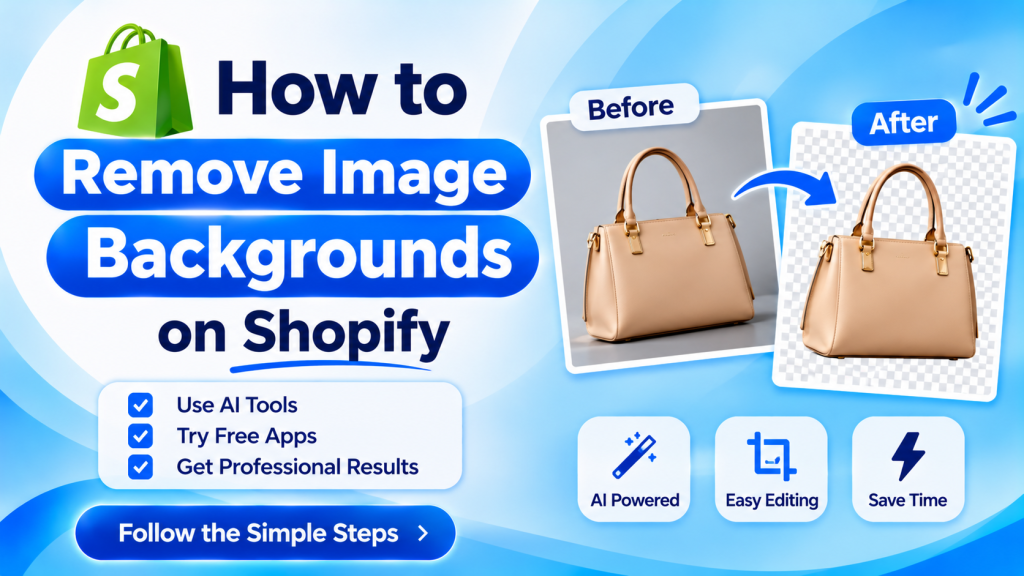
Quick answer: You can remove a product image’s background in Shopify for free: open the image in your Shopify admin’s media editor and use the AI option to remove or replace the background, then save. It works one image at a time. For a whole catalog, an AI image app such as LUX AI Product Images removes backgrounds in bulk, sets every image to the same size and white background, and can add lifestyle scenes, alt text and SEO file names, with 200 free credits. Use pure white backgrounds for Google Shopping and marketplaces, and check edges on hair, fur, glass and jewelry.
Key takeaways:
- Shopify’s media editor removes backgrounds for free, one image at a time.
- Use a bulk AI app for whole catalogs.
- Keep the same background and size on every product.
- Check tricky edges before publishing.
In this guide
- Why remove product backgrounds
- How to remove a background in Shopify for free
- How to remove backgrounds in bulk
- Options compared
- Which background to use
- Tricky edges and how to fix them
- After you remove the background
- FAQ
Why Remove the Background From Product Photos?
- Consistency: collection pages look cleaner when every product sits on the same background.
- Marketplaces and Google Shopping: many expect a plain or white background for the main image.
- Focus: shoppers see the product, not your kitchen table.
- Reuse: a clean cutout can be placed on new backgrounds and lifestyle scenes for ads.
How Do You Remove a Background in Shopify for Free?
Shopify’s media editor can remove or replace an image’s background using AI, on desktop and mobile (Shopify Help Center).
- In your Shopify admin, open the product and click the image.
- Open the editor for that image.
- Choose the option to remove the background, or replace it with a new one.
- Check the edges, then click Save.
- Repeat for each image.
It’s the quickest way to fix a few images. For dozens or hundreds, it gets slow, and you still need to set sizes, alt text and file names yourself. Shopify’s AI image features are explained in its media generation guide.
How Do You Remove Backgrounds From Many Images at Once?
Use an AI image app that processes your Shopify product images in bulk. With LUX AI Product Images:
- Install LUX from the Shopify App Store; the free plan includes 200 credits.
- Select the products or collection to update.
- Choose a clean background, such as pure white or light grey, and the image size and aspect ratio.
- Run the batch and review the results.
- Save the new images to your products, with AI alt text and SEO file names added at the same time.
Paid plans start at $9.99 a month for 1,500 credits, and also create lifestyle scenes and product videos.
Which Background Removal Option Should You Use?
| Option | Cost | Bulk | Saves to Shopify | Best for |
|---|---|---|---|---|
| LUX AI Product Images | Free 200 credits; from $9.99/mo | Yes | Yes, with alt text and file names | Whole catalogs, plus lifestyle scenes |
| Shopify media editor | Free | No, one at a time | Yes | A few images |
| Standalone tools (desktop or web) | Free to paid | Varies | No, download and re-upload | Images outside Shopify, such as ads |
| Photo editing software | Paid, plus your time | No | No | Hero images that need perfect edges |
Which Background Should You Use?
| Background | Use it for |
|---|---|
| Pure white (#FFFFFF) | Main images, Google Shopping, marketplaces |
| Light grey or brand color | Collection pages, white products that disappear on white |
| Transparent PNG | Banners and designs where you place the product on artwork |
| Lifestyle scene | Second or third product image, ads and social posts |
Keep the same aspect ratio, such as square or 4:5, for every product so collection grids line up. See the Shopify product image size guide.
How Do You Handle Tricky Edges?
- Hair, fur and fluffy fabric: shoot against a plain background that contrasts with the product, then zoom in to check the edges.
- Glass and clear products: AI can remove what’s behind the glass too; check that the product still looks see-through, not cut out.
- Jewelry and shiny metal: watch for reflections of the old background; reshoot in a light tent if needed.
- Shadows: a soft shadow under the product looks more natural than a floating cutout.
- White products: use a light grey background so edges stay visible.
What Should You Do After Removing Backgrounds?
- Compress the images so pages stay fast.
- Add alt text describing the product, color and view.
- Rename files, such as black-leather-wallet-front.jpg.
- Add one lifestyle image per product so shoppers see it in use.
See Shopify image SEO: alt text, file names and compression and the best Shopify alt text apps.
Clean backgrounds for your whole catalog
LUX removes backgrounds in bulk, creates lifestyle scenes and writes alt text and file names. Free plan with 200 credits.
Frequently Asked Questions
Can Shopify remove image backgrounds?
Yes. Shopify’s media editor can remove or replace an image’s background with AI, one image at a time, from your Shopify admin.
How do I remove backgrounds from all my Shopify product images at once?
Use a bulk AI image app such as LUX AI Product Images, which removes backgrounds across many products and saves the results back to Shopify.
What background should Shopify product images have?
Pure white for main images and Google Shopping, the same background on every product, and a lifestyle image as a second photo.
Is background removal free on Shopify?
The media editor is free to use one image at a time. LUX’s free plan includes 200 credits for bulk editing.
Why does my product look cut out after removing the background?
Usually because the shadow was removed or the edges are too sharp. Add a soft shadow and check edges on hair, fabric and glass.
Related Reading
- Best AI Product Photography Apps for Shopify
- Shopify Product Image Size Guide (2026)
- Shopify Image SEO: Alt Text, File Names and Compression
- 8 Best Shopify Alt Text Apps (2026)
Update Log
November 17, 2026: First published with Shopify’s free background removal, bulk AI steps, an options comparison, background choices and edge tips.