

Last updated: November 20, 2026. Shopify features come from the Shopify Help Center and developer documentation, checked on November 20, 2026. This guide is not legal advice; ask a lawyer what your terms must say.
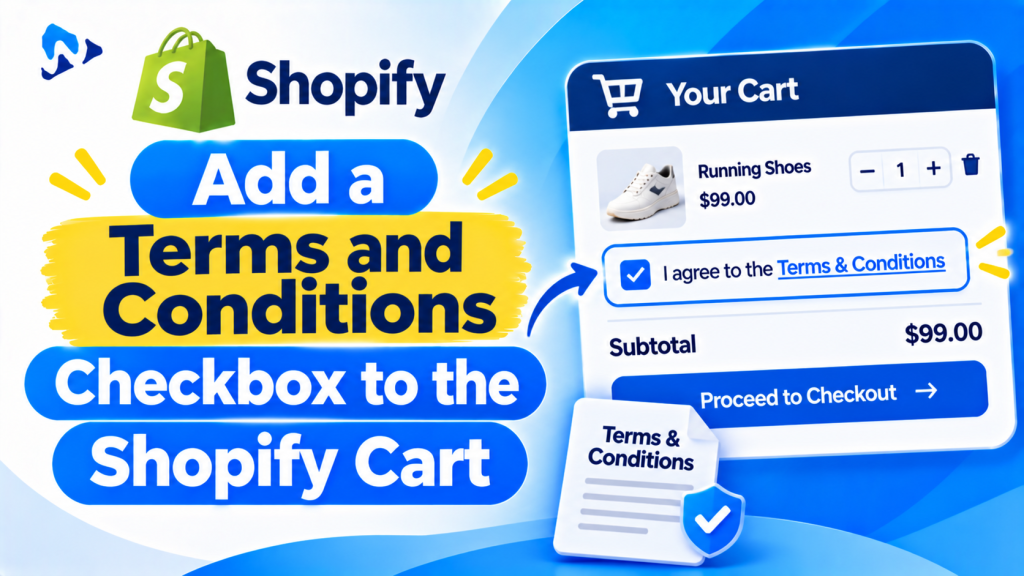
Quick answer: Shopify has no built-in terms and conditions checkbox, and only Shopify Plus stores can add one inside checkout. On every other plan, add a required, unticked checkbox to the cart page and the cart drawer, next to the Checkout button. Save the agreement as a cart attribute so it appears on the order. Then deal with express buttons such as Shop Pay and Apple Pay, which can skip the cart: hide them on the cart, or use an app with a checkout validation function that blocks orders without the agreement. You can add the checkbox with a few lines of theme code or with a cart app.
Key takeaways:
- Cart checkbox: any plan. Checkout checkbox: Plus only.
- Leave it unticked and make it required.
- Add it to both the cart page and the cart drawer.
- Record the agreement on the order, or you can’t prove it.
- Decide how to handle express buttons that skip the cart.
In this guide
- Do you need a terms checkbox?
- Cart, drawer or checkout: where it can go
- 3 levels of protection
- Add it with code (cart page and drawer)
- Express buttons that skip the checkbox
- Add it with an app
- Checkbox wording you can copy
- What proof to keep
- How to test it
- FAQ
Does Your Shopify Store Need a Terms and Conditions Checkbox?
A checkbox is most useful when an order has conditions a shopper could later dispute. A link to your terms in the footer doesn’t show that anyone read or accepted them; a ticked box saved on the order does.
- Personalized and made-to-order products that can’t be returned, such as engraved or custom-printed items.
- Final-sale and clearance items.
- Pre-orders and long production times, so shoppers accept the delivery date.
- Digital products and downloads, where EU shoppers may need to agree to lose the right to cancel once the download starts. See the EU withdrawal button guide.
- Age-restricted products, together with an age check. See Shopify age verification.
- Subscriptions, rentals and services with cancellation rules.
Where Can a Terms Checkbox Go on Shopify?
| Place | Shopify plan | How | Watch out for |
|---|---|---|---|
| Cart page | Any | Theme code or app | Shoppers who never open the cart page |
| Cart drawer | Any | Theme code or cart drawer app | Needs its own checkbox; the cart page one doesn’t cover it |
| Product page | Any | Required checkbox option on the product | Good for product-specific terms, such as final sale |
| Inside checkout | Plus only | Checkout UI extension app | The app must be allowed to block checkout in the checkout editor |
Older tutorials that edit checkout.liquid no longer work: Shopify replaced it with checkout extensibility, and checkout can’t be edited with theme code.
What Are the 3 Levels of Protection?
| Level | What it does | Good enough for |
|---|---|---|
| 1. Policy links | Links to your policies in the footer and checkout | Standard products with normal returns |
| 2. Recorded cart checkbox | Required tick in the cart, saved on the order | Personalized, final-sale and pre-order items |
| 3. Enforced at checkout | Checkout refuses orders without the agreement, including express orders | High-value, digital or regulated products |
Level 3 uses a cart and checkout validation function. Any plan can use one through a public app from the Shopify App Store; custom apps with functions need Plus. A validation function can block the order but can’t show a checkbox, so you pair it with the cart checkbox.
How Do You Add a Terms Checkbox With Code?
The simplest method adds a required checkbox linked to the cart form, so the browser won’t submit checkout until it’s ticked. No JavaScript is needed. These steps are for Dawn and themes built on Dawn; other themes use different file names.
Before you start: duplicate your theme in Online Store > Themes and edit the copy. Theme updates can overwrite code changes, so recheck the checkbox after every update.
Step 1: Add it to the cart page
- Go to Online Store > Themes, click the three-dot menu on the copy and choose Edit code.
- Open sections/main-cart-footer.liquid and find the Checkout button. In Dawn it includes
form="cart". - Paste this just above the button:
<div class="cart-terms" style="margin:0 0 12px;">
  <input type="checkbox" id="CartTerms" name="attributes[Terms accepted]" value="Yes" form="cart" required>
  <label for="CartTerms">I agree to the <a href="{{ shop.terms_of_service.url }}" target="_blank">Terms of Service</a>.</label>
  <input type="hidden" name="attributes[Terms version]" value="2026-11" form="cart">
</div>
Step 2: Add it to the cart drawer
- Open snippets/cart-drawer.liquid and find the drawer’s Checkout button. In Dawn it includes
form="CartDrawer-Form". - Paste the same code above it, but change
CartTermstoCartDrawerTerms(in both places) and everyform="cart"toform="CartDrawer-Form".
Step 3: Save and test
Click Checkout without ticking the box: the browser shows a message and stays on the cart. Tick it and place a test order. Under Additional details on the order, you’ll see Terms accepted: Yes and the terms version.
How it works: the required attribute stops the form submitting until the box is ticked, and the form attribute connects the checkbox to the cart form even if it sits outside it. Inputs named attributes[...] are saved as cart attributes and copied to the order. Change the version value whenever you update your terms.
On newer themes such as Horizon, the cart is built differently and the button may not use a form attribute. Check how your Checkout button submits, or use an app.
What About Express Buttons That Skip the Checkbox?
Shop Pay, Apple Pay, Google Pay and Buy it now buttons can take shoppers straight to checkout without ticking your cart checkbox. Pick one of these approaches:
| Approach | How | Trade-off |
|---|---|---|
| Hide express buttons | Turn off dynamic checkout buttons on product pages in the theme editor, and remove the wallet buttons from the cart | Every order passes the checkbox, but checkout can be slower for mobile shoppers |
| Block at checkout | An app with a validation function stops orders that don’t carry the agreement | Keeps express buttons on the cart; needs an app |
| Accept the gap | Keep express buttons and rely on policy links for those orders | Fine when the terms are low-risk |
A middle path many stores use: keep express buttons for normal products and hide them only on personalized or final-sale products.
How Do You Add a Terms Checkbox With an App?
An app avoids theme code, works on the cart page and cart drawer, and survives theme updates. There are two kinds:
- Dedicated terms apps such as Consentmo or RA Terms and Conditions Checkbox. Some also log every acceptance or add product-page checkboxes. For a checkbox inside checkout, you need a Plus-only checkout app such as AgreeBox.
- Cart drawer apps with a built-in terms checkbox. If you also want a free shipping bar, upsells or a discount code box in the cart, one cart app can handle all of it. See Shopify cart drawer apps.
When comparing apps, check: cart drawer support for your theme, whether checkout is blocked or only the button, express button handling, translations and whether acceptance is saved on the order.
What Should the Checkbox Say? Wording You Can Copy
Use plain words that name what the shopper is agreeing to, and link to the full policy. Examples:
- General: I agree to the Terms of Service and Refund Policy.
- Personalized products: I’ve checked my personalization and understand personalized items can’t be returned.
- Final sale: I understand sale items are final sale and can’t be returned or exchanged.
- Pre-orders: I understand this item ships in about 4 weeks.
- Digital products: I agree that my download starts immediately and I lose my right to cancel once it starts.
Never pre-tick the box: an agreement the shopper didn’t make isn’t much of an agreement. Keep the error message friendly, such as Please tick the box to continue.
What Proof Should You Keep?
- The order, with Terms accepted and the terms version under Additional details.
- A copy of each version of your terms with the date it went live.
- The exact checkbox wording used for each version.
- The order time, which shows when the box was ticked.
Keep this for as long as a chargeback or dispute could arrive, which can be months after the order.
How Do You Test the Checkbox? 6 Checks
- Click Checkout without ticking: you should stay on the cart.
- Do the same in the cart drawer.
- Tick, check out and confirm Terms accepted appears on the order.
- Try Buy it now and each wallet button to see whether they skip the box.
- Test on a phone: the box and label must be easy to tap.
- Check the label is clickable and works with a keyboard and screen reader.
Frequently Asked Questions
Does Shopify have a built-in terms and conditions checkbox?
No. Shopify shows links to your policies, but you need theme code or an app to add a required checkbox.
Can I add a terms checkbox to Shopify checkout?
Only on Shopify Plus, with a checkout UI extension app. On other plans, add it to the cart page and cart drawer.
Can I add a terms checkbox without an app?
Yes. Add a required checkbox linked to the cart form in your theme’s cart files, as shown above. It needs adding to both the cart page and the cart drawer.
Do Shop Pay and Apple Pay skip the cart checkbox?
They can, because express buttons go straight to checkout. Hide them on products that need agreement, or use an app that blocks checkout without it.
Where can I see that a customer accepted the terms?
If you save the agreement as a cart attribute, it appears under Additional details on the order in Shopify admin.
Should the checkbox be ticked by default?
No. Leave it unticked so the shopper actively agrees.
Related Reading
- Shopify Cart Drawer: How to Add Upsells and a Free Shipping Bar
- How to Add a Discount Code Box to the Shopify Cart
- Shopify Age Verification: How to Add an 18+ or 21+ Check
- EU Withdrawal Button for Shopify
Update Log
November 20, 2026: First published with placement options by plan, 3 levels of protection, cart page and cart drawer code, express button choices, wording templates, proof and testing checklists.