

Last updated: November 4, 2026. Disclosure: Webiots develops LUX AI Product Images, the app used in the setup steps. Plan details come from its public Shopify App Store listing.
Quick answer: To create holiday product photos for Shopify with AI, keep your main product image clean and accurate, and add AI-generated holiday scenes as extra images. Start from one sharp product photo, generate scenes such as a table with pine branches or a gift setting, check the product still looks exactly like the real item, then add alt text and descriptive file names. Shopify accepts images up to 20 MB and 25 megapixels.
Key takeaways:
- Keep the main image clean; put holiday scenes second.
- Never let AI change the product itself.
- Add alt text and clear file names to every image.
In this guide
- Why holiday images matter
- Main image vs holiday images
- Holiday scene ideas
- Step-by-step with LUX
- Alt text and file names
- Checks before you publish
- The bottom line
- FAQ
Why Update Product Photos for Black Friday and Christmas?
Holiday scenes help shoppers picture a product as a gift, and fresh images give your ads, emails and social posts something new to show. A mug on a plain background tells shoppers what it is; the same mug next to a wrapped gift and warm lights tells them who it’s for.
A full holiday photoshoot for every product takes time and money most stores don’t have in November. AI image tools can turn one existing product photo into several seasonal scenes in minutes, as long as you check each result carefully.
Should Holiday Photos Replace Your Main Product Image?
No. Keep the main image clean and add holiday scenes as extra images.
| Image | What it should show | Why |
|---|---|---|
| Main image | The exact product, clearly, on a plain or simple background | It appears in collections and search results all year |
| Holiday scene | The product in a seasonal setting | Helps gift shoppers, and is easy to remove in January |
| Ad and email images | Holiday scenes, cropped for each channel | Gives campaigns new creative without a new shoot |
Selling on Google Shopping? Google Merchant Center requires the main product image to show only the product, with no promotional text, watermarks or added logos. Lifestyle images go in separate fields, and images made with generative AI must keep metadata that shows they’re AI-generated (Google Merchant Center Help).
What Holiday Scenes Work Best for Product Photos?
Simple scenes that match the product and don’t hide it. Describe the setting, the light and where the product sits.
| Product type | Scene idea |
|---|---|
| Jewelry | Open gift box on red velvet, soft warm light |
| Beauty | Marble surface with pine sprigs and gold ribbon |
| Home decor | Living room shelf with fairy lights, slightly out of focus |
| Fashion accessories | Flat lay with wrapping paper, tags and twine |
| Food and drink | Wooden table with cinnamon sticks and a festive mug |
| Electronics | Clean desk with a small wrapped gift and cool winter light |
Keep props secondary. If shoppers can’t tell what’s included, they may expect the props in the box.
How Do You Create Holiday Product Photos With LUX?
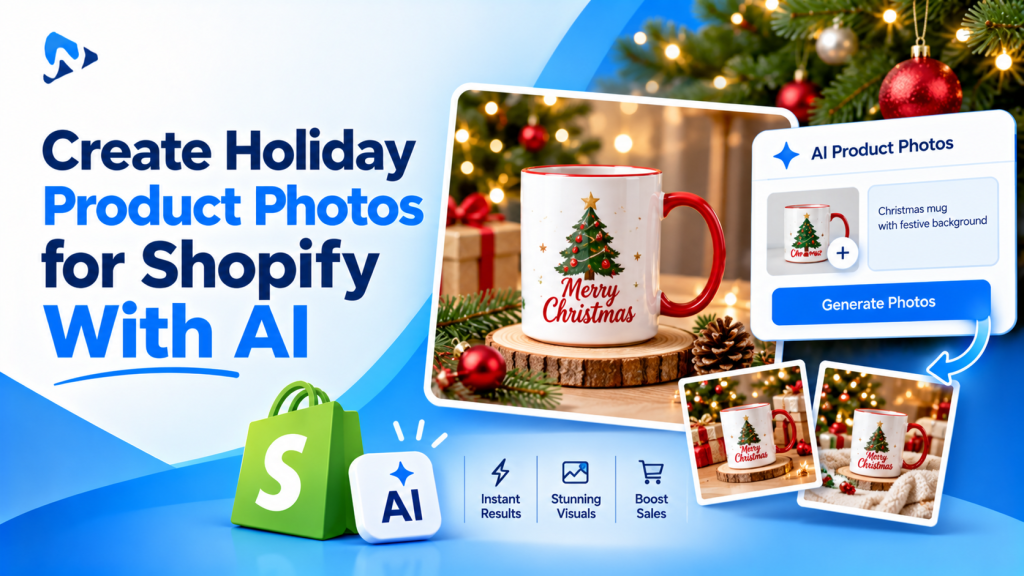
Upload one product photo, generate a few holiday scenes, keep the accurate ones, then optimize them for your store. Webiots develops LUX AI Product Images; plan details are from its App Store listing.
- Install LUX AI Product Images. The free plan includes 200 credits.
- Pick a sharp product photo with good light and the whole product in view. The cleaner the starting photo, the better the result.
- Remove the background if you also need a clean main image.
- Generate a holiday scene by describing it, such as “on a wooden table with pine branches and warm fairy lights”.
- Create 2 or 3 versions and keep only those where the product looks exactly like the real item.
- Make a short product video from the images for ads or social posts. AI video generation is on the paid plans, from $9.99/month.
- Resize and compress the images, then add AI alt text and SEO-friendly file names.
- Add the images to your product as extra images, after the main image.
Turn one product photo into holiday-ready images
AI lifestyle scenes, background removal, alt text and SEO file names. Free plan with 200 credits; video from $9.99/month.
How Do You Add Alt Text and File Names to Holiday Images?
Describe the product and the scene in plain words, and give each file a short, descriptive name. Google calls alt text the most important attribute for giving it information about an image, and says descriptive file names give light clues about what an image shows: “my-new-black-kitten.jpg” is better than “IMG00023.JPG” (Google Search Central).
| Weak | Better | |
|---|---|---|
| File name | IMG_4521.jpg | gold-name-necklace-christmas-gift-box.jpg |
| Alt text | necklace christmas gift best necklace cheap | Gold name necklace in an open gift box with pine branches |
Avoid stuffing keywords into alt text; Google says it can look like spam. LUX can generate alt text and file names for you, but read them before saving.
What Should You Check Before Publishing AI Holiday Photos?
- The product is unchanged: same color, shape, size, text and details as the real item.
- Props are clearly extras: nothing in the scene looks like it’s included when it isn’t.
- The file fits Shopify’s limits: up to 20 MB and 25 megapixels, in JPEG, PNG, WEBP, HEIC or GIF (Shopify Help Center).
- It looks good on mobile: check the crop on a phone, where most holiday shoppers browse.
- There’s a plan for January: note which images are seasonal so you can remove them after the holidays.
The Bottom Line
AI makes holiday product photos fast, but accuracy matters more than effect. Keep a clean main image, add one or two holiday scenes as extra images, check that the product looks exactly like the real item, and finish each image with clear alt text and a descriptive file name. Then reuse the same images in your Black Friday emails and ads.
Want to try it on your own products? Install LUX AI Product Images free.
Frequently Asked Questions
Can I use AI-generated product photos on Shopify?
Yes. Make sure each image shows the real product accurately, and keep a clean, accurate main image. If you sell through Google Shopping, check Google’s image rules for AI-generated images.
Should my main product image be a holiday scene?
Usually not. Keep a clean main image and add holiday scenes as the second or third image, so they’re easy to remove after the season.
What size should Shopify product images be?
Shopify accepts images up to 20 MB and 25 megapixels. Use the same aspect ratio for all images of a product so your product page looks consistent.
Do I need alt text on product images?
Yes. Alt text helps search engines understand your images and helps shoppers who use screen readers. Describe the product and scene in plain words.
Can AI make product videos from photos?
Yes. LUX can generate short product videos from product images on its paid plans, starting at $9.99 a month.
Related Reading
- Best AI Product Photography Apps for Shopify
- Shopify BFCM 2026: The Complete Guide + 25-Step Checklist
- 34 Black Friday Promotion Ideas for Shopify Stores
- Holiday Order Cutoff for Personalized Products on Shopify
Update Log
November 4, 2026: First published.