

Last updated: October 26, 2026. Disclosure: Webiots develops Ultimate Product Options, one of the two apps compared here. All features and prices come from each app’s public Shopify App Store listing.
Quick answer: Shopify has no built-in font picker, so most stores add one with a product options app. Show each font as an image swatch with a sample of the lettering, pair it with a text field for the customer’s words, and save both to the order. Offer 3 to 6 fonts your workshop can actually produce, and check each font’s license covers use on products you sell.
Key takeaways:
- Show fonts as image samples, not just names.
- Offer only fonts you can produce well.
- Check font licenses before you sell.
In this guide
- Does Shopify have a font picker?
- 3 ways to let customers choose a font
- How to set it up
- How to choose which fonts to offer
- Making sure production uses the right font
- The bottom line
- FAQ
Does Shopify Have a Built-In Font Picker for Products?
No. Shopify product pages have no font selection setting, so you add one with an app or custom code. Font choices matter for engraved jewelry, monogrammed bags, custom signs, embroidered apparel and personalized gifts, where the lettering style is part of what the customer is buying.
A font choice works like any other product option. The customer picks a font, types their text, and both are saved on the order line as line item properties (Shopify Dev Docs), so your team knows exactly what to make.
What Are the Ways to Let Customers Choose a Font on Shopify?
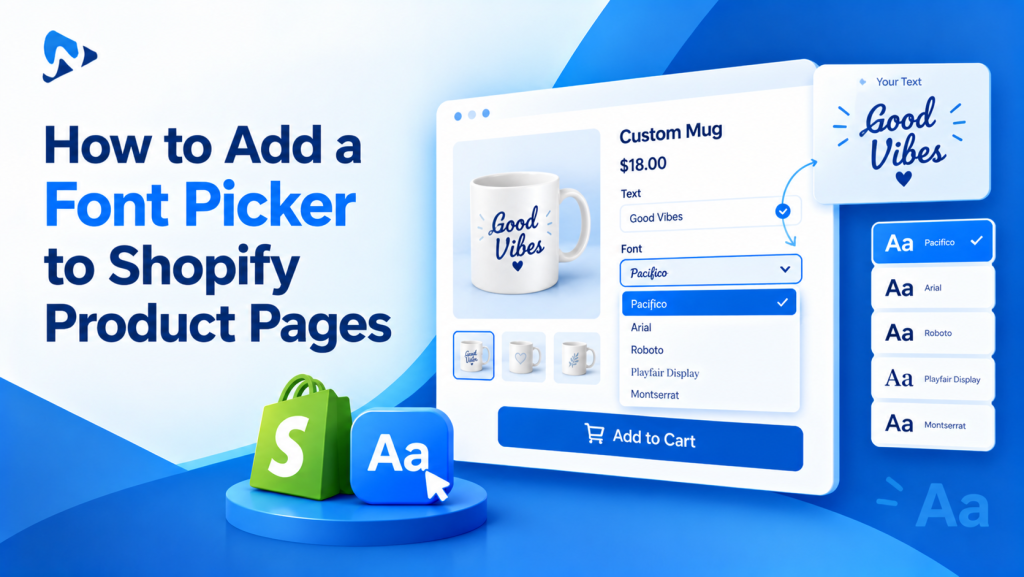
A dropdown of font names, image swatches showing each font, or a live text preview.
| Method | What the shopper sees | Best for | Watch out |
|---|---|---|---|
| Dropdown | A list of font names, such as “Script” or “Block” | 2 or 3 very different fonts | Shoppers can’t see what the font looks like |
| Image swatches | A small picture of each font, such as “Emma” written in that style | Most engraving and monogram stores | Keep images small and sharp |
| Live text preview | The shopper’s own text shown in the chosen font | High-value or gift products | Needs a preview feature or custom code; test on mobile |
Image swatches are the best starting point for most stores: shoppers see the style instantly, and they’re simple to set up. For a deeper look at previews, see live text and monogram previews on Shopify product pages.
How Do You Add a Font Picker With Ultimate Product Options?
Create font sample images, add them as image swatches, add a text field for the customer’s words, and test an order. Webiots develops Ultimate Product Options; its App Store listing includes fonts, image swatches and text fields among its options.
- Make a sample image for each font: write the same word, such as “Emma”, in each font. Use the same size and background for every image.
- Install Ultimate Product Options and turn on its app embed in the theme editor.
- Create an option set called “Personalization” and assign it to your engravable products.
- Add an image swatch option labelled “Choose a font”, and upload one sample image per font. Give each swatch a clear name, such as “Script” or “Classic Serif”, because the name is what’s saved on the order.
- Add a text field labelled “Your text”, with the length in the label, such as “Up to 12 characters”.
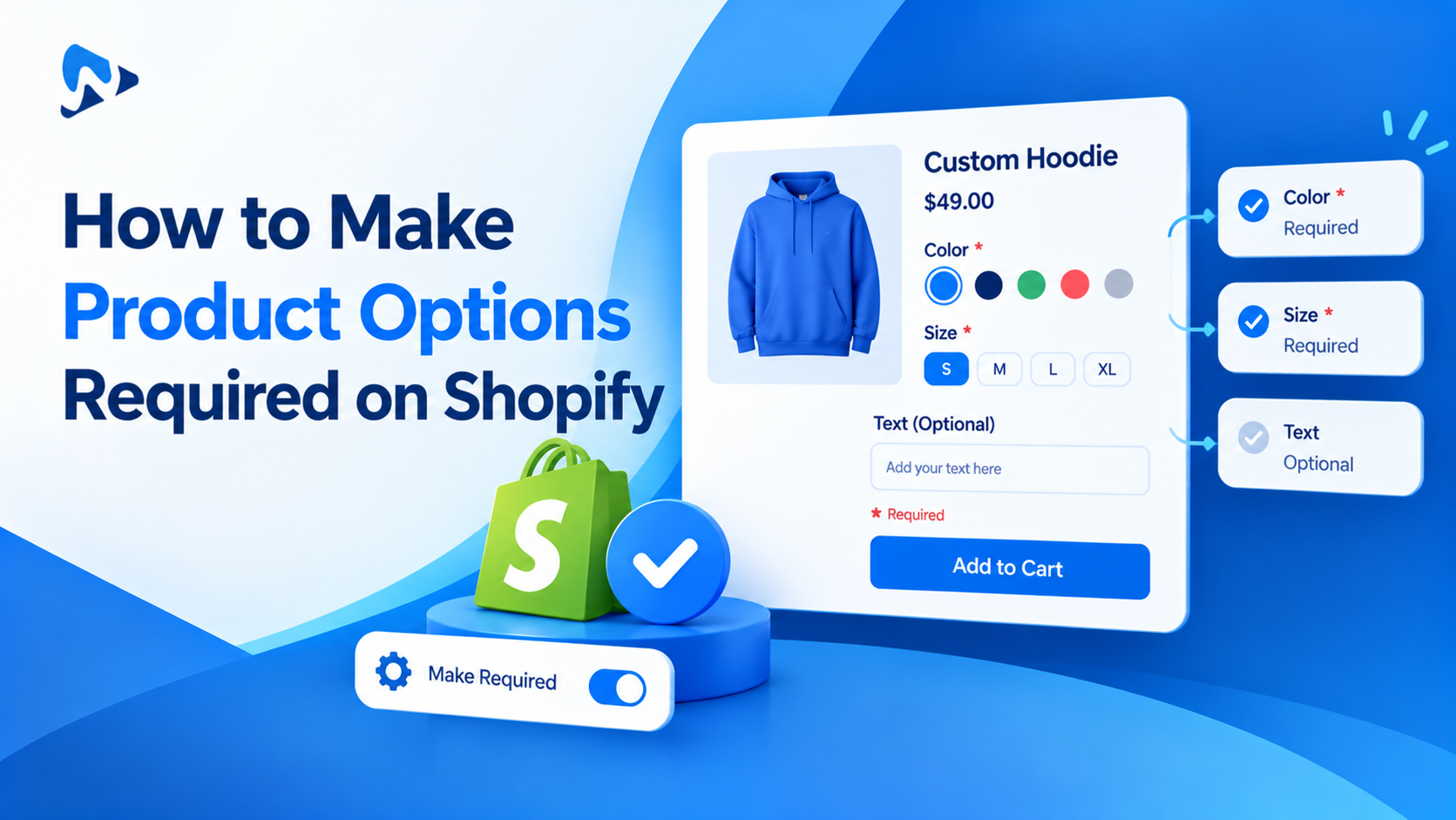
- Make both required so no order arrives without a font or text. See how to make product options required.
- Add conditional logic (Basic plan and above) if personalization is optional: show the font and text fields only after “Add engraving” is ticked.
- Place a test order and check the font name and text both appear on the order.
To charge for engraving, add an add-on price to the checkbox. See how to charge extra for product options.
Let customers pick a font in seconds
Image swatches, text fields and add-on prices for personalized products. Free plan available.
How Should You Choose Which Fonts to Offer?
Offer a few clearly different fonts that look good at your product’s real size and that you’re licensed to use.
| Check | Why it matters |
|---|---|
| 3 to 6 fonts | Too many choices slows shoppers down, and similar fonts confuse them |
| Clearly different styles | For example, one script, one serif, one block and one modern sans-serif |
| Readable at real size | Thin script fonts can become unreadable when engraved small |
| Works with your machine | Some fonts don’t engrave, cut or stitch cleanly |
| Licensed for products | Many fonts need a commercial or merchandise license to use on items you sell |
Font licenses: a font being free to download doesn’t always mean it’s free to use on products you sell. Read each font’s license, or buy a license that covers merchandise, before you offer it. This isn’t legal advice; check with the font’s creator if you’re unsure.
How Do You Make Sure Production Uses the Right Font?
Match every font name on the order to the exact font file your team uses.
- Keep a font list: the swatch name, the exact font file name and the size to use.
- Install the same fonts on every computer or machine that produces orders.
- Print the details: make sure the font and text show on your packing slips. See how to show product options on emails and packing slips.
- Send a proof for high-value items before engraving.
- Check special characters: test accents and symbols, such as é or &, in every font you offer.
The Bottom Line
Shopify doesn’t include a font picker, but a few image swatches and a text field give shoppers exactly what they need. Offer a small set of clearly different, properly licensed fonts, make both fields required, and match every font name to the exact file your team uses. Then place a test order before you launch.
Want to add a font picker to your own products? Install Ultimate Product Options free or learn more about the app.
Frequently Asked Questions
Does Shopify have a font picker?
No. Shopify product pages don’t include a font selection option. You can add one with a product options app, using a dropdown or image swatches, or with custom code.
How many fonts should I offer?
Usually 3 to 6. Choose clearly different styles, such as script, serif and block, so shoppers can pick quickly.
Can customers see their text in the chosen font?
Only with a live preview feature or custom code. Image swatches show each font’s style using a sample word, which is enough for most stores.
Can I charge more for certain fonts?
Yes. In a product options app, you can add a price to individual swatches, for example +$3 for a hand-lettered script.
Do I need a license for the fonts I offer?
Often, yes. Many fonts need a commercial or merchandise license for use on products you sell. Check each font’s license before offering it.
Related Reading
- How to Add a Custom Text Field (Engraving) to a Shopify Product Page
- Live Text and Monogram Previews on Shopify Product Pages
- How to Make Product Options Required on Shopify
- Shopify Color and Image Swatches: Complete Guide
Update Log
October 26, 2026: First published. Shopify details and app features checked against the sources below.