

Last updated: November 19, 2026. Shopify’s video requirements come from the Shopify Help Center, and LUX’s plans from its Shopify App Store listing, both checked on November 18, 2026. Disclosure: Webiots develops LUX AI Product Images, the app used in Method 1.
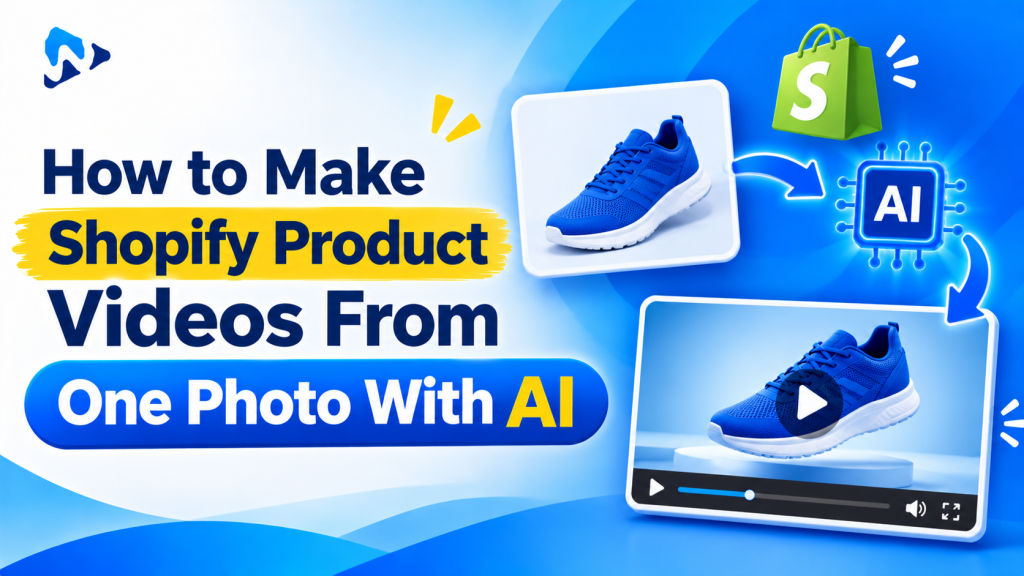
Quick answer: To make a Shopify product video from one photo, pick a sharp, high-resolution photo with the whole product in frame, then use an AI image-to-video tool to add simple motion such as a slow zoom, a gentle turn or a lifestyle scene. Use a Shopify app like LUX AI Product Images to do it inside Shopify, or a general AI video tool and upload the clip yourself. Check the label, logo and color match the real product, then add the video under Products > Media. Shopify accepts MP4, MOV or WebM files up to 1 GB, 10 minutes and 4K.
Key takeaways:
- The photo decides the result: sharp, well lit and the whole product visible.
- Simple motion keeps the product accurate; big moves make AI invent details.
- Keep product page videos short, about 5 to 10 seconds, and place the video second in the gallery.
In this guide
- Why use product videos
- Choosing the right photo
- Which motion to use
- Method 1: Inside Shopify with an app
- Method 2: With a general AI video tool
- Prompts by product type
- Accuracy checklist
- Adding the video to Shopify
- FAQ
Why Add Video to Shopify Product Pages?
A short video shows shape, size, texture and movement in a way still photos can’t. It helps shoppers understand a product without touching it, and the same clip can be reused in ads, Reels, TikTok and email. Until recently that meant a video shoot for every product. AI image-to-video tools now turn a photo you already have into a short clip in minutes, which makes video possible for a whole catalog.
Which Product Photo Should You Use?
AI can only work with what’s in the photo, so choose carefully.
- Sharp and high resolution: at least 2048 pixels on the longest side if you have it.
- Whole product in frame: nothing cropped at the edges, with some space around it for camera movement.
- Even lighting: no harsh shadows or reflections the AI might turn into strange shapes.
- Clean background: plain or simple. Remove busy backgrounds first; see our guide to removing image backgrounds on Shopify.
- Readable label: if the product has text, choose a photo where it’s straight and clear.
- The side you want to show: AI guesses any side it can’t see, so a full 360° turn from one front photo can invent a wrong back.
Which Video Motion Works Best for Products?
| Motion | What it looks like | Best for | Accuracy risk |
|---|---|---|---|
| Slow zoom | Camera moves gently toward the product | Any product, labels, jewelry detail | Low |
| Orbit or slight turn | Camera moves part way around the product | Shoes, bags, bottles, gadgets | Medium: hidden sides are guessed |
| Light and shine | Light sweeps across the product | Jewelry, watches, glass, cosmetics | Low |
| Lifestyle scene | Product in a room, on a table or outdoors, with subtle movement | Home goods, food, candles, decor | Medium: check size and scale |
| Fabric movement or model | Clothes sway, or a model turns and walks | Fashion | Higher: check fit, length and pattern |
Method 1: How Do You Make a Product Video Inside Shopify?
A Shopify app works from your product photos directly and saves the video back to the product, so there’s no downloading and uploading. Here’s how it works with LUX AI Product Images, made by Webiots.
LUX AI Product Images: AI product video generation on paid plans: Starter $9.99 a month (1,500 credits), Growth $19.99 (4,500 credits), Pro $49.99 (13,000 credits), 20% off yearly · Free plan: 200 credits for AI product images, bulk editing, alt text, SEO file names and compression (no video) · Rating: 5.0 (2)
- Install LUX from the Shopify App Store and open it from your Shopify admin.
- Choose the product and the photo you want to animate. Your Shopify product images are already there.
- Choose video and describe the motion or scene, using one of the prompts below.
- Generate and watch the clip from start to end.
- Check accuracy with the checklist below, and regenerate with a simpler motion if anything looks wrong.
- Save it to the product, then move the video to second place in the product’s media.
Because LUX also writes alt text, renames files for search and compresses images, you can fix the product’s photos and add a video in the same place. Credits per video depend on the plan and settings shown in the app.
Turn product photos into videos inside Shopify
LUX AI Product Images: AI product videos from $9.99 a month, plus free alt text, SEO file names and image compression.
Method 2: How Do You Make One With a General AI Video Tool?
General AI video models such as Google Veo, Kling and Runway also turn a photo into a clip. They give you more control but take more steps.
- Download your product photo from Shopify at full size.
- Upload it to the AI video tool as the start image.
- Choose the aspect ratio before generating: square or 4:5 for the product page, 9:16 for Reels and TikTok, 16:9 for YouTube. Cropping later can cut into the product.
- Write a short prompt describing the motion, and choose a 5 to 8 second clip.
- Generate two or three versions and keep the most accurate one.
- Download it as MP4 and check it against the requirements below.
- Upload it to the product in Shopify.
Trade-off: these tools price by credits per clip, need a separate account and don’t know your catalog, so each video is uploaded by hand.
What Prompts Work for AI Product Videos?
Keep prompts short, describe one camera move, and tell the AI to keep the product unchanged. Copy and adjust these:
- Any product: “Slow, smooth camera push-in toward the product. Soft studio lighting. The product stays exactly the same, with no changes to shape, color, logo or text.”
- Jewelry and watches: “Macro close-up with a soft light sweeping across the metal and stones, creating gentle sparkle. Camera almost still. Keep the design unchanged.”
- Beauty and bottles: “Camera slowly turns 20 degrees around the bottle on a clean surface, light reflections moving on the glass. Label stays sharp and unchanged.”
- Clothing: “The garment hangs and sways gently as if in a light breeze. Fabric texture visible. Same color, pattern and length.”
- Home and decor: “The product sits on a wooden table in a bright living room, morning sunlight moving slowly across it. Camera slowly pulls back. Keep the product’s size and shape.”
- Food and drink: “Soft steam rising, slow push-in, warm natural light. Packaging and label unchanged.”
How Do You Check an AI Product Video Is Accurate?
Your video must show the product the customer will receive. Watch every clip before publishing and check:
- The label, text and logo are the same in every frame, with no warped letters.
- The color matches the real product under normal light.
- The shape, size and proportions are right, especially in lifestyle scenes.
- No extra parts, buttons, straps or features appear that the product doesn’t have.
- For clothing, the fit, length and pattern match.
- Hands, faces and backgrounds look natural.
- The clip looks right with the sound off, since most shoppers watch muted.
A video that shows features the product doesn’t have can mislead shoppers, lead to returns and break advertising rules. Check whether your market or ad platform asks you to label AI-generated content.
How Do You Add a Video to a Shopify Product?
- In Shopify admin, go to Products and open the product.
- In the Media section, click Upload new and choose your video file, or click Add from URL to embed a YouTube or Vimeo video.
- Drag the video to second place, after your main photo. The first image is used in collections, search results and shopping feeds.
- Click Save, then check the product page on your phone.
- In your theme editor, check the product media settings, such as video looping, which some themes offer.
| Shopify video requirement | Limit |
|---|---|
| File types | MP4, MOV or WebM (MOV and WebM are converted for playback) |
| File size | Up to 1 GB |
| Length | Up to 10 minutes |
| Resolution | Up to 4K (4096 x 2160 px) |
| YouTube or Vimeo links | Allowed as embeds; file limits don’t apply |
For product pages, shorter is better: a 5 to 10 second loop at 1080p is plenty and loads faster than a long 4K file. See our guide to Shopify product image sizes for matching photo sizes.
Where Else Can You Use AI Product Videos?
- Social: make a 9:16 version for Reels, TikTok and Shorts.
- Ads: short loops work as Meta and TikTok ad creative. Test them against your photo ads.
- Email: email apps don’t play video reliably, so use a GIF or a still with a play button that links to the product.
- Collection pages: some themes play a short video when shoppers hover over a product card.
The Bottom Line
You don’t need a video shoot to add video to your Shopify products. Pick a sharp photo with the whole product in frame, choose a simple motion like a slow zoom or light sweep, and generate the clip with a Shopify app like LUX AI Product Images or a general AI video tool. Check every frame matches the real product, keep it to 5 to 10 seconds, and add it as the second item in your product media.
Frequently Asked Questions
Can AI make a product video from a single photo?
Yes. AI image-to-video tools add camera movement, lighting or a scene to one photo. Simple motions like a slow zoom stay accurate; full 360° turns from one front photo can invent sides the AI never saw.
How long should a Shopify product video be?
About 5 to 10 seconds for product pages. Shopify allows up to 10 minutes, but short loops load faster and show the product quickly.
What video format does Shopify accept?
MP4, MOV or WebM files up to 1 GB, 10 minutes long and 4K resolution. You can also embed YouTube or Vimeo videos.
Where should the video go in the product gallery?
Second, after your main photo. The first media item is used as the thumbnail in collections, search and shopping feeds.
Are AI product videos allowed?
Yes, as long as they show the real product accurately. Check your ad platforms’ rules on AI-generated content and whether they ask you to label it.
Does adding video slow down my product page?
It can. Keep clips short, use 1080p rather than 4K, and test your page speed after adding them. Shopify converts uploaded videos to streaming formats that adapt to the shopper’s connection.
Related Reading
- Best AI Product Photography Apps for Shopify
- AI Clothing Product Photos for Shopify
- How to Remove Image Backgrounds on Shopify
- Shopify Image SEO and Alt Text
- Holiday Product Photos With AI
Update Log
November 19, 2026: First published, with Shopify video requirements and LUX plans checked on November 18, 2026.