

Last verified: October 20, 2026. Shopify limits and app plan details are linked to their sources. Disclosure: Webiots develops Ultimate Product Options, the app used in the setup steps.
Quick answer: You can charge extra with priced variants, a separate add-on product, or a product options app with add-on pricing. Variants suit upgrades that need their own stock, while apps suit engraving, gift wrap and services. Overriding the line price at checkout is limited to Shopify Plus stores.
Key takeaways:
- Variants suit upgrades with their own stock.
- Apps suit engraving, gift wrap and services.
- Test prices in cart and checkout.
In this guide
- 4 ways to charge for options
- Comparison table
- How to set up add-on pricing in an app
- How to price your add-ons
- How to test add-on prices
- The bottom line
- FAQ
How Can You Charge Extra for Product Options on Shopify?
There are four common methods. The right one depends on whether the extra needs its own inventory, and on your Shopify plan.
1. Priced Variants
Create a variant for each priced choice. For example, a wallet with “No engraving – $60” and “With engraving – $68”.
Good for: upgrades that need their own SKU or stock, such as a larger size or a premium material.
Watch out: every priced choice multiplies your variants and uses one of your 3 options. It can’t capture the engraving text itself.
2. A Separate Add-On Product
Create a product such as “Gift Wrap – $5” and add it to the cart alongside the main product, either by a checkbox with code or a cart upsell.
Good for: services sold across many products, such as gift wrap or express handling.
Watch out: shoppers can remove the main product and keep the add-on, or the reverse. Hide the add-on product from search and collections, and check how it shows on packing slips.
3. A Product Options App With Add-On Pricing
The app shows the extra (checkbox, swatch, text field) on the product page with a price, such as “+$8”, and adds the charge when the item goes in the cart. Apps handle this in different ways, for example by adding a separate add-on line, so check how your chosen app handles cart totals, discounts, refunds, accelerated checkout and order records.
Good for: personalization, gift wrap, premium upgrades and any extra that doesn’t need its own stock.
Watch out: test how the charge appears with discounts, refunds and your cart drawer.
4. Cart Transform Line-Price Updates (Shopify Plus)
Shopify’s Cart Transform function can update a cart line’s price, title or image. Shopify’s documentation says only Shopify Plus stores and development stores can use apps with these line update operations. This restriction applies to line-price updates only, not to the other methods above (Shopify Dev Docs).
Good for: Plus stores that want the add-on folded into the product’s own line price.
Watch out: not available on Basic, Shopify or Advanced plans; Shopify also rejects these operations when a subscription (selling plan) is in the cart.
Which Method Should You Choose?
| Method | Shopify plan | Own stock | Captures text or files | Best for |
|---|---|---|---|---|
| Priced variants | Any | Yes | No | Sizes, materials |
| Separate add-on product | Any | Yes | No | Store-wide services |
| Options app add-on pricing | Any | Usually no | Yes | Personalization, gift extras |
| Cart Transform line-price update | Plus or development stores | No | Depends on app | Plus stores with custom pricing |
How to Set Up Add-On Pricing in Ultimate Product Options
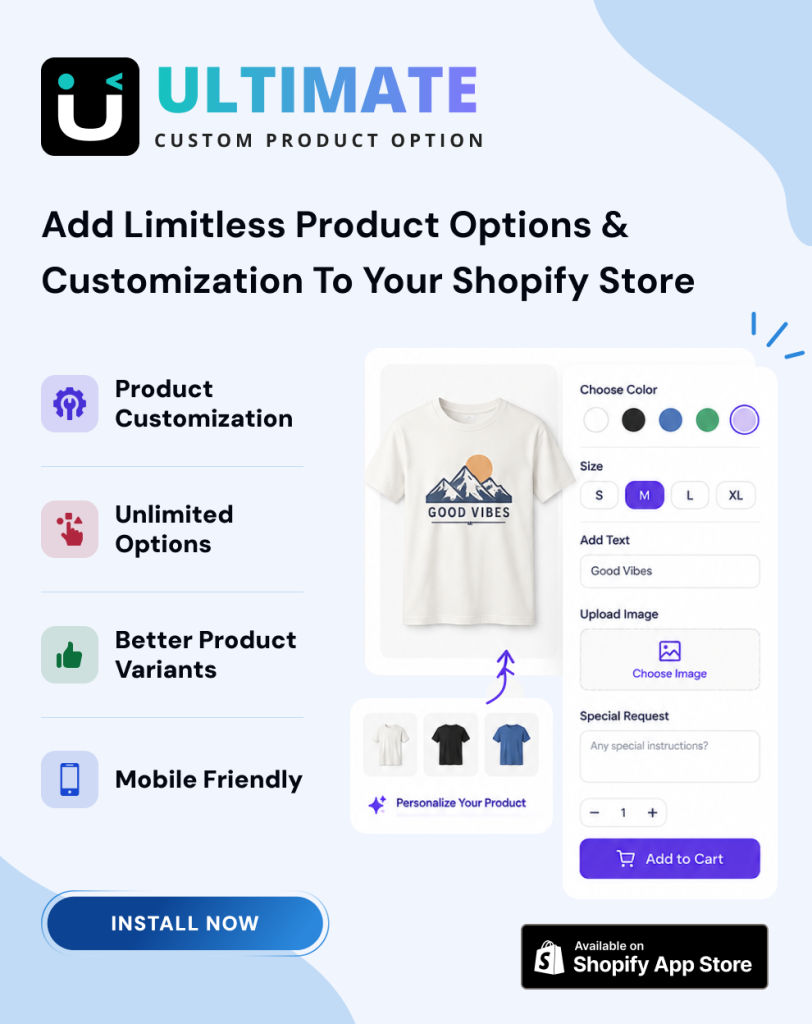
Add an option, give each paid choice a price, and test the total in the cart. Webiots develops Ultimate Product Options, and add-on pricing is included on its free plan.
- Install Ultimate Product Options.
- Create an option set and add your paid extras, such as a “Gift wrap” checkbox (+$5) or an “Engraving” text field (+$8).
- For choices with several prices, use a dropdown or swatch, for example “Standard box (free)”, “Gift box (+$5)”, “Wooden box (+$15)”.
- Assign the set to products and check that the price updates on the product page as options are picked.
- Run the tests in the next section before going live.
For ideas on which add-ons to offer, read The Add-On Revenue Engine: Boosting AOV with Checkbox & Swatch Surcharges.
Charge for gift wrap, engraving and upgrades
Add-on pricing is included on the free plan, with checkboxes, swatches and dropdowns.
How Should You Price Add-Ons?
Price an add-on to cover its real cost and time, and keep it small next to the product price. These are common starting points; adjust them to your costs.
| Add-on | Typical pricing approach | Tip |
|---|---|---|
| Gift wrap | Flat fee covering materials and packing time | Offer a free gift note next to it |
| Engraving or monogram | Flat fee, or per line for long text | Show the character limit in the label |
| Premium material | Cost difference plus your margin | Use image swatches to show the difference |
Work out your minimum add-on price before you choose the final price:
Formula: Minimum price = (materials + labor time × hourly rate) ÷ (1 − payment fee % − target margin %)
Illustrative example for engraving: $0.50 in materials plus 5 minutes of labor at $24/hour ($2.00) is $2.50 in cost. With a 3% payment fee and a 60% target margin, the minimum price is $2.50 ÷ 0.37 ≈ $6.76, so a price of $7 or $8 covers it. Use your own costs and fees.
This is a selling-price calculation, not a profit guarantee. If 25% of buyers of a $60 product add an $8 engraving, that product’s average order value rises by $2 (0.25 × $8) in revenue. Track your real take rate and adjust.
How to Test Add-On Prices Before Going Live
Test every paid option the way a shopper would, on mobile and desktop.
| Test | Expected result |
|---|---|
| Select and remove each paid option | Product page price updates both ways |
| Add to cart (page and drawer) | Cart total includes the add-on |
| Change quantity in the cart | Add-on charge stays correct for the quantity |
| Apply a discount code | Discount applies as you intended (to the product, add-on or both) |
| Complete a test order (including Buy it now, if enabled) | Order shows the option, its value and the charge |
| Refund or cancel the add-on only | You can refund it without refunding the product |
If the price doesn’t carry into the cart or the add-on appears without the product, see how to fix product options not showing in the cart.
The Bottom Line
Use variants for upgrades that need their own stock, and an options app for services like engraving and gift wrap. Price each add-on to cover its cost, show the price clearly next to the option, and test it with discounts and refunds before a busy sales period.
Want to try it on your own products? Install Ultimate Product Options free or learn more about the app.
Frequently Asked Questions
Can I charge for a product option without creating a variant?
Yes. A product options app with add-on pricing or a separate add-on product both charge extra without new variants. Without an app, a separate add-on product is the main option, but it doesn’t capture custom text.
How do I add a gift wrap charge on Shopify?
Use a “Gift wrap” checkbox with a price in a product options app, or create a gift wrap product added to the cart. An app keeps it tied to the right product.
Do add-on charges work with discount codes and refunds?
Usually, but it depends on the method and app. Check whether discounts apply to the add-on, the product or both, and whether you can refund the add-on on its own. Test both before a sale.
Why does the add-on show as a separate line in the cart?
Some apps charge add-ons as a separate line because Cart Transform line-price updates are limited to Shopify Plus and development stores. Check how your app displays charges.
Related Reading
- How to Add a Custom Text Field to a Shopify Product Page
- How to Add More Than 3 Options to a Shopify Product
- The Add-On Revenue Engine
- 34 Black Friday Promotion Ideas for Shopify Stores
Update Log
October 20, 2026: First published. Shopify limits and app plan details checked against the sources below.