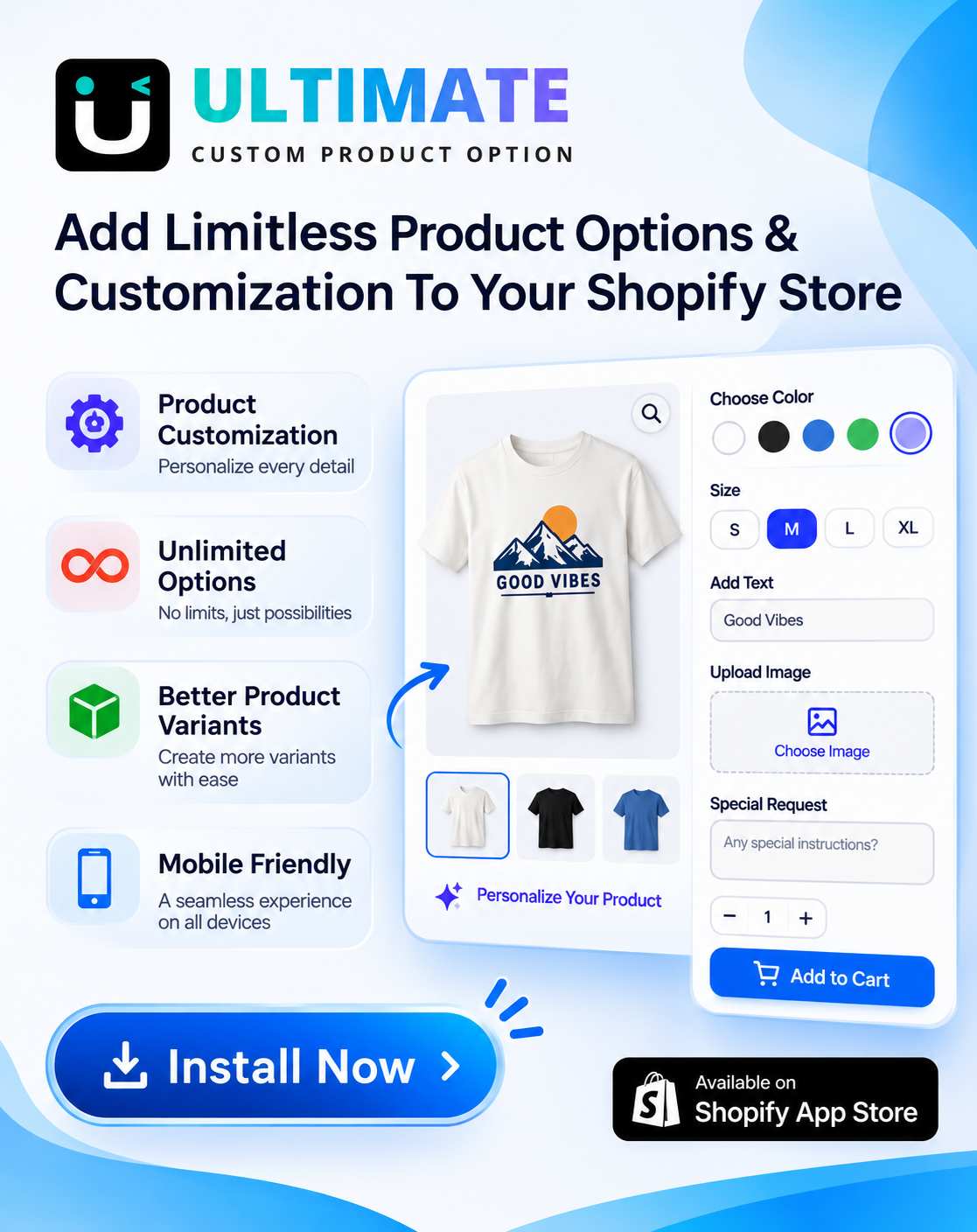


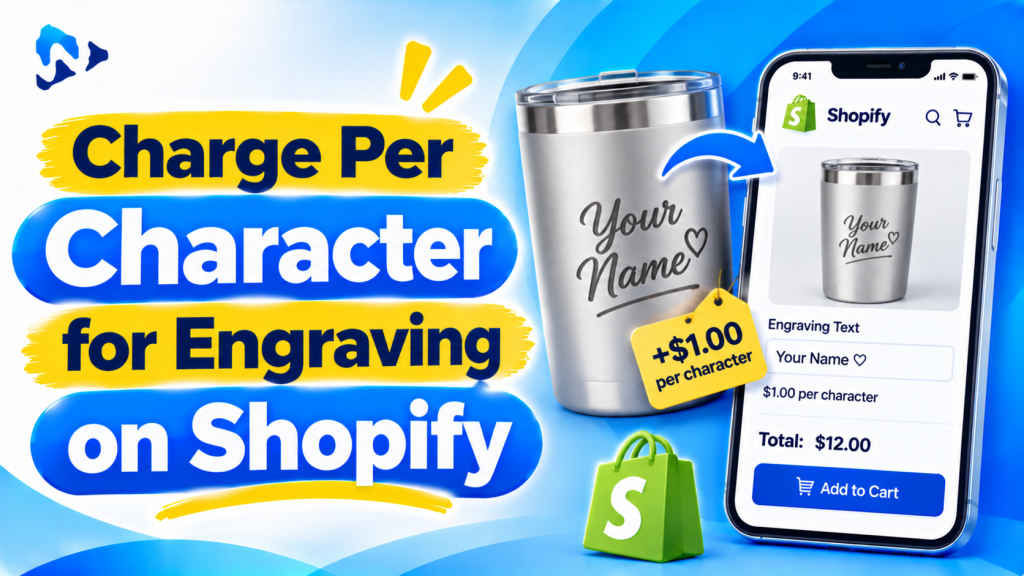
Quick answer: Shopify can’t charge per character on its own: a text field saves the engraving words, but it doesn’t change the price. To charge per character, use a product options app with per-character pricing, such as Ultimate Product Options, which lets one engraving field charge a base fee plus a price per letter, give the first letters free and leave spaces out of the count. A common setup is a $5 base fee plus $0.50 per letter, with a maximum length that fits your item. Without an app, add a hidden “engraving letter” product to the cart with a quantity equal to the letter count.
Key takeaways:
- Pick one of 6 pricing models, then write the rule next to the field.
- Say whether spaces, punctuation and symbols count.
- Set a maximum length your engraver can actually fit.
- Test long text, spaces only, emoji and a quantity of 2.
In this guide
- Why Shopify can’t do it natively
- 6 ways to price engraving
- What counts as a character
- Character limits by product
- Set it up in Ultimate Product Options
- Charge per character without an app
- Which method to choose
- How to show the price
- Test before you launch
- FAQ
Why Can’t Shopify Charge Per Character on Its Own?
Shopify prices products by variant. A variant can’t hold whatever name a shopper types, and the usual way to collect engraving text, a line item property, attaches the words to the order without changing the price (Shopify Dev Docs). On Shopify Plus, some stores used Shopify Scripts to add a per-letter fee at checkout. That route is gone: Shopify says all Scripts stopped running on June 30, 2026, and Shopify Functions replace them (Shopify changelog). So you have three working options: a product options app, a hidden per-letter product added with code, or a custom Shopify Function on Plus.6 Ways to Price Engraving (With Examples)
Examples use “FOREVER YOURS”, which has 12 letters and one space. Spaces aren’t counted.
| Model | Formula | “EMMA” (4) | “FOREVER YOURS” (12) |
|---|---|---|---|
| 1. Per character | letters × $0.50 | $2.00 | $6.00 |
| 2. Base fee + per character | $5 + letters × $0.50 | $7.00 | $11.00 |
| 3. First letters included | $12 for up to 8, then $1.50 each | $12.00 | $18.00 |
| 4. Per character with a minimum | letters × $0.75, at least $5 | $5.00 | $9.00 |
| 5. Price bands | Up to 10 letters +$8, 11 to 20 +$12 | $8.00 | $12.00 |
| 6. Per line | $6 per line | $6.00 (1 line) | $6.00, or $12.00 on 2 lines |
Illustrative prices; use your own costs. Real engravers use the same shapes. UK jeweller Hersey & Son charges “£5.00 plus 30p per character” (Hersey & Son), so 10 characters cost £8.00. James Avery charges $20 for laser engraving up to 10 characters, including symbols and punctuation, then $2 per extra character (James Avery).
Which to pick: model 2 (base fee + per letter) suits most stores. The base fee covers setup, handling and quality checks, which cost the same for 2 letters or 20, and the per-letter price covers machine or hand time. Use model 5 (bands) if per-letter pricing feels fussy for your shoppers.
What Counts as a Character?
Decide these rules before you set a price, and print them under the field so nobody is surprised at checkout.| Character | Common rule |
|---|---|
| Spaces | Free. Shoppers expect to pay for letters, not gaps. |
| Letters and numbers | Counted |
| Punctuation and symbols (&, ., ♥) | Usually counted, because they take engraving time |
| Emoji | Block them. Most engravers can’t cut them, and one emoji can count as 2 or more characters in code. |
| Capitals | Same price. Say if you engrave in capitals only. |
Character Limits by Product
Set the maximum from your real engraving area, not a guess. These are typical starting points to check against your own blanks.| Product | Typical maximum |
|---|---|
| Small pendant, ring band | About 10 to 20 characters, 1 line |
| Bracelet or bangle | Up to about 45, depending on size |
| Watch case back | About 8 to 15 per line |
| Pet tag | About 15 to 20 per line, 2 to 3 lines (name and phone) |
| Glassware, tumbler | About 20 to 30, 1 to 2 lines |
| Plaque, award | About 50 to 100, several lines |
How to Charge Per Character in Ultimate Product Options
Ultimate Product Options can charge a base fee plus a price per character on one engraving field, give the first letters free, and leave spaces out of the count. Fixed engraving fees are on the free plan; per-character and per-line pricing are on paid plans. Webiots develops the app.- Install Ultimate Product Options and create an option set called “Engraving”.
- Add a text field labelled “Engraving text”. Set the maximum length for your item and a placeholder such as “Up to 15 letters”.
- Set the pricing to per character and enter your rate, such as $0.50.
- Add your rules on the same field: a base fee (such as $5), how many letters are free (such as the first 8), and whether spaces count.
- Make engraving optional (recommended): add an “Add engraving” checkbox and use conditional logic so the text field appears only when it’s ticked. Conditional logic starts on the Basic plan ($7.99/month).
- Add a font choice with only the fonts your engraver can produce cleanly. For a live text preview on the product image, use the Advanced plan ($12.99/month).
- Decide per item or once per order. If a shopper buys 2 identical engraved items, the fee normally applies to each. If the engraving setup happens once, set the option to charge once per order.
- Assign the option set to products, a collection or tags, then run the tests below.
Charge per character for engraving
Base fee plus price per letter, free letters, spaces not counted, and a once-per-order option. Free plan available.
How to Charge Per Character Without an App
The free workaround: sell a hidden product called “Engraving letter” priced at your per-letter rate, and add it to the cart with a quantity equal to the letter count. A merchant in the Shopify Community solved a $9-per-letter wooden sign this way with a developer (Shopify Community).- Create a product “Engraving letter” at $0.50, untrack its inventory, and keep it out of your collections and search.
- Copy its variant ID (open the variant and copy the number at the end of the URL).
- Make sure your engraving field is named
properties[Engraving]and sits inside the product form. - On a duplicate theme, paste the code below into your product template (for example in a Custom Liquid block) and replace
1234567890with the variant ID.
<script>
  document.addEventListener('submit', function (e) {
    var form = e.target;
    if (!form.matches('form[action*="/cart/add"]')) return;
    var field = form.querySelector('[name="properties[Engraving]"]');
    var text = field ? field.value.trim() : '';
    var letters = text.replace(/\s/g, '').length; // spaces are free
    if (letters === 0) return;
    e.preventDefault();
    e.stopPropagation();
    var variantId = Number(form.querySelector('[name="id"]').value);
    fetch('/cart/add.js', {
      method: 'POST',
      headers: { 'Content-Type': 'application/json' },
      body: JSON.stringify({ items: [
        { id: variantId, quantity: 1, properties: { 'Engraving': text } },
        { id: 1234567890, quantity: letters, properties: { '_Engraving for': text } }
      ] })
    }).then(function () { window.location.href = '/cart'; });
  }, true);
</script>Which Method Should You Choose?
| Method | Cost | Base fee + free letters | Best for |
|---|---|---|---|
| Options app (e.g. Ultimate Product Options) | Monthly plan | Yes, no code | Most stores, many engravable products |
| Hidden per-letter product + code | Free | Only with extra code | One or two products, a developer on hand |
| Price bands as variants or a dropdown | Free | Bands only, not per letter | Simple engraving with 2 or 3 lengths |
| Custom Shopify Function | Developer time | Yes | Shopify Plus stores with in-house developers |
How to Show the Price So Shoppers Aren’t Surprised
- Put the rule in the label: “Engraving: $5 + $0.50 per letter (spaces free)”
- Show a live counter: “12 of 15 letters · +$11.00”
- Add help text: “Symbols and punctuation count as letters. Emoji can’t be engraved.”
- State the production time: “Engraved items ship in 2 to 3 business days.”
- Say engraved items are final sale if that’s your policy.
Test Before You Launch
| Test | Expected result |
|---|---|
| Field left empty | No engraving fee, including no base fee |
| Text with spaces (“FOREVER YOURS”) | Spaces counted or free, as your label says |
| Exactly the free-letter limit, then one more | Charge starts on the right letter |
| Maximum length | Field stops at the limit, and the text fits the item |
| An emoji or a symbol | Blocked, or priced the way you decided |
| Quantity 2 | Fee applies per item or once, as you set |
| A discount code | Applies to the engraving fee the way you intended |
| A full test order | Text, font and fee show on the order and packing slip |
The Bottom Line
Shopify needs help to charge per character: a text field collects the words but not the money. Pick a pricing model (a base fee plus a price per letter works for most stores), decide whether spaces and symbols count, set a maximum length your engraver can fit, and show the rule next to the field. Ultimate Product Options handles the base fee, per-letter price, free letters and spaces on one field; the free code method works for one or two products.Frequently Asked Questions
Can Shopify charge per character for engraving without an app?
Not on its own. Line item properties save the text but don’t change the price. Without an app, add a hidden per-letter product to the cart with a quantity equal to the letter count, or build a Shopify Function on Plus.Which Shopify apps can charge per character?
Several product options apps can. Ultimate Product Options supports per-character and per-line pricing, a base fee, free letters and spaces left out of the count, on its paid plans.Should spaces count as characters?
Most stores don’t charge for spaces. Whatever you choose, write it next to the field.How much should I charge per character?
Work from your costs: a base fee for setup and handling, plus a per-letter price for engraving time. Published examples include £5 plus 30p per character, and $20 for up to 10 characters then $2 each.Can I give the first few letters free?
Yes. Include a set number of letters in the base price, such as the first 8, and charge only for letters after that.Is per-character pricing better than a flat fee?
Per-character pricing matches your cost when text length varies a lot, such as plaques and bracelets. A flat fee is simpler for short engravings like initials. Price bands sit in between.If a customer buys 2 engraved items, is the fee charged twice?
Usually yes, because each item is engraved. If the setup happens once, such as one logo file, charge the option once per order instead.How does my engraver see the text?
The engraving text is saved on the order as a line item property, so it shows in the order in Shopify admin and, with a small template edit, on packing slips.Related Reading
- How to Charge Extra for Product Options on Shopify
- How to Add a Custom Text Field to a Shopify Product Page
- How to Add a Font Picker to Shopify Product Pages
- Character Limits and Validation for Engraving
- Live Text and Monogram Previews on Shopify
- Best Shopify Personalization Apps
Update Log
November 26, 2026: First published. Shopify details checked against the sources below.Sources
- Shopify Dev Docs: line_item properties
- Shopify changelog: Scripts deprecated on June 30, 2026
- Shopify Dev Docs: Cart API
- Shopify Community: Price per letter on a custom product
- Shopify Community: Engraving with base fee and per-character pricing
- Hersey & Son: Engraving FAQ
- James Avery: Engraving guide
- Ultimate Product Options on the Shopify App Store